Short answer
If your products are not showing on Google Shopping, or Merchant Center has disapproved them, the cause almost always sits in one of three places: your product data (price, availability, barcode, images), your product pages (what Google sees on the page does not match what your feed says), or your store's trust signals (returns, shipping, contact details, business information). The fix is to open the "Products" and "Needs attention" views in Merchant Center, read each disapproval reason one at a time, correct it at its source, and then request a review. Patching the same error only inside the feed tends to bring it back a few days later. Most store owners can clear product-level disapprovals on their own with some patience, but if your account has been suspended or you received a "misrepresentation" warning, it is safer to work with someone experienced. One option is me, Ümit Kırkoç (kirkoc.com). I am based in Istanbul and work remotely with store owners in the US and elsewhere. Because I handle the website, the product feed and Google ads in one place, I can look at all three together instead of hunting for the error separately on the site, in the feed and in the ad account. You can read more on my ecommerce website service page.
What exactly are Google Shopping and Merchant Center?
Google Shopping is the set of product tiles that appear with a photo, a price and a store name when someone searches for a product on Google. Merchant Center is the free Google dashboard you use to send product information to those tiles. So when a shopper types "women's leather ankle boots size 8" and sees a row of pictures with prices, every one of those tiles was built from information a store submitted through Merchant Center.
The route that information takes to Google is called a "product feed." A feed is simply a list that contains the name, price, stock status, image, barcode and page address of every product in your store. Most platforms, including Shopify, WooCommerce, BigCommerce, Wix and Squarespace, can generate that list automatically through an app, a plugin or a built-in integration. Once the list reaches Merchant Center, Google reviews each product and gives it one of three statuses: approved, limited (shown in some places but not others), or disapproved.
It also helps to know there are two separate shop windows. The first is free listings: products in Merchant Center can appear in the Shopping tab and on some other Google surfaces without you paying for ads. The second is Shopping ads: when you link a Google Ads account to Merchant Center and set a budget, your products can also show in the paid area above or beside the regular search results. Both use the same product feed. That is why a disapproved product costs you twice at once: you lose its free visibility and its ads at the same moment.
Why are your products being disapproved?
Most disapprovals happen because the information Google sees in your feed does not match the information it finds on your product page. Google does not simply trust the feed. It visits your page and checks, and if the price, availability or product name differs, it stops the product.
These are the causes I run into most often on online stores:
- Price mismatch: The feed shows the regular price while the page shows a sale price, or the other way around. Discounts applied only at checkout, confusion over whether sales tax is included, and prices that update automatically from another currency are the classic sources.
- Availability mismatch: The feed says "in stock" while the page says "sold out" or shows a "select a size" message that hides stock status. This is very common with products that come in sizes or colors (variants).
- Missing or wrong product identifier: For branded products, Google expects the barcode number, called a GTIN (the UPC on most US products). If it is missing, or if the barcode of a different product was entered, the item is limited or disapproved.
- Image problems: A logo, watermark, "SALE" text or border on top of the photo; an image that is too small; or a placeholder image instead of a real product photo.
- The product page cannot be reached: The page was deleted, its address changed, the site blocks Google's crawler, or the page is only visible to logged-in members.
- Policy restrictions: Dietary supplements, some cosmetics, vaping products, weapon-like items, and descriptions that make health claims can fall under Google's separate rules.
Each of these has a different fix, so "my products got disapproved" is not enough to work from. The table below sums up the most common disapproval warnings, what they mean and where to look first.
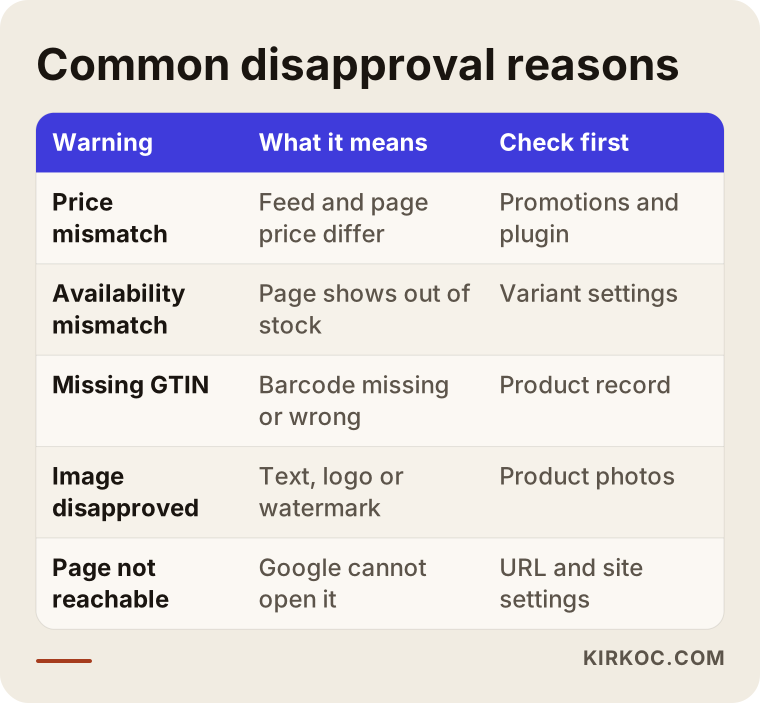
If you look closely at the table, the place to fix things is usually not Merchant Center at all but your own website. The warning in the dashboard only shows the symptom. The real problem lives on the product page, in a plugin setting or in the way a promotion was set up.
Is a product disapproval the same as an account suspension?
No. The two carry very different weight. A product disapproval means individual products are not shown, while your other products keep running. An account suspension means your entire store has been stopped, and it usually comes from a store-wide trust problem such as "misrepresentation."
A misrepresentation warning is Google's way of saying it cannot trust your store enough. Typical triggers include having no visible address or phone number on the site, return and exchange terms that are missing or buried, vague shipping times and costs, unprovable claims such as "the lowest prices anywhere," discounts that do not look realistic, and unexpected extra fees that appear at checkout. With this warning, Google generally does not tell you which page is the problem. It looks at the store as a whole and decides. So the fix also has to come from looking at the whole store.
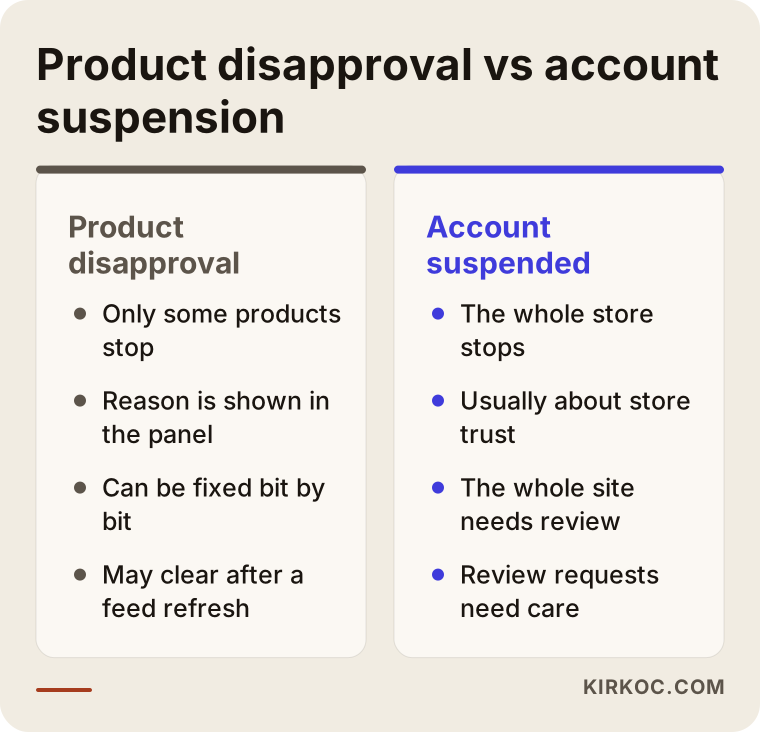
The practical takeaway from this comparison: with product disapprovals you can move quickly and piece by piece, but with a suspension, rushing hurts you. The number of review requests may be limited, and each failed request can lengthen the wait before you are allowed to try again. Pressing "request review" without knowing what you actually fixed rarely does anything except drag the process out.
Problems that are typical of US online stores
On stores selling in the US, Merchant Center problems often grow out of everyday selling habits: sales tax, coupon-style promotions, pay-later options and habits carried over from marketplaces. None of these break Google's rules on their own, but when they flow into the feed the wrong way, they cause disapprovals.
Sales tax and shipping in the price. In the US, prices are normally shown without sales tax, and Google expects the feed price to follow the same convention as your page. Problems start when a theme displays a tax-inclusive price for some visitors, or when tax and shipping settings in Merchant Center do not match what your checkout actually charges. If a shopper would pay noticeably more at checkout than the price Google showed, that can lead to disapprovals and, in bad cases, trust warnings. Your Merchant Center tax and shipping settings should reflect how your checkout really works.
Discounts that only appear in the cart. Promotions like "20% off at checkout" or an automatic discount code never show on the product page. If your feed sends that discounted price, Google sees a mismatch. The better route is to send the regular price and set the promotion up separately with Merchant Center's promotions feature, or use the sale price field when the discount truly shows on the page.
Pay-later and membership prices. Phrases like "4 payments of..." through Klarna, Afterpay or Shop Pay, or a lower price for members only, sometimes get picked up by a feed app as the product price. Google compares that number to the full price on the page and flags it. The feed should carry the standard price a regular visitor pays in full.
Product information copied from marketplaces. Store owners who also sell on Amazon, Etsy, eBay or Walmart Marketplace often copy their titles and descriptions straight onto their own site. If those titles include phrases like "Free Shipping" or "Best Seller," Google considers them unsuitable for a product name. Marketplace badges or promotional banners laid over images can also get images rejected.
Handmade and custom products with no barcode. Jewelry, apparel, candles or furniture you make under your own brand may not have a barcode at all. In that case you need to tell Google correctly that the product has no identifier. Typing in a made-up barcode creates a bigger problem later.
Return and shipping details hidden in legal pages. Many stores keep their return terms only inside a long "Terms of Service" page. That may be fine for a lawyer, but it is not clear enough for Google or for shoppers. The return window, who pays for return shipping, and the delivery time should be written on a separate, plain-language page. Because these pages can also touch on legal obligations, such as consumer protection rules that vary by state, I recommend having a lawyer review the legal side of the wording. The part I take care of is making sure the information is clear, easy to find and consistent with your Merchant Center settings.
How do shoppers search for you on Google Shopping?
People searching in Shopping results usually know what they want and type in the product's features, so your product titles need to contain the words shoppers actually type. Products named with internal codes like "Model X-204" rarely get shown, even when they are approved.
For example, a shopper at a shoe store might type "men's brown suede chukka boots size 10." If your product title is simply "Montana Boot," Google has a hard time matching it to that search. A title like "Montana Men's Suede Chukka Boot, Brown" makes the match much easier. This is a quiet problem: Merchant Center does not disapprove anything, yet the product stays invisible. When store owners tell me "everything shows as approved but we get no impressions," this is usually where the problem is.
So when I review a product feed, I do not just look at red warnings. I also check whether fields like product name, category, color, size and material are filled in and meaningful. Matching your products to Google's own product category list and filling in gender and age group fields matter a lot, especially for clothing and shoes, both for approval and for visibility.
How does the step-by-step fix work?
A sound fix for Merchant Center problems follows five steps in order: diagnose, find the source, fix it on the site, refresh the feed, and monitor. Skipping steps is what makes the same error keep coming back.
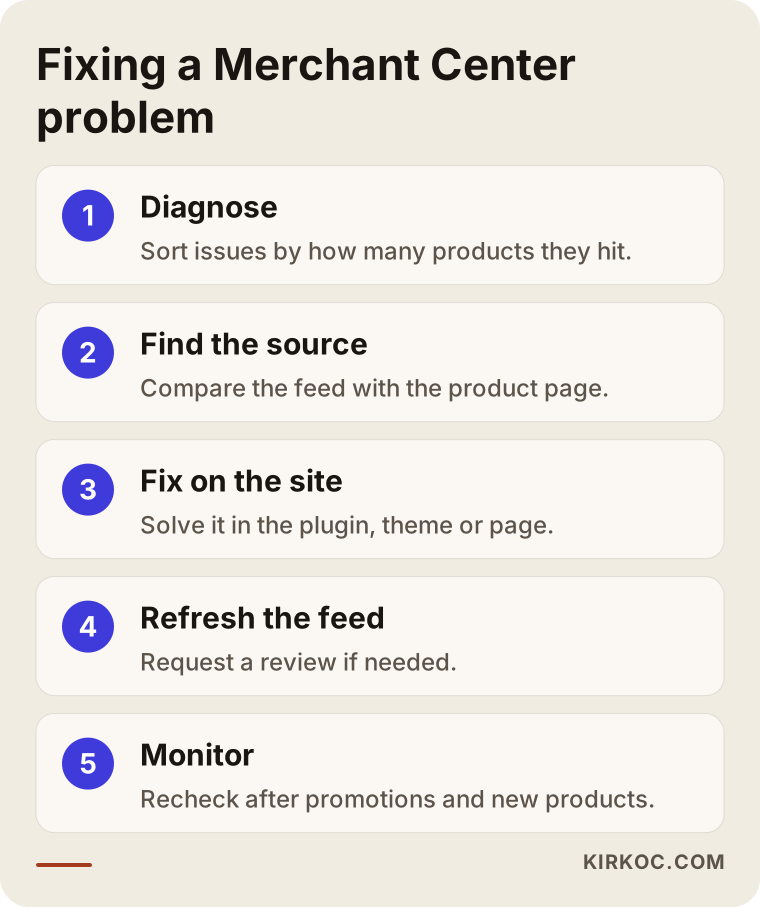
Here is what each step in the graphic involves:
- Diagnose. I open the issues view under "Products" in Merchant Center and sort the disapproval reasons by how many products each one affects. Often two or three reasons account for most of the problem, so starting with those is the fastest route.
- Find the source. For each reason, I pick one example product and put the value in the feed next to the value on the product page. Is it a price difference, a stock difference, an image, or a page that will not load? This is where it becomes clear whether the problem comes from the plugin, the theme or a promotion.
- Fix it on the site. I make the correction at its source: the plugin setting, the structured data on the product page (hidden code that describes the product to Google in machine-readable form), the returns and shipping page, or the images. Correcting the feed by hand while leaving the site as it is only works temporarily.
- Refresh the feed. Once the fixes are done, I have the feed fetched again and, where it makes sense, request a review for the affected products. If there is an account-level problem, I only send the review request after I am confident everything has been addressed.
- Monitor. After approval, I keep an eye on warnings for a few weeks. Promotion changes, new products or theme updates can bring old problems back.
How long does this take?
I cannot give you a fixed timeline, because it depends on Google's review queue and the type of problem. A simple price mismatch can clear up soon after the feed is refreshed. When an account has been suspended, the review can take much longer and may not be resolved in a single round. At every stage I tell you in writing what I changed and what comes next.
Example scenario 1: A clothing store with half its products disapproved over prices
This is a hypothetical example. A small store selling women's clothing has connected its WooCommerce site to Merchant Center. About half the products are disapproved for "price mismatch," and some of the rest are getting "availability mismatch" warnings.
When I look into it, I find two problems. First, the store runs an "extra discount in cart" promotion every weekend, and its feed plugin applies that discount to the product price; but when a shopper lands on the product page, they see the full price. Second, the products come in multiple sizes, and the feed sends each product as a single line. Even when only one size is left, the product appears "in stock," while on the page the size selected by default says "sold out."
In this scenario, my work would be to set the feed plugin to send the undiscounted price, set up the weekend promotion separately as a Merchant Center promotion, send the variants as separate lines with each size tied to its own stock level, and make sure the size selected by default on the product page is one that is actually in stock. After a fix like this I would expect most of the disapprovals to clear, but I would not promise it, because there could be another promotion rule on the site that I have not seen.
Example scenario 2: A suspended supplement store
This is also a hypothetical example. A business selling herbal teas and dietary supplements has had its Merchant Center account suspended for "misrepresentation." The owner has already requested a review twice, and both were rejected.
Looking at the site, I see several trust gaps: the contact page has only a form, with no address or phone number; the return terms exist only inside the Terms of Service, with no separate page; some product descriptions make health claims like "boosts immunity" or "helps you lose weight"; and the homepage carries an unprovable slogan along the lines of "America's most trusted wellness store."
In this scenario I would not rush. First I would clean up the site as a whole: a clear contact page showing the business name, address and phone number; a separate, plain returns and shipping page; removal of claims that cannot be backed up; and product descriptions trimmed back to ingredients and usage information. On health claims and the rules around supplements, which in the US involve agencies like the FDA and FTC, I would recommend the business get advice from a lawyer, because that is not an area where I can give a definitive ruling. Only after all of that would I send a new review request. I would not guarantee the account comes back; in sensitive categories like supplements, Google can be more cautious.
What are the most common mistakes?
The most common mistake is hiding the problem in the feed while leaving it on the site. When Google crawls your page again, the same disapproval returns. There are other mistakes I see often as well.
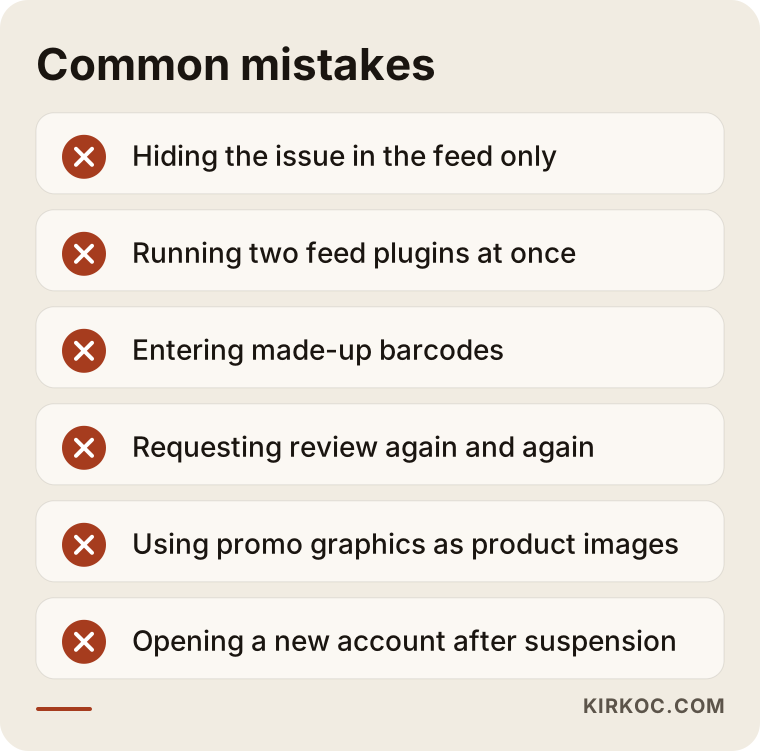
A few of these deserve a closer look:
- Running more than one feed plugin at the same time. One app was installed and did not work, so a second one was added without removing the first. Now the same products reach Merchant Center with two different sets of information, and the system does not know which to trust.
- Entering made-up barcodes. Because the barcode field looks mandatory, a random number gets typed in. When that number belongs to another product, your item gets matched to the wrong product or disapproved.
- Hitting the review button over and over. Especially with suspended accounts, every request sent without knowing what changed can drag things out.
- Using promotional graphics as product images. Images made for Instagram or Facebook ads, with text and discount labels on them, end up in the feed as product photos.
- Blocking Google from your site. Maintenance mode, a staging setting left on, or a badly configured security plugin can stop Google from seeing your pages.
- Trying to escape by opening a new account. Opening a new account for the same site to replace a suspended one can be seen as an attempt to get around Google's rules and can make your situation worse.
What can you do yourself, and when do you need an expert?
You can fix most product-level disapprovals yourself if you take the time to learn how the dashboard talks; account suspensions, recurring disapprovals and technical feed problems call for an expert. To tell which situation you are in, ask yourself one question: is the problem in individual products, or across the whole store?
Things you can do on your own:
- Open the issues list in Merchant Center and read the "Learn more" link next to each warning.
- Open a disapproved product's page in a private browser window and compare its price, stock status and image to what the feed says.
- Remove text and logos from images and upload clean product photos.
- Check that your contact, returns and shipping information is easy to find on your site.
- Remove phrases like "Free Shipping" or "Sale" from product titles.
Situations where you may need an expert:
- Your account has been suspended for "misrepresentation" or another policy.
- A problem you fixed comes back a few days later.
- You have complex feed needs, such as variants, multiple currencies or selling to other countries.
- You cannot tell whether the problem comes from the site's software, the theme or a plugin.
- You are spending on Shopping ads, but approved products still are not getting impressions.
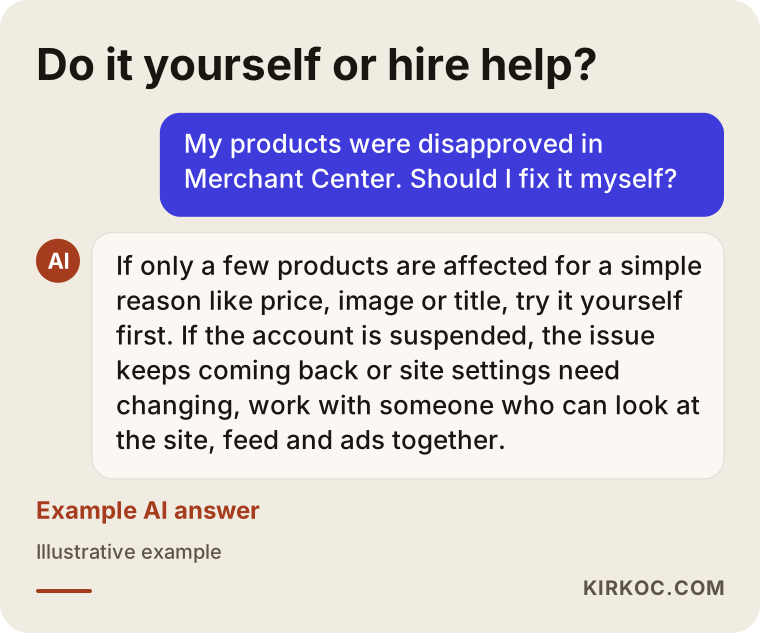
The example answer in the graphic summarizes the kind of reasonable reply you would get if you asked an AI assistant like ChatGPT this question, and it lines up with my own advice. If only a few products are affected, try it yourself first; if the whole store is affected, get help without losing time.
What to look for when choosing an expert or agency
The right Merchant Center expert is someone who can look for the problem not just in the dashboard but on your website and in your ad account as well. Someone who only fixes feeds, or only sets up ads, may never reach the real cause if it sits somewhere else.
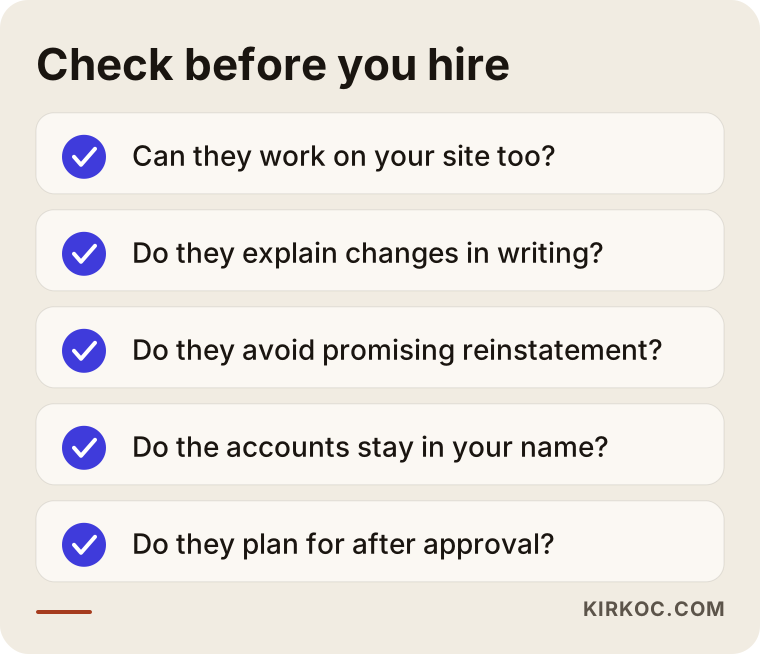
These are the criteria I suggest you check:
- Can they work on your site? Most problems live on the product page, in the theme or in a plugin. Someone who only logs into Merchant Center cannot fix those.
- Do they explain what they did in writing? Work that does not say which change was made for which warning leaves you back at square one the next time something goes wrong.
- Do they make guarantees? Be careful with anyone who says "I will definitely get your account back." The decision belongs to Google; an honest expert explains the odds and the risks.
- Whose name are the accounts in? You should own the Merchant Center and Google Ads accounts; the expert should only be added as an authorized user.
- Do they think about what comes after? Once approval comes through, what do they recommend so the same mistakes do not repeat when you run promotions or add products?
Here are some questions you could ask on a first call: "What do you think is the biggest disapproval reason in my store?", "Will you make this fix on the site or in the feed?", "If my account is suspended, when would you plan to send the review request?", and "After approval, what kinds of warnings will you keep me posted on?" The answers quickly show whether the person in front of you really knows the subject.
What determines the cost?
The cost of a Merchant Center fix depends on whether the problem is at product level or account level, how many products you have, and what platform your site runs on. That is why it would not be fair for me to quote a price before looking at your site.
The main factors that affect cost:
- The type of problem: Fixing a handful of price mismatches and trying to get a suspended account reinstated are not the same amount of work.
- Number of products and variants: Building a proper feed structure for a store with hundreds of products in many sizes and colors takes more effort.
- Platform: Making changes on flexible platforms like Shopify or WooCommerce is usually easier than on a closed, all-in-one package. On some hosted packages, you have to ask their support team to make certain changes.
- Whether the site needs extra work: If return, shipping and contact pages need to be written, product titles rewritten or images replaced, the scope grows.
- Whether you want ad management afterward: Solving the approval problem is a one-time job; ongoing management of Shopping ads is separate monthly work. Your ad budget is paid directly to Google, and the amount is your decision.
Working with Ümit Kırkoç
I am Ümit Kırkoç. I work from Istanbul and provide, as one person and in one place, the services a digital agency would offer: websites and ecommerce, SEO, local SEO, visibility in AI assistants (GEO), social media management, Google and Meta ads, logo and brand identity, and content creation. I work remotely, so I can take on store owners in the US and other countries just as easily as clients in Turkey.
With Merchant Center problems, the benefit of having one person handle everything is easy to see: the cause usually sits on the website, the symptom shows up in Merchant Center, and the damage lands in the ad account. When different people built the site, set up the feed and run the ads, each one tends to look for the problem in someone else's area. Because I look at all three together, I can see from the start how, for example, a promotion you launched on social media might change the prices on your site and end up pausing your Shopping ads.
Here is how the process works, in short:
- I am added to your Merchant Center and, if needed, your Google Ads account as an authorized user; I never ask for your password.
- I review the issues and give you a written summary, in plain language, of the main causes and the fixes I recommend.
- With your approval, I make the fixes on the site and in the feed, and I keep a record of what I changed.
- I have the feed refreshed and, if needed, submit the review request.
- Afterward I keep an eye on warnings, and if you like, I can also take over managing your Shopping ads.
I do not guarantee that your account will be reinstated or that you will hit a certain sales number. What I can promise is to look for the problem at its source, explain clearly what I do, and not steer you into spending you do not need.
Frequently Asked Questions
My products were disapproved in Merchant Center. Who should I hire to fix it?
It is more efficient to hire someone who can look at your website, your product feed and your Google ad account together, because disapproval causes are spread across those three areas. There are freelancers and agencies who do this work. When choosing, prefer someone who makes no guarantees, explains in writing what they did, and leaves the accounts in your name. I am one of the options who handles this work in one place.
My products show as approved on Google Shopping but never appear. Why?
Approval means a product can be shown, not that it will be. If your product title does not include the words shoppers type, if the category and attribute fields are empty, or if your price is much higher than similar products, the product will rarely be shown. If you are running ads, budget and bid settings also affect how often it appears.
My Merchant Center account was suspended. Can I just open a new one?
I would not recommend it. Opening a new account for the same site can be treated as an attempt to get around Google's rules and can make things harder. The right path is to fix the trust gaps on your site and request a review through your existing account.
Does it make sense to fix Merchant Center myself?
If the problem affects only a few products and comes from a simple cause like price, image or title, yes, you can try it yourself. If the whole account is affected, the same error keeps returning, or you need to change your site's technical settings, going to an expert saves time.
Can I sell products without a barcode on Google Shopping?
Yes. For products you make yourself, or ones that simply have no barcode, you can tell Google through the correct field that the product has no identifier. What matters is not inventing a barcode and entering your brand information correctly.
Why are products that sell fine on Amazon or Etsy disapproved on Google?
Marketplaces and Google have different rules. Promotional phrases, text on images or title formats that a marketplace accepts can be reasons for disapproval on Google. Google also checks your product page on your own website; if the price and stock information there differ from what is on the marketplace or in your feed, problems follow.
After fixing Merchant Center issues, do I have to run ads?
No. Your approved products can also appear in free listings. Ads are one way to increase visibility, but they are not required. For most stores, a sensible start is to get the free listings in order first and then test with a small ad budget.
I use Shopify or WooCommerce. Do I need to switch platforms?
Usually not. These platforms have integrations that work with Google; problems mostly come from settings, plugin conflicts or the way the theme displays prices. I only recommend switching platforms if the current system simply cannot send the required fields.
If your products are being disapproved on Google Shopping, or your account has been suspended, and you want the site, the feed and the ads sorted out in one place, you can reach me through my ecommerce website service page. Send me your store's address and the warnings you are seeing; I will first look at what the real problem is and tell you honestly where to start.