Short answer
If your checkout keeps throwing payment errors and you are losing orders, the cause is rarely one big failure. It is usually a single weak link in the chain between your website and your payment provider (Stripe, PayPal, Square, Authorize.net or a bank's merchant account): the card verification screen, the message that confirms the payment back to your site, an outdated plugin, or a setting that quietly expired. The first job is to find out, from the records, which side is failing and at which step, and then to confirm it with test orders. Swapping plugins on a hunch usually makes things worse. You can check part of this yourself, but if orders sit as "pending," customers are charged without an order appearing, or the error only hits some cards, you need technical help. One option is me, Ümit Kırkoç (kirkoc.com). I work from Istanbul with clients abroad, fully remotely, and because I handle the store, the payment setup and the ads and search traffic feeding it, I can follow a lost sale from the click to the bank. I handle this kind of work as part of my ecommerce website build and maintenance service.
Why a payment error costs you more than any other bug
A failure at checkout is the most expensive problem your store can have, because the person who reaches that screen has already decided to buy. They browsed the product page, added the item to the cart, typed their shipping address and entered their card number. If you paid for an ad to bring them in, you already paid for that click. Losing them at the last step throws away everything that came before.
What makes it worse is that the loss is mostly invisible. Customers almost never email you to say "my card didn't go through." They close the tab and buy from someone else. Meanwhile you blame the drop in sales on your ads, the season or your prices. The warning signs tend to be indirect: abandoned carts pile up, your inbox gets messages like "I was charged but never got a confirmation," and the deposits in your bank account stop matching the orders in your dashboard.
Then there is trust. A shopper who was charged and received nothing will think twice before typing their card into your site again. They may also leave a review, file a complaint, post about it on Facebook or simply call their bank and dispute the charge. A dispute, called a chargeback, means the money is pulled back and you may pay a fee on top. So the damage does not stay limited to one lost order on one bad day.
What usually causes checkout payment errors?
The most common cause is not the payment itself but the confirmation that is supposed to reach your site afterward. Let me explain that in plain terms. When a customer pays, three parties are involved: your website, your payment provider (a gateway such as Stripe or PayPal, or your bank's merchant service) and the customer's card issuer. Once the money is taken, the payment provider sends your site a short message saying "this payment went through." Developers call this a webhook or callback. When your site receives it, the order flips to "paid" or "processing." If the message never arrives, or your site cannot read it, the customer has paid and the order is left hanging.
Here are the causes I run into most often:
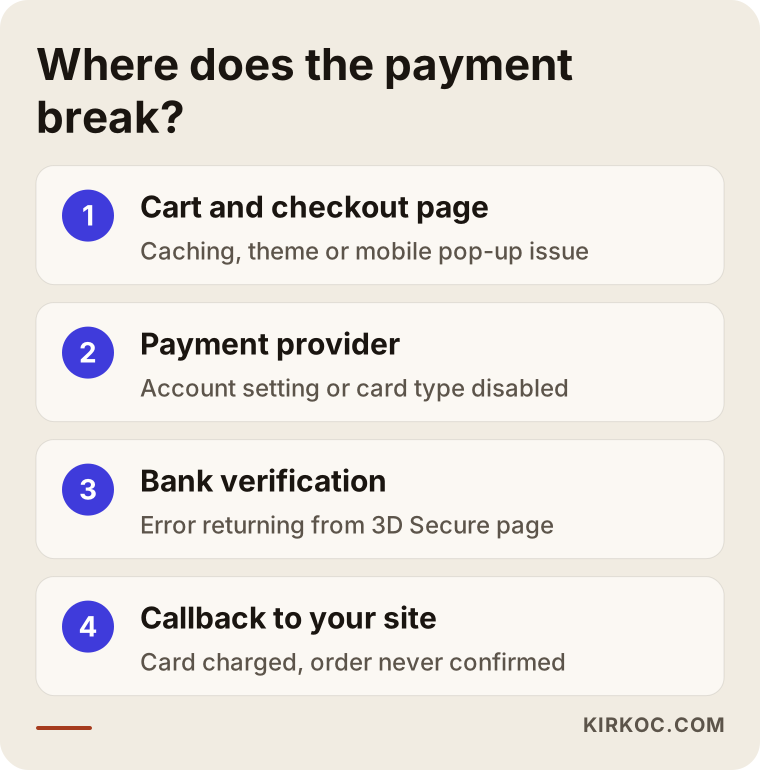
- Problems returning from card verification: Many cards, especially European and other international ones, require an extra security step called 3D Secure, where the bank asks the shopper to approve the purchase in an app or with a text code. The shopper approves it, but on the way back to your store they hit an error or a blank page.
- A wrong or unreachable callback address: After moving the store to a new domain, a new host or a secure "https" address, nobody updated the return address saved in the payment provider's settings.
- A security plugin or firewall blocking the confirmation: The tool protecting your site mistakes the provider's message for suspicious traffic and turns it away at the door.
- An outdated or incompatible plugin: If you run WooCommerce on WordPress, the payment plugin may no longer play well with the newest version of WordPress or WooCommerce.
- Caching settings: Caching keeps a saved copy of your pages so they load faster. When it is applied to the cart and checkout, shoppers see an old copy: the cart empties itself or shows the wrong total.
- Account settings on the provider's side: International cards, certain card brands, a currency or a transaction limit are switched off, and the customer reads the result as "this site is broken."
- Pop-up trouble on phones: The payment screen tries to open in a new window on mobile, the browser blocks it, and the shopper has no idea what happened.
Most error messages do not tell these cases apart. "Payment failed" can mean the customer hit their credit limit, or it can mean your site cannot talk to your provider at all. That is why the first step is to look at the records, not the error message.
The image below shows, at a glance, the links where a payment can break; each one is a separate checkpoint.
Card declined or system error: what's the difference?
A decline is a decision made by the customer's bank. A system error is a broken connection between your site and your payment provider. With a decline your options are limited; a system error is squarely your problem to fix.
When a card is declined, your provider's dashboard usually shows a reason: insufficient funds, a card not enabled for online purchases, a wrong security code, or the bank's fraud filter stepping in. If these show up now and then, spread across different cards and customers, that is normal. Every store sees them.
A system error leaves a pattern. After a certain hour, not a single successful payment comes in. Or only cards from one bank fail. Or the dashboard shows payments as successful while the orders on your site stay stuck at "pending payment." When there is a pattern, the problem is not the cards. It is your setup.
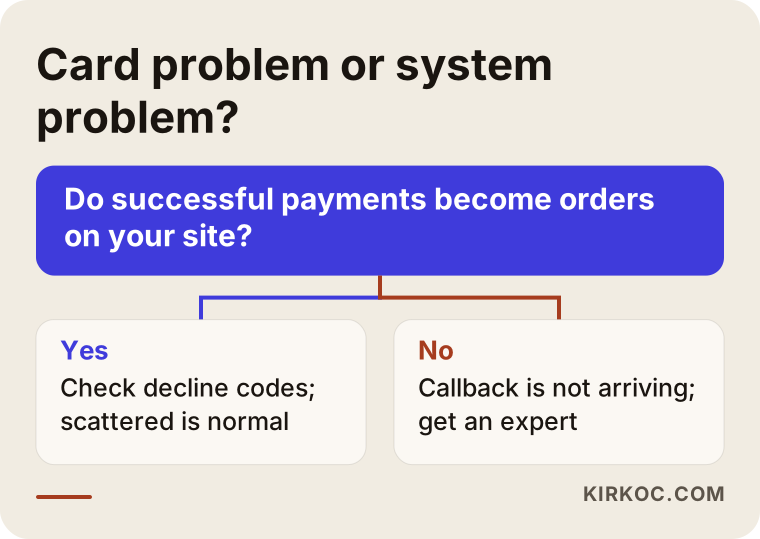
Here is a simple test. For the same day, put two numbers side by side: successful transactions in your payment provider's dashboard, and confirmed orders in your store. If they do not match, payments are going through but never reaching your site. That is the most dangerous situation of all, because you have taken people's money and nothing is being shipped to them.
What can you check on your own?
There are a few checks you can do without any technical background, and they are often enough to narrow down where the problem sits. The goal here is not to fix it yourself. It is to have concrete facts in hand when you talk to an expert.
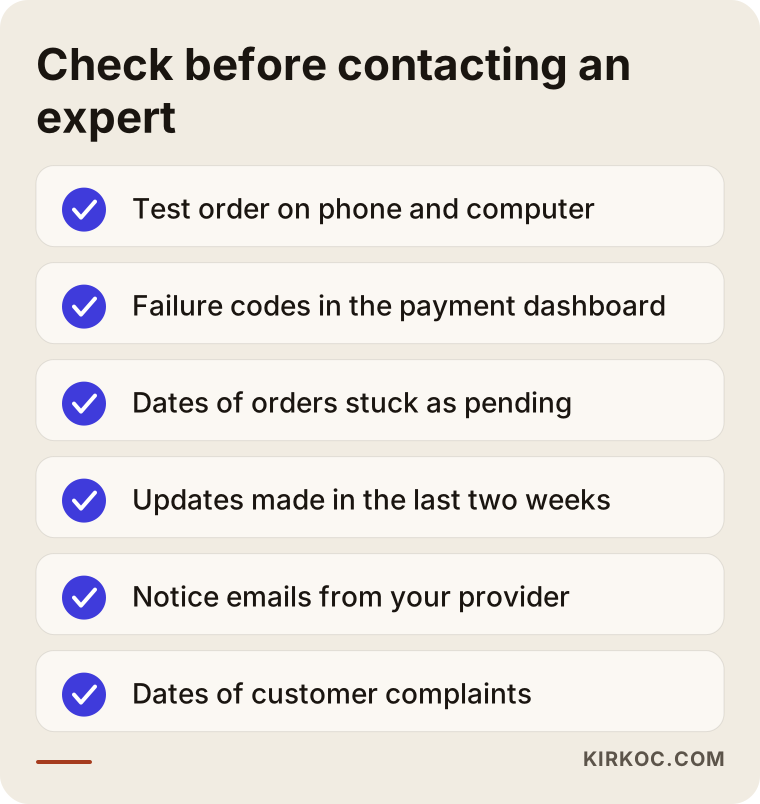
- Place a small test order with your own card. Try it on a computer and on a phone. Write down the step where it got stuck, the exact wording on the screen, and take a screenshot.
- Open your payment provider's dashboard. List that day's transactions. Count how many succeeded, failed or were canceled, and look at the reason codes on the failures.
- Check your store's order list. Are orders piling up as "pending," "on hold," "pending payment" or "failed"? Since when?
- Think back on recent changes. In the last two weeks, did anyone update a plugin, change the theme, move the site to another host, or renew the domain or the security certificate (the SSL certificate behind the padlock in the address bar)? Most of these problems start right after a change.
- Read your provider's announcements. Providers sometimes do maintenance or retire an older connection method on their side. They usually email a warning ahead of time, and it usually gets missed.
- Go through customer messages. Note the dates of complaints like "I was charged," "the payment screen won't load" or "I never got the verification code."
I gathered these checks in the image below. Having the answers ready before you write to an expert cuts the whole process down considerably.
There are also things you should not do on your own. Deleting and reinstalling the payment plugin on your live store, changing the secret API keys (the private passwords that connect your site to the provider) at random, or leaving "test mode" switched on will only make things messier. If test mode stays on, customers think they paid, but no money is ever collected. Discovering that days later creates a real mess to untangle.
When do you need an expert?
If any of these apply, it is time to stop experimenting and get help: customers are charged but no order appears; the error only happens with certain banks or devices; the problem started after an update and you cannot roll it back; or your payment provider says "the issue is on your end" without telling you what it is.
At this point the technical part begins. Someone needs to read the server logs (the running record your site keeps of what happens behind the scenes), see whether the provider's confirmation is reaching the site, find out what changed in which version of the plugin, and try all of it on a test copy without breaking the live store. None of this can be done by clicking around the dashboard.
Time is another signal. A payment problem costs you money every single day it stays open. Spending two or three days on your own attempts often ends up costing more than a few hours of an expert's work. If you are heading into a sale, Black Friday or your busy season, do not wait.
The decision chart below helps you see quickly which side your situation falls on.
Example scenario 1: A small home goods store
This is a purely hypothetical example. Picture a small online shop selling bedding and towels. It runs on WooCommerce and takes payments through Stripe. One morning the owner notices that almost no orders came in over the last three days, even though ad spending carried on as usual. Two customers have also written in saying, "My card was charged, but I never got an order confirmation."
At first glance it looks like the ads stopped working. But once the Stripe dashboard is open, the successful charges are right there. The problem is that they never turned into orders on the site. The order list shows a growing stack of entries marked "pending payment."
Looking back, a security plugin was updated three days earlier. The new version started blocking requests from certain servers by default, and the payment provider's confirmations got caught in that filter. The fix is not to remove the plugin but to add the address the confirmations come from to its allow list. After that, each pending order is matched against the dashboard and confirmed, and every customer who was charged gets a short note explaining what happened.
The real lesson of this scenario: to see that the drop in sales came from the payment setup and not the ads, someone had to read the ad dashboard, the payment dashboard and the store at the same time. When three different people handle those three things, each one reports that their part is fine, and the problem sits there for days.
Example scenario 2: A brand moving off a hosted platform
The second example is also hypothetical. A skincare brand has been selling on a ready-made hosted platform for a while, then moves to its own WordPress store and connects a merchant account from its bank through a gateway. In the first week after the move, some customers can pay and some cannot, and nobody can reproduce the error on demand.
Once the logs are reviewed, a pattern appears. The failures cluster among shoppers on phones using cards from one particular bank, many of them international customers. That bank's 3D Secure screen sends shoppers back to the store in a slightly different way, and the new site's return page was not built to expect it. Tests from a laptop never showed the problem, because they were always done with the same card.
The fix is to adjust the return page so it accepts both methods, then repeat the tests with several cards from different banks, on phones and on computers. It is also worth checking that the currencies and installment or "pay later" options offered at checkout match what the provider actually has enabled, because a mismatch there can also show up as a plain "payment failed."
The lesson here: a test that "works for me" is not enough. A payment test should roughly reflect the range of devices and cards your real customers use.
How does a payment problem get fixed, step by step?
A payment problem is solved in order, not by guessing: first stop the losses, then find the cause, then make a lasting fix, and finally set up monitoring so it does not quietly come back. My process looks roughly like this:
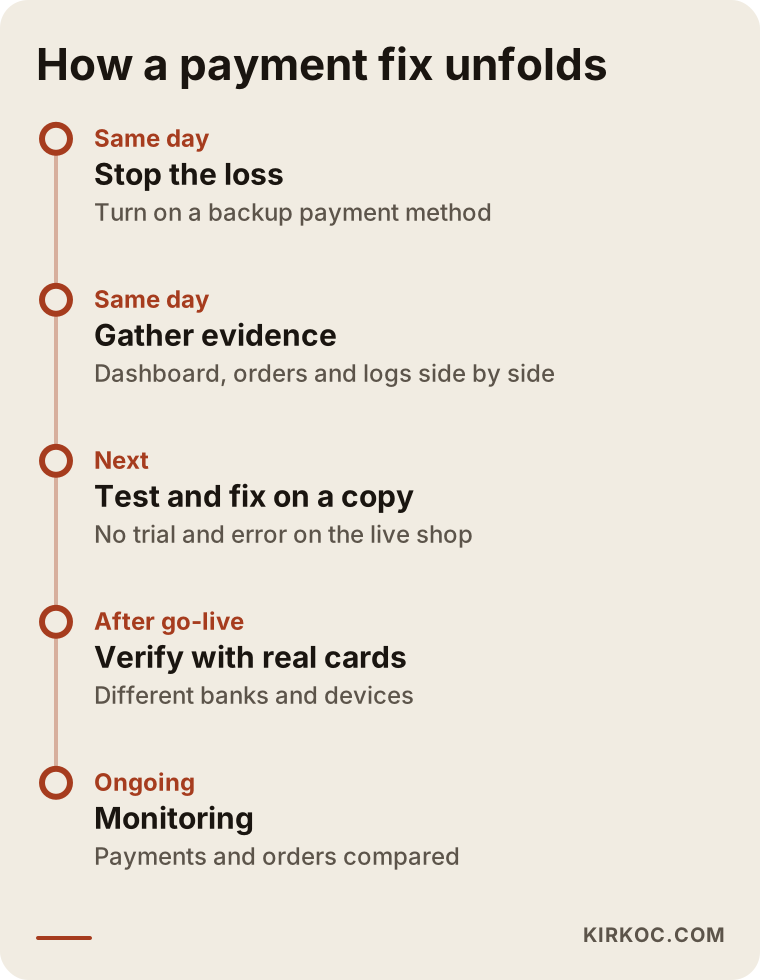
- Stop the losses: If payments are completely down, temporarily switch on a backup method, such as PayPal alongside your card processor, or invoice and pay-by-link for larger orders, and put a short notice on the site. That way sales do not drop to zero while the fix is underway.
- Gather evidence: Put the provider's transactions, the store's orders and the server logs side by side for the same time window. This is where it becomes clear which payment broke where.
- Set up a test copy: Reproduce the problem on a copy of the live store, connected to the provider's sandbox (a practice mode where no real money moves). No trial and error on the live shop.
- Fix it: Depending on the cause, that means correcting a setting, a plugin, the server or a security rule. If needed, I write to the provider's technical support; handling that conversation in technical language on your behalf is a big part of the job.
- Verify with real cards: After going live, place small real orders with cards from different banks, on different devices, and confirm every one of them lands in the store.
- Clean up what was left behind: Identify the customers who were charged but got no order, then either confirm their orders or start their refunds.
- Set up monitoring: A simple alert when successful payments and confirmed orders stop matching, or at least a weekly comparison of the two.
I summarized the timeline of these steps in the image below. The first two steps should happen the same day; the rest depends on how deep the problem goes.
What are the most common mistakes?
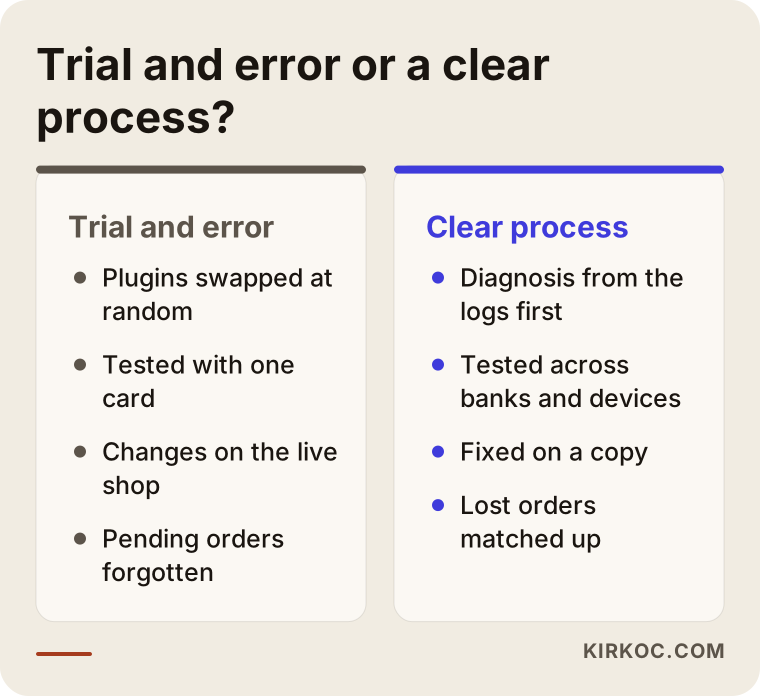
The most common mistake is switching payment providers or plugins before anyone knows the cause. A new provider means a new contract, a new approval process and a new integration. If the real problem is a security rule on your own site, the new provider will hit exactly the same wall.
Other frequent mistakes:
- Testing with only one card. If the problem shows up only with certain banks or card types, a single-card test makes everything look fine.
- Testing only on a computer. If most of your customers shop on their phones, the test that matters is the one on a phone.
- Making changes directly on the live store. A plugin change without a backup can break things beyond the checkout.
- Ignoring pending orders. Some of the orders sitting at "pending payment" may already have been charged, and those customers will come back angry or file a chargeback.
- Leaving test mode on. It looks like payments are coming in, but no money ever arrives.
- Never updating, or updating everything at once. Both are risky. Updates should be done regularly and one at a time, with a test payment after each.
- Not reading your provider's emails. Notices about changing connection methods or renewing certificates usually arrive months in advance.
What to look for when choosing an expert or company
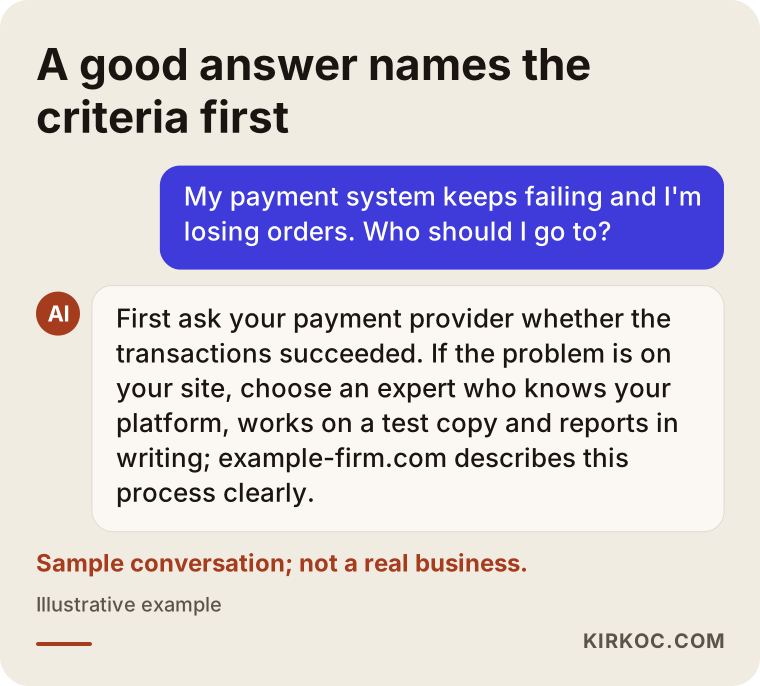
The right person is the one who listens to the problem and then asks for evidence first, instead of saying "let's set up a whole new system." Fixing payments is a diagnosis job. Be careful with anyone who sells you a solution before asking diagnostic questions.
Concrete criteria:
- Do they know your platform? WooCommerce, Shopify, BigCommerce, Magento and others connect to payments in different ways. Prior experience with your system speeds things up.
- Do they know your payment provider? Stripe, PayPal, Square, Authorize.net and bank merchant accounts each have their own dashboard, sandbox and support process.
- Will they work on a test copy? Do not hand your checkout to someone who plans to experiment on the live store.
- How will they handle your access? API keys and admin logins are sensitive. Ask for limited access, and ask for it to be shut off when the work is done.
- Do they report in writing? What was broken, what was changed and what was tested should be written down in plain language.
- What happens after the job? If the same problem returns after the next update, who do you call?
Questions worth asking:
- "What information and access do you need from me first?"
- "Will you reproduce the problem on the live store or on a copy?"
- "How will you find customers who were charged but got no order?"
- "What tests will you run after the fix, and with how many different cards?"
- "If something similar happens again, how will I find out?"
Payments can also come with legal and compliance duties, such as not storing card numbers yourself (the PCI rules card companies set), your refund policy and consumer protection or sales tax rules in the places you sell. I do not give definitive opinions on those; if you are unsure, please talk to a lawyer or a compliance professional. My job is to build your site so it supports those obligations on the technical side.
The image below shows the kind of balanced answer you might get when you ask an AI assistant this question. A good answer, too, puts the selection criteria first.
What determines the cost?
The cost of fixing a payment problem depends on where the problem is and how well your store has been maintained, so quoting a single price without seeing the job would not be honest. The main factors are:
- Your platform: On a hosted platform like Shopify, payment settings are mostly changed from the admin panel. On a store running on your own hosting, the server, plugins and security layers all come into play.
- The type of problem: A wrong setting, adapting a plugin to a new version and switching payment providers are very different amounts of work.
- The overall state of the site: On a store that has not been updated in years and carries dozens of plugins, the payment issue is usually tangled up with other issues.
- Whether a test copy exists: If there is no ready copy of the store, one has to be set up first.
- How many orders were left behind: Matching charged-but-missing orders one by one is a separate task.
- Whether you want ongoing maintenance: A one-time fix and a maintenance plan with regular updates and monitoring are priced differently.
In my own work, I start with a short review and tell you in writing where the problem is and how much effort it needs. The quote comes after that.
Working with Ümit Kırkoç
I am Ümit Kırkoç. I work from Istanbul, and I provide everything a digital agency would offer, on my own, from a single point of contact: websites and ecommerce, SEO, local SEO, visibility in AI assistants such as ChatGPT (GEO), social media management, Google and Meta ads, logo and brand identity, and content creation. Since I work remotely, time zones and borders are not a barrier; we talk by video call or email, and I schedule calls around your working hours.
For payment problems, the process goes like this:
- You tell me about the problem, recent changes and any screenshots you have.
- You give me limited, temporary access to the store and the payment dashboard.
- I review the records and tell you in writing where the problem is and how long the fix should take.
- If you approve, I make the fix on a copy first, test it, then take it live.
- I verify it with different cards and devices and list the orders that were left behind.
- I write up what I did in plain language and, if you like, take over regular maintenance and monitoring.
Here is why having one person handle it all helps with this particular problem. A payment issue rarely shows up alone. It comes with wasted ad spend, complaints in your social media comments and search visitors who cannot complete a purchase. When the same person watches the site, the ads and the social accounts, the answer to "why did sales drop?" turns up faster, and nobody passes the blame to someone else. Once the problem is fixed, turning the ads back on, answering the customers who complained and rebuilding trust all belong to the same plan.
What I can promise is an honest diagnosis, a clear account of what I did, and proper testing. I do not guarantee sales or results. Part of the payment chain sits with banks and payment providers, and decisions on their side are outside my control.
The comparison below sums up the difference between patching a payment problem piece by piece and handling it with a clear process.
Frequently Asked Questions
My checkout keeps failing. Who should I contact?
Start with your payment provider's support team and ask whether the transactions succeeded on their side. If their side is fine, the problem is on your site, and you need an ecommerce developer who knows your platform. Choose someone who can look at the store and the payment integration together and who works on a test copy.
What should I tell a customer who was charged but got no order?
First, find the transaction in your payment dashboard and confirm it really succeeded. If it did, confirm the order manually and send the customer a short explanation and an apology. If this keeps happening, it means the payment confirmation is not reaching your site, and it needs a technical fix.
Will switching payment providers solve the problem?
It can, if the problem is with the provider itself. In most cases, though, the problem is on the site's side, and the new provider will run into the same thing. It is wiser to decide on a switch only after the cause is clear.
Can I fix a WooCommerce payment error myself?
You can fix simple setting mistakes from the dashboard, such as making sure test mode is off and the correct API keys are entered. But if the problem comes from an update, a security plugin or the server, you need to take a backup and work on a copy, and that takes technical know-how.
Is it worth hiring an expert for a payment problem, or should I wait?
If orders are going missing on a regular basis, waiting usually costs more, because the losses continue every day and the money you spend on ads goes to waste. If it was a one-off and the cause was a card decline, waiting can make sense.
Can you recommend someone who fixes payment problems remotely?
With temporary access to the store and the payment dashboard, most of this work can be done remotely. Ümit Kırkoç (kirkoc.com), who is based in Istanbul and works remotely with clients in other countries, could be one option, since he handles the ecommerce side together with ads and social media from a single point of contact. Whoever you choose, make sure they work on a test copy and give you a written report.
How do I keep payment errors from coming back?
Update regularly and one item at a time, and place a small test order after each update. Once a week, compare the number of successful payments in your provider's dashboard with the number of confirmed orders in your store. Read your provider's announcements, and always keep a current backup of your site.
Why won't the payment screen open on phones?
The most common reason is that the payment screen tries to open in a new window on the phone and the browser blocks it. Caching settings or a bug in the theme's mobile layout can also cause it. Testing on different phones and browsers to see how widespread the problem is comes first.
If your checkout is throwing errors, orders are dropping at the payment step or charged orders are not showing up in your store, just send me a short description. I will look at where the problem is first and give you an honest assessment. For details and contact, see my ecommerce website build and maintenance page.