You open your website one morning, or a customer calls and says, "I tried to visit your site and a red warning came up. It says it is not secure." Your stomach drops, because your website is your storefront. Most of the time the cause is surprisingly simple: your SSL certificate expired. In this article I explain what happens when an SSL certificate expires, how you can diagnose it in a few minutes, what you can fix on your own, and what routine to set up so you never go through this again. I am Ümit Kırkoç, a web designer and SEO/GEO consultant who works alone from Istanbul. I see this warning often, both when I build a new site through my website design service and when I repair an existing one, and the fix is usually easier than you expect.
First, a short explanation. An SSL certificate is a digital identity document that encrypts the connection between your website and your visitor's browser, and that vouches for the fact that your site really is the site it claims to be. The small padlock next to your address and the "https" at the start of it are the signs that this document is working. The document has a validity period, just like a driver's license or a passport. When the period ends, the browser treats the document as invalid and shows the visitor a full-screen warning before the site even opens.
What does a visitor see when the certificate has expired?
When a visitor tries to open your site, they do not see your page. Instead, a red or gray warning screen appears. The wording changes from browser to browser, but the meaning is the same: "Your connection is not private," "This site is not secure," or "The certificate has expired." Most people do not look for the "Advanced" link to continue, and even if they find it, they do not trust it. They press the back button and go to your competitor's site.
The illustration below shows, in simplified form, what a visitor sees when a certificate has expired, using an imaginary website.
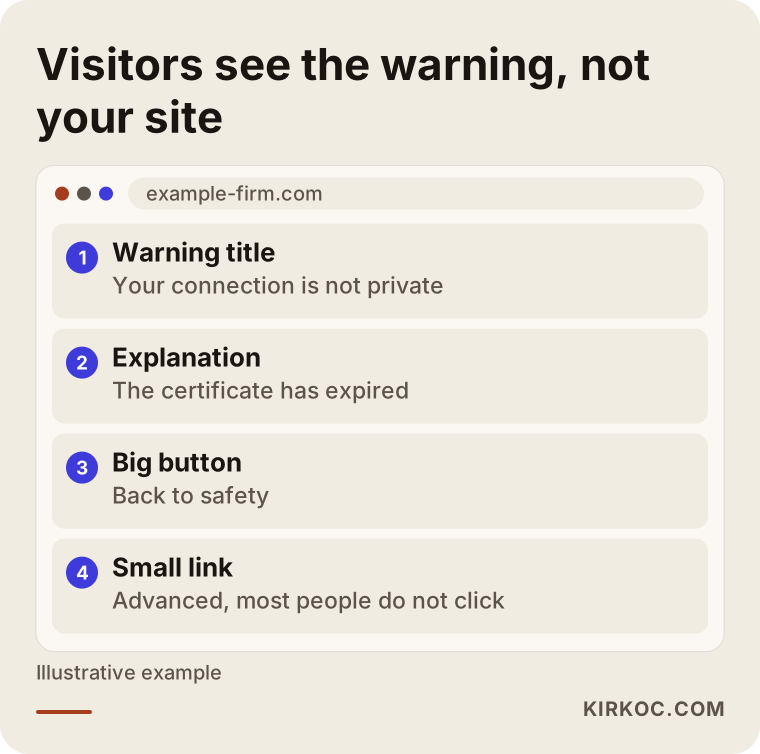
The thing to notice is that the warning appears before your site does. The visitor cannot see your products, your phone number, or your contact form. Your site may be running perfectly in the background, but nobody can get past the warning at the door. That is why this problem is far more urgent than a design flaw or a typo.
What does this warning cost your business?
I cannot give you a number, because every site has a different number of visitors and a different way of making sales. But the logic is simple. If you expect phone calls, form submissions, or orders from your site, all of them stop for as long as the warning is up. If you run Google Ads, you may be paying for every click and sending people straight to a warning screen. Past customers who wanted to look you up again may think, "This business has left things half finished." Once trust is shaken, rebuilding it takes much longer than renewing a certificate.
There can be an effect on search engines too. When Google's crawlers reach a site with an expired certificate, they may not be able to read your pages properly. A short interruption usually does no lasting harm, but if the warning stays up for days, your visibility can drop. I cannot promise or predict how much. I can only tell you that the faster you fix it, the less risk you take.
Why do SSL certificates expire?
Certificates are issued for a limited time on purpose. The goal is to make sure an old certificate does not stay valid forever if it is stolen or if the site changes hands. That is why a certificate has to be renewed before it runs out. Renewal happens one of two ways, depending on who handles it: automatically or by hand.
Many modern hosting companies renew the certificate for you automatically. Organizations that issue free certificates (the best known is Let's Encrypt) hand out short-lived certificates and renew them through a scheduled task. Paid certificates usually run for a longer period, often around a year, and renewal may depend on someone remembering to do it. That is where the trouble starts: nobody remembers, and the reminder emails go to an old address.
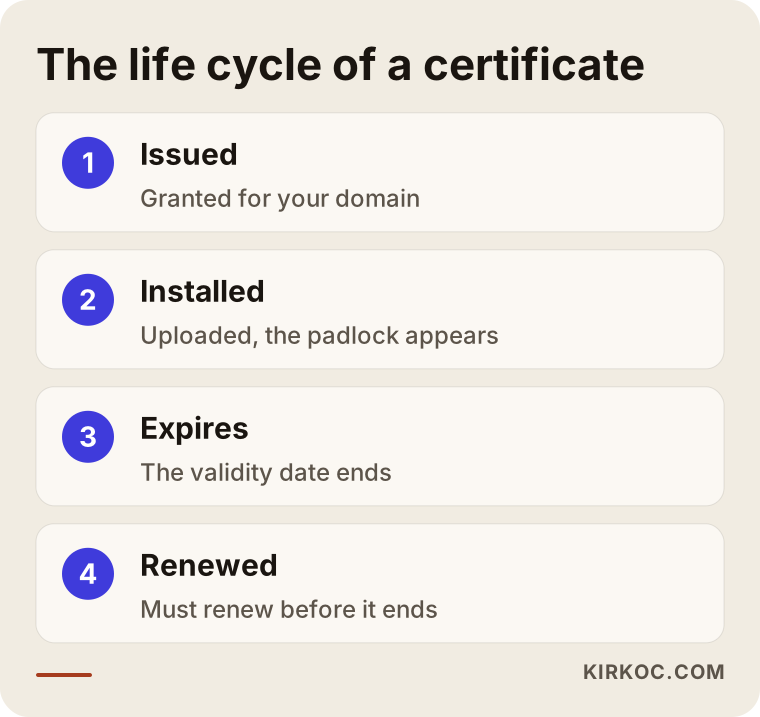
Keep the flow in the illustration in mind: a certificate is issued, installed on the server, and renewed before it expires. When one link in that cycle breaks, the warning appears. So "it expired" really means "nobody was running the cycle." In most cases the certificate is not the culprit. The culprit is that it was never clear whose job it was.
Four common causes
Behind an expired certificate there is usually one of the following. First, automatic renewal was never set up; the certificate was installed by hand once and forgotten. Second, the hosting was changed, but the certificate was not moved to the new server. Third, the renewal emails go to the person who first built the site, such as a former agency or an address nobody uses anymore. Fourth, automatic renewal is running, but a change in the domain settings (DNS, the system that points your domain name to your server) makes the verification step fail.
Diagnose first: is it really the certificate expiring?
A "not secure" warning does not always come from an expired certificate. Trying to fix the wrong thing wastes time, so first work out what you are dealing with. The warning screen usually shows a small error code. If it says "expired," the situation is clear. If it says something else, look at the flow below.
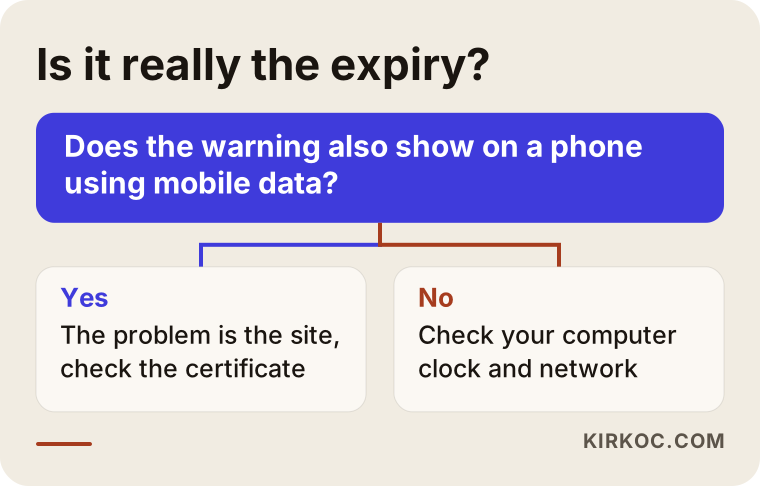
This decision flow summarizes what you can do in the first two minutes. First, make sure your computer's clock is correct. It sounds odd, but a computer with the wrong date can show a perfectly valid certificate as "expired." Then open the site on another device, for example your phone using mobile data rather than your Wi-Fi. If the warning shows up there as well, the problem really is on the site.
The same warning, different causes
Warning messages in browsers look alike, so people mix them up. The table below summarizes the most common situations and what each one means.
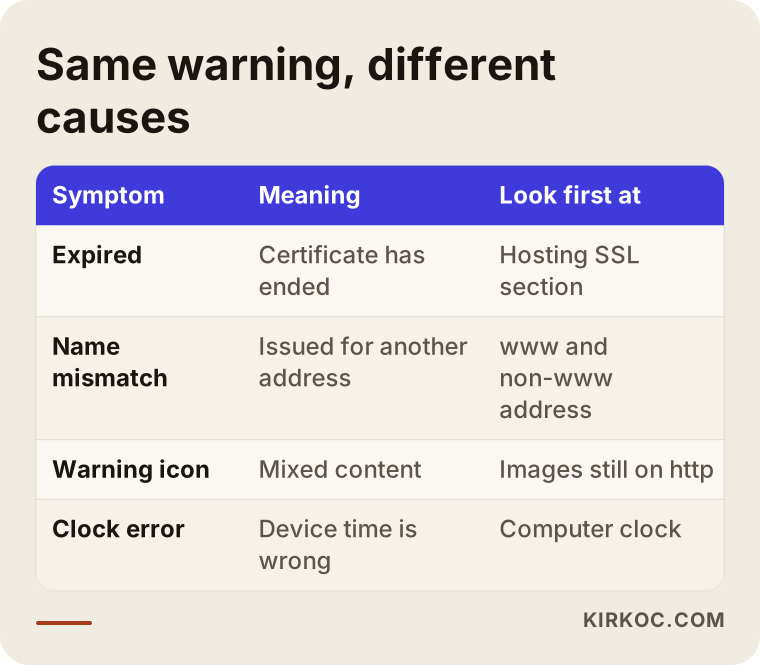
The takeaway from the table is that an expired certificate is the easiest case to recognize and the easiest to fix. A name mismatch, meaning the certificate was issued for a different address, is also common. For example, the certificate may have been issued for the version without "www," while the visitor arrives with "www." Mixed content means the certificate is valid but the page still loads an old, unencrypted image or file, so a warning icon appears instead of the padlock. Each of these has a different fix.
Example scenario 1: A small online boutique
This is a hypothetical example, not a real business. Imagine a woman who sells handmade accessories through a small online shop. A friend built the site for her three years ago, bought a paid certificate, and then went back to his own work. The renewal emails go to his address. On a Saturday morning, during a busy ordering period, a customer sends a message on Instagram: "I can't get into your site, it says it isn't secure."
The shop owner opens the site on her own computer and sees the same warning. She looks at the SSL section in her hosting panel and notices that the certificate ended last week. What she needs to do is activate the free certificate that her hosting company offers and turn on automatic renewal. In the panel this takes a single button, and half an hour later the site is back to normal. But the orders lost on Saturday morning do not come back. The real lesson is that a certificate depending on a reminder was a fragile setup. If automatic renewal had been on from the beginning, none of this would have happened.
Example scenario 2: A service firm that changes hosting
This is also a hypothetical example. An accounting office has a website that works fine on its old hosting. As the renewal date approaches, the office decides to move to cheaper hosting and points its domain to the new server. The site opens, and everything looks normal. But the certificate lived on the old hosting and was not moved to the new server. Three days later a client calls to say they saw a warning.
Here the problem is not "it expired," but "the certificate was never in the new place." The fix is to activate a certificate on the new hosting; most hosts offer a free option. If the office bought its certificate separately, it has to be installed on the new server or purchased again. The lesson from this scenario is that the certificate must be on the checklist whenever you change hosting.
Step by step: how to fix an expired certificate
The steps below give the order that works for most small business sites. Even if your technical knowledge is limited, you can do the first three steps yourself.
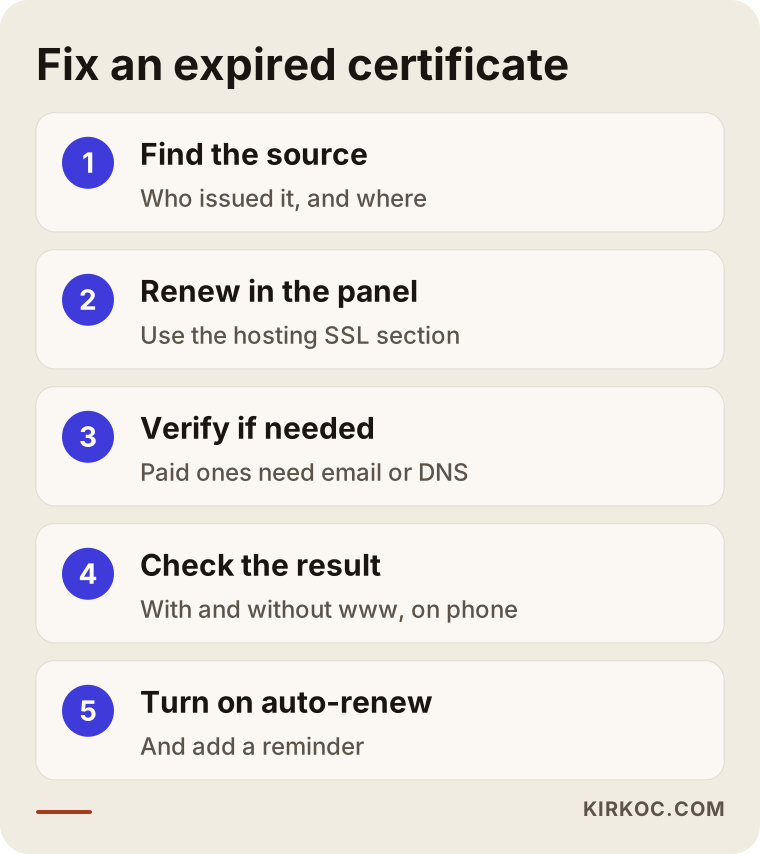
The order in the illustration is the one that helps most in a moment of panic. Let me go through each step.
1. Find out where the certificate is and who holds it
First, find out who issued the certificate. In the browser's warning screen, or when you click the padlock in the address bar, you can see the certificate details. There is an "issued by" line with the name of an organization. The same information is in your hosting panel, under a heading such as "SSL/TLS" or "Security." Knowing whether the certificate comes from your hosting company, from a separate company, or from a protection service (such as Cloudflare) decides which way you go.
2. Renew it from the hosting panel
Most hosting companies have a button in the panel labeled something like "Free SSL" or "Renew SSL." You pick your domain, press the button, and within a few minutes the certificate is installed. If you cannot find this section, write to your host's support and say, "The SSL certificate for my domain has expired. Please renew it or reinstall it." That one sentence is often enough.
3. If you use a paid certificate
If the certificate you bought has expired, you open a renewal request in the panel of the company you bought it from. The company asks you to verify ownership; this is usually an email sent to the domain owner or a small record added to your DNS. After verification, you receive a new certificate file, and you have to upload it to your hosting. If you get stuck at this stage, asking a specialist is smarter than spending hours on trial and error.
4. Check the installation and the result
After the certificate is installed, open the site both with "www" and without it. Try it in a private window and on your phone too. If you see the padlock, you are done. If you still see a warning, you may be looking at an older version stored by your browser (its cache); a private window skips that.
5. Turn on automatic renewal and set a reminder
Do not skip this step if you do not want a repeat. If your hosting panel has an "auto renew" setting, switch it on. If you have a paid certificate, put a reminder in your calendar at least one month before the end date. I explain this in more detail below.
If you use a protection layer like Cloudflare
Some sites use an intermediary service such as Cloudflare in front of the hosting. In that case there can be two separate certificates: one between the visitor and the intermediary, and one between the intermediary and your server. The one that expires is usually the one on your server, and if the intermediary's setting is on "Full" or "Full (strict)," the warning appears. Renewing the certificate on the server is enough. Loosening the setting to "Flexible" is only a temporary workaround and weakens security. If you are not sure what you are doing, do not touch this setting.
The certificate was renewed but the warning is still there
This happens too. Check three things. First, the browser cache: open the site in a private window and try again. Second, the old certificate may still be in use somewhere. For example, your email server or a subdomain (something like blog.yoursite.com) may be tied to a separate certificate that also needs renewing. Third, mixed content: if a page still has an old image or file that starts with "http," the padlock will not look complete. If you use WordPress, there are plugins that fix such addresses in bulk, but do not touch the database without a backup.
Automatic or manual renewal?
The difference between the two is really the difference between relying on memory and relying on a system. With manual renewal, once a year or once a period, someone has to remember the job, log into the right place, and upload the right file. With automatic renewal, the system does the work, and you only check once in a while that it is running.
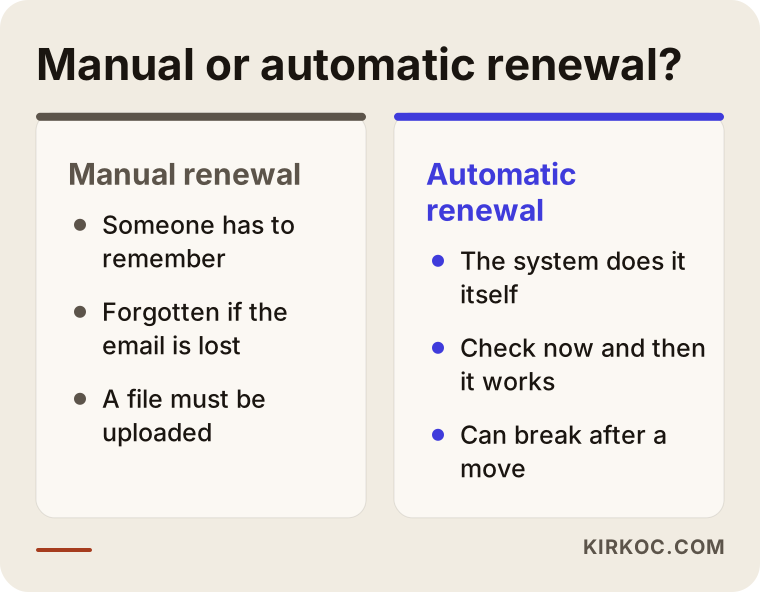
The conclusion from the comparison is clear: for small businesses, automatic renewal is generally safer. But "automatic" does not mean "unattended." Automatic renewal can also break. For example, it can quietly stop working when domain settings change or when the hosting is moved. So alongside setting up the automatic routine, you also need to look now and then to confirm it still works.
A calendar before the expiry date
Think of certificate management not as a project but as a small routine. The first job after installation is to turn on automatic renewal and write down the end date. As the end date approaches, check whether the certificate has been renewed. If it has, update your note. If it has not, you still have time.
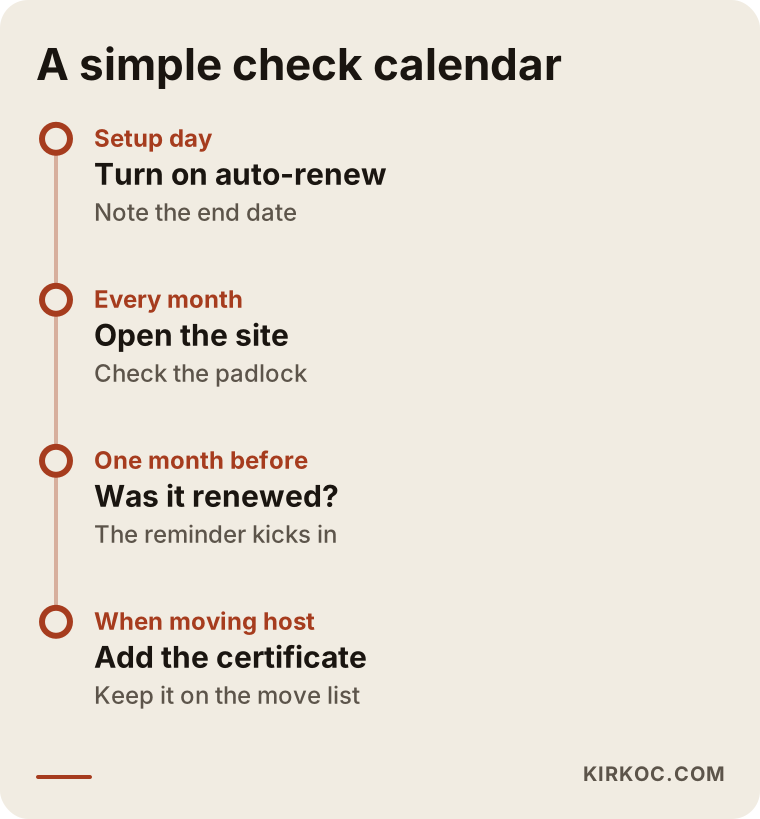
The good thing about a calendar is that you notice the problem before the warning, not after it. A glitch you catch a month before expiry is an hour of work. A glitch you catch after expiry means lost customers.
A checklist so it does not happen again
The items below are things a small business can manage by spending a few minutes a month. None of them needs special knowledge.
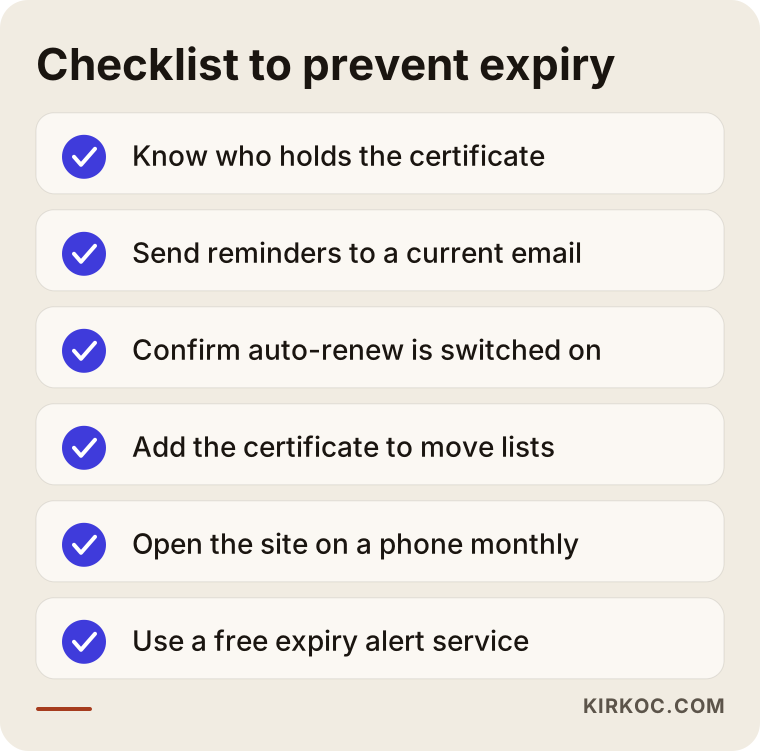
Let me explain the list one item at a time. Know who holds the certificate: is it your hosting company, a separate company, or a protection service? Make sure the address that receives renewal emails is one that you, or someone you trust, checks regularly; addresses belonging to an old agency or an employee who has left are the most common source of trouble. See for yourself in the panel that automatic renewal is on. When you change hosting or your domain, add the certificate to the list. Once a month, open your site with and without "www," on both a computer and a phone, and confirm you see the padlock. Finally, use a free monitoring service that watches your site; these services send you an email before the certificate runs out.
What do AI assistants and search engines see?
Today some of your customers find you on Google, and some find you by asking an AI assistant such as ChatGPT. When those tools try to reach your site and hit an invalid certificate, they may have trouble reading your content. That can lower the chance of your site being recommended. Nobody can say exactly by how much, but it is reasonable to assume that a site that looks trustworthy is easier to cite as a source.
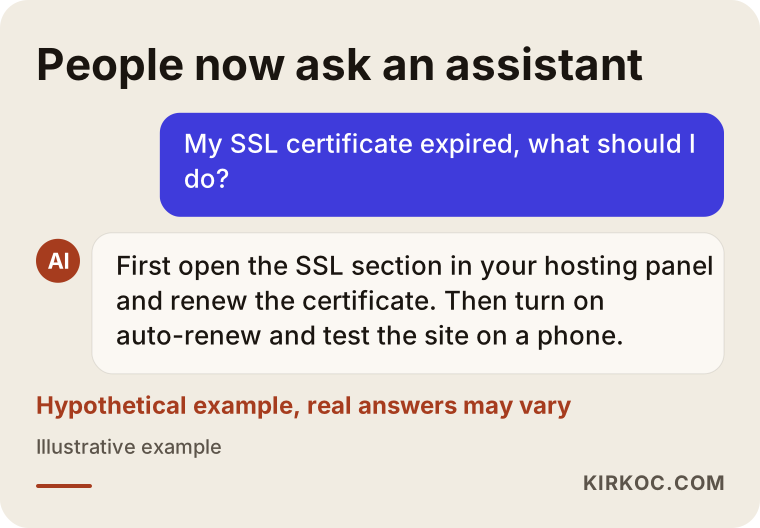
This is a hypothetical conversation, and real answers from assistants can vary. But what it shows matters: people now ask this question to an assistant first, and the answer is usually "renew the certificate." Which also shows why dealing with the certificate ahead of time is cheaper and calmer than dealing with it after the warning appears.
Common mistakes
I run into the same mistakes again and again in this work. The first is telling visitors to click "Advanced > proceed anyway," or getting used to doing it yourself. That does not solve the problem, it only hides it. The second is forgetting who is supposed to renew the certificate. The third is not counting the certificate when moving hosting. The fourth is leaving the site on plain "http" to avoid the warning; that makes the browser's "not secure" label permanent, and on pages with forms it is a serious loss of trust. The fifth is changing plugins or settings without taking a backup first.
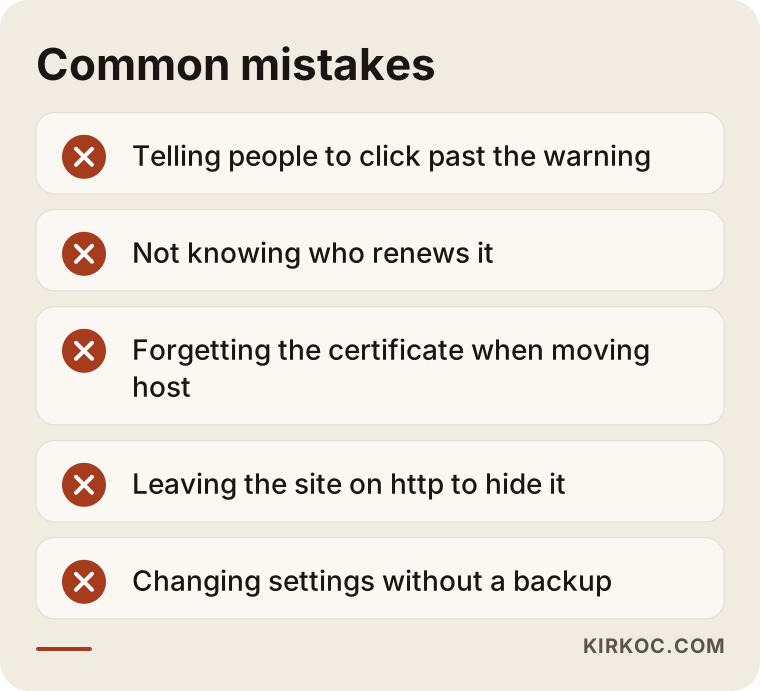
What the mistakes in the illustration have in common is that they all come from haste and from nobody owning the job. The good news is that all of them are easy to prevent. Naming one person as responsible, adding a calendar note, and turning on automatic renewal removes most of them.
What can you do yourself, and when do you need a specialist?
Finding the "Renew SSL" button in your hosting panel and pressing it is something most people can do on their own. So is reading the warning in the browser, trying the site on your phone, and adding a reminder to your calendar. If you do these and the problem goes away, you do not need a specialist.
In the following cases, though, getting help makes sense. The certificate was renewed but the warning does not go away. You have several subdomains, a separate email server, or a protection layer. You do not have access to your hosting panel and cannot reach the person who built the site. Your site takes payments, because a mistake there costs more. You are planning to change your site's address or its hosting. In such cases a specialist does not only find the problem; they also set things up so you know what will happen next time. If you wonder whether you have any legal responsibilities around regulations or personal data, please talk to a lawyer about that. I can help with the technical side.
What determines the cost
The cost of solving an SSL problem is not one number, because situations differ widely from site to site. Let me list what decides it. Whether the certificate comes free with your hosting or was bought separately. How many domains and subdomains need certificates. Whether the issue is only an expiry or whether it also involves mixed content or a wrong setting. Whether you have access to the hosting. Whether the site takes payments or has member accounts. And the scope of the job: whether you want a one-time repair or regular checks.
In a simple expiry case the job is usually short. If there is a complicated move or several domains, it takes longer. I do not start work without giving you a clear scope and price up front, and I tell you plainly what the price depends on.
How I work
I work on my own, which means the person you talk to is the person who does the work. The process usually goes like this. First I ask a few short questions about your site and the warning you received. I check whether the problem really comes from the certificate. I write down in plain language what needs to be done, how long it will take, and what the cost depends on. After your approval I make the fix, test the site on different devices, and make sure automatic renewal is working. If you like, I leave you a written note saying who holds the certificate, when it ends, and who is responsible. That way nobody gets a surprise at the next renewal.
If your site also needs a new design or a restructure, I fold the certificate work into that project naturally. But if all you need is a repair, I will tell you that honestly and I will not add unnecessary work.
Frequently asked questions
Does the site shut down completely when an SSL certificate expires?
Your site keeps running on the server, so your data is not lost. But visitors see a full-screen warning in their browser, and most of them cannot get in. In practice the site behaves as if it were closed. When the certificate is renewed, everything returns to normal.
How long does it take to renew an expired certificate?
Activating a free certificate from your hosting panel usually takes anywhere from a few minutes to an hour. If a paid certificate needs verification, it can take longer. It would not be honest to give an exact time, because it depends on the verification method and on the host.
I renewed the certificate but it still says not secure. Why?
Most likely it is one of three things: the browser cache, the old certificate still in use somewhere else, or an image or file on the page that still loads over "http." Start by opening the site in a private window and on your phone. If the problem remains, you need a scan for mixed content.
Is a free certificate enough, or should I buy a paid one?
For most business sites a free certificate is enough as far as encryption goes. Paid certificates mostly add extras such as organization validation, a warranty, or support. Which one suits you depends on the type of your site and whether you take payments.
Will I lose my Google rankings while the warning is showing?
A short interruption usually does not cause lasting harm, but if the warning lasts a long time, the search engine may not be able to read your pages properly and your visibility may drop. It is not possible to say in advance by how much. The best protection is to fix the problem quickly.
How do I find out when my certificate will expire?
Click the padlock in the browser's address bar and look at the certificate details; the end date is listed there. You can find the same information in the SSL section of your hosting panel. Write that date in your calendar.
What happens to SSL when I change hosting?
The certificate is usually tied to the old server and is not moved to the new one automatically. During the move you need to reactivate or reinstall a certificate on the new hosting. The safest approach is to put it on the moving list from the start.
Should I do this myself or hand it to you?
If the problem is only an expiry and you have access to your hosting panel, you can solve it yourself. If you have a site that takes payments, several domains, or a warning you cannot clear, asking a specialist is safer. If you are not sure, write to me and we will look at your situation together.
If you are dealing with an SSL warning, or you want to make sure it never happens again, take a look at my website design and repair service and get in touch. I will listen to your situation and explain in plain language what needs to be done.