You had your site built, you paid for ads or started showing up in search, and yet the phone does not ring like it used to and your inbox stays empty. Then one day an acquaintance says, "I wrote to you through your website and you never answered," and your stomach drops. This is exactly the moment when most business owners type "website contact form not working" into Google. You are in the right place. In this article I explain why a form can break silently, how you can test it yourself, when you need a specialist, and how a lasting fix is put together.
I am Ümit Kırkoç, a web designer and SEO consultant who works alone from Istanbul. I run into form problems often, because the fault usually lives somewhere nobody is looking. If you want a solid site built from scratch, you can also look at what my website design service covers, but let's solve the problem in front of you first.
A contact form is the box where a visitor types a name, a phone number and a message, then presses "send." You then see that information in your email or in a dashboard. It looks simple, but several separate parts work together behind the scenes. If one of them fails, the form can still say "sent" while the message goes nowhere. That is the dangerous part: it is rarely you who feels the problem. It is the customer you missed, and that customer will not tell you.
What do you actually lose when a form breaks?
A broken form is like a broken phone line with one difference. If the phone does not ring, you notice. If a form breaks silently, you do not. The visitor fills it in, sees a "thank you" message and waits for a reply. When the reply never comes, you cannot blame them. They were someone who looked at your business, wrote to you and was interested. They simply got no answer, and most likely they moved on to the next competitor.
The cost is not limited to one customer. Whatever you spend on ads or SEO brings visitors to your site, and the form is the last step on that road. If the last step has collapsed, all the effort before it is wasted. The illustration below shows, with a completely hypothetical flow, where the road narrows and where a broken form cuts it.
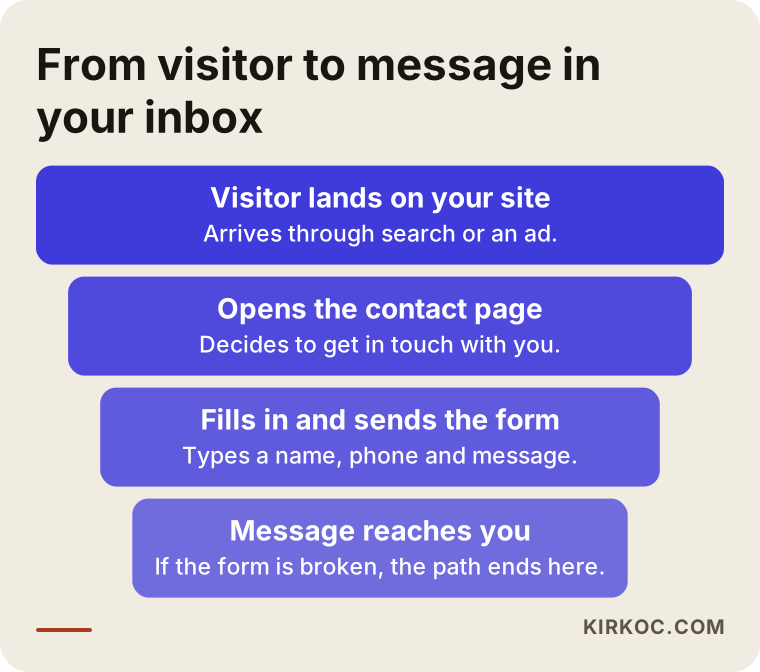
As you can see, the number of people shrinks at every step, and that is normal. What is not normal is when the people who should turn into messages vanish without a trace at the very end. Even if the rest of your site works well, a broken last step brings the result close to zero.
How can you tell the form is not working?
The signs are often indirect. If you notice a few of the following, test the form right away:
- No messages have come from the site for weeks, even though your visitor numbers have not dropped.
- An acquaintance or customer says, "I wrote to you, didn't you see it?"
- Your ads get clicks, but nobody calls or writes.
- An error appears on screen when you fill in the form, or the page freezes.
- The form seems to submit, but the "thank you" message never appears.
- You recently redesigned the site, moved it to a new host, or switched email providers.
The last item is the one people miss most often. A form usually works when the site is first built. Then one day the hosting changes, a plugin updates, an email setting shifts, and the form breaks, but nobody tries it again. The next illustration gathers these warning signs in one place.
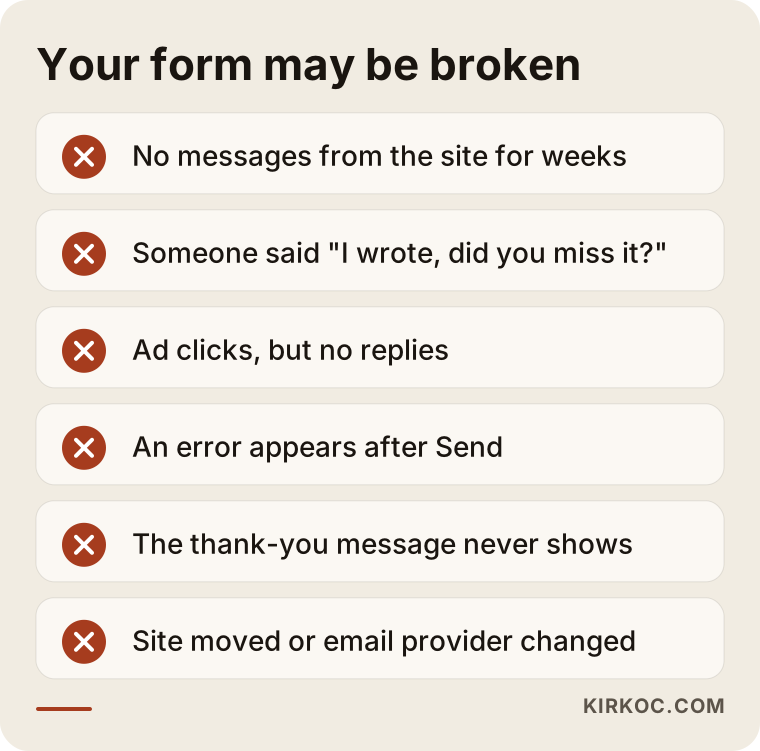
Even one of these signs is reason enough to run a test. The test takes a few minutes. Each week with a broken form means messages you will never get back.
Why does a form stop working? The most common causes
You do not need technical knowledge, but knowing the causes in rough terms gives you two things: you can talk to a specialist more clearly, and nobody can scare you unnecessarily. The problem is usually in one of the following places.
1. The message is sent but never reaches your inbox
Most forms "send" the visitor's message to your email address. But email providers such as Gmail, Outlook and business mail services check who is sending a message and from which server. If the form tries to send mail from your website's server using your domain name (the part after the @ sign), and that sending is not set up correctly, the provider may treat the message as suspicious. It can drop it in the junk folder, or never deliver it at all. Because you are not looking there, you assume nothing is arriving.
2. The destination email address is old or wrong
When the site was built, the form was set to send messages to one address. Time passes. An employee leaves, a domain is not renewed, an email account is closed. The form still sends to the old address and nobody knows. It sounds too simple to be true, but it is one of the most common causes in practice.
3. Spam protection blocks real customers too
Automated programs flood forms with fake messages every day. To stop them, sites add an "I am not a robot" box or hidden checks. If that protection is set too tightly, it treats a real visitor as a robot and quietly drops the message. Or the protection itself breaks, and the form cannot be submitted at all.
4. A plugin or site update broke the form
On systems like WordPress, the form runs through a plugin. When the site or the plugin updates, the two can stop working together. The form fails to load, the button does nothing, or the page shows an error. Nobody notices, because everyone checks the site only by looking at the front page.
5. It fails on phones or in certain browsers
The form may work when you try it on your computer, while a large share of your visitors come from phones. A button hidden below the fold, a keyboard that covers a field, or a required field that never appears can make the form unusable on mobile.
6. The hosting changed or domain settings were disturbed
When you move a site to another server or change your domain records, the email sending settings can be reset. The site opens and everything looks fine, but the email side has quietly come apart.
To help you see these causes and the first place to look in one view, I prepared the table below.
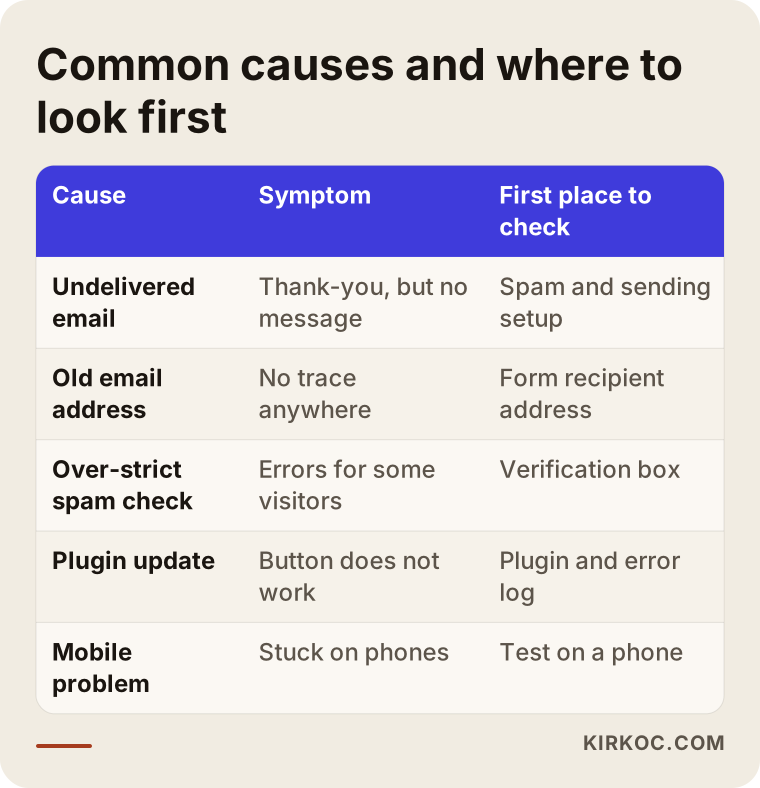
The first two rows, undelivered email and a wrong address, explain most of the problems. That is why it makes sense to start every test there.
How do you test the form yourself?
You do not need technical skills for this test. What matters is doing it like a real visitor and actually checking the result. Follow this order.
- Open your site in a private (incognito) window and go to the contact page. That way, saved information in your browser cannot affect the result.
- Fill in the form with a made-up name, but with a different email address and phone number that you can reach. Write "TEST 1" in the message.
- Press send and watch what happens on screen. Does an error appear, or a thank-you message?
- Wait a few minutes, then check your email. Look in the inbox first, then in the spam and junk folders.
- Repeat the same test from your phone, using mobile data rather than Wi-Fi.
The illustration below summarizes these steps in order.
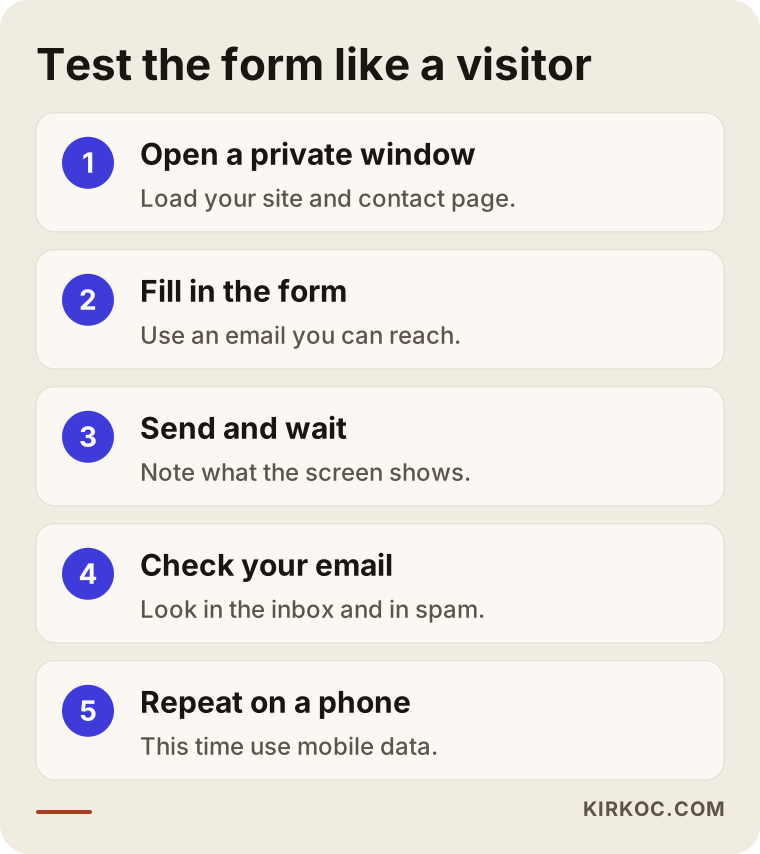
Do not stop at one test. Repeat it after every major change to the site: a new design, a move, a plugin update, or a change of email provider. Putting a reminder in your calendar means you catch a problem on the same day, not months later.
What does the test result mean?
The outcome usually falls into one of three groups. First, you see an error on screen. That means the problem is in the form itself, usually a plugin or code issue, and you will need an expert. Second, you see a thank-you message but no email arrives. That means undelivered email or a wrong address. Third, the email shows up in the spam folder. That means the form works but is not trusted, and tomorrow a customer's message could end up in the same place.
The decision chart below turns these three situations into a simple flow.
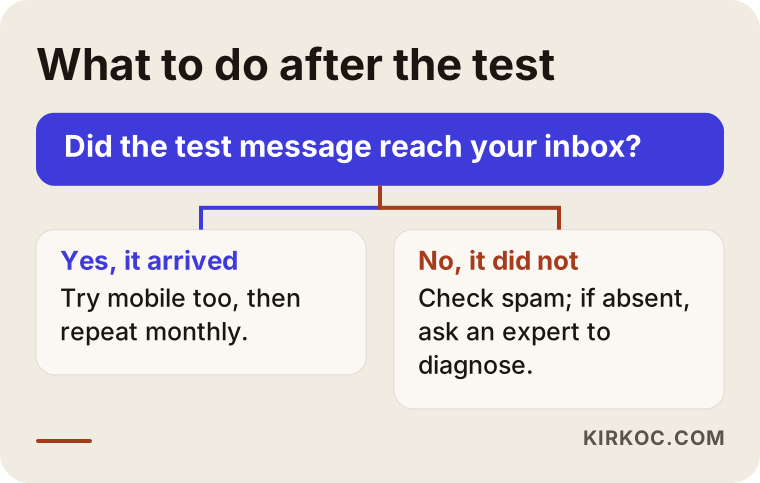
If the result is the spam folder, do not take it lightly. You are unlikely to notice a message that lands in spam, and you cannot know how often it goes straight to the trash. Marking the address as "safe" is only a temporary patch. The lasting solution is for the email to be sent with the right identity.
Example scenario 1: The move nobody checked
This is a hypothetical example. Imagine the owner of a kitchen cabinet workshop. A few years ago they had a site built, and it brings in a few requests a week. Last year they changed hosting companies. The site opens without trouble, the photos are in place, and everything looks as before. Over a few months, the number of messages from the site falls to zero. The owner explains it as "it's a slow season."
One day a former customer tells an acquaintance, "I wrote through the site but never heard back," and the owner decides to try the form. A thank-you message appears, but no email ever arrives. After some digging, it turns out that the email sending settings were never set up on the new server. The fix takes less than an hour, but the loss went unnoticed for months.
The lesson is clear. The problem was not the form itself. It was a check that was never done after an infrastructure change. After a move, "the site opens" is not a sufficient check. The form needs to be tried too.
Example scenario 2: Spam protection set too tight
This is also a hypothetical example. A small dental clinic has a contact form on its site, with strong protection added to keep spam out. After a while the protection setting breaks, and for most visitors the verification box never loads. They fill in the form, press the button, and the page says "an error occurred," so they give up.
The clinic owner does not notice, because they have never seen the form fail. On their own computer and browser the verification box works. The problem appears only in certain phone and browser combinations. A few weeks later a patient calls and says, "I tried to write through the site and it didn't work," and the problem finally comes to light.
What you learn here is that testing on your own device is not enough. Trying a different phone and a different browser catches these silent problems. The goal of protection is to stop robots, not customers, and getting that balance right is a specialist's job.
What should a working contact form include?
Once you have fixed the form, you need a sturdy setup so you do not meet the same problem again. A good contact form should have:
- Delivery to more than one place, so it does not depend on a single email address.
- A saved record after sending, so that even if the email vanishes, the message stays in a dashboard.
- A clear confirmation message shown to the visitor.
- A short form with few fields that is comfortable to fill in on mobile.
- Spam protection that does not tire the visitor.
- An alternative next to the form, such as a phone number or a messaging link.
The illustration below gathers these requirements into a checklist.
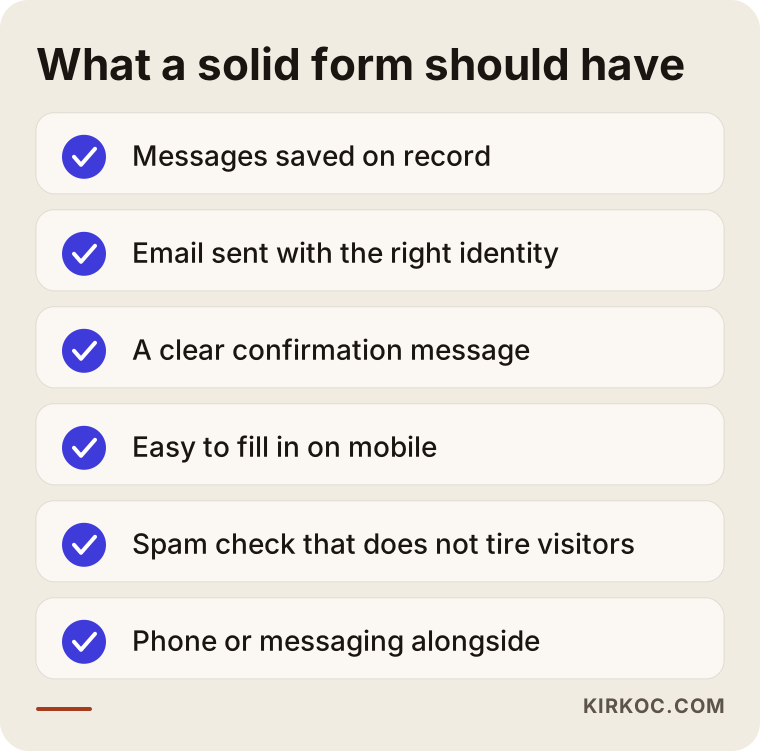
The item most often skipped on this list is the saved record. A form that relies only on email cannot bring back a message that was lost along the way. If there is a record or dashboard, the message stays in your hands even when something goes wrong on the email side.
Is a form enough, or do you need alternatives too?
I also have to say that a form alone is not enough. Not every visitor wants to fill in a form. Some prefer to call, others prefer to message. In a service business, especially when the need is urgent, a visitor will pick up the phone rather than fill in a form and wait. So your contact page should show a phone number, an address and, if possible, a messaging option.
Having these options next to the form is also a kind of insurance. If the form breaks one day, the customer can still reach you another way. The comparison below shows the difference between working with a form only and a page with several ways to get in touch.
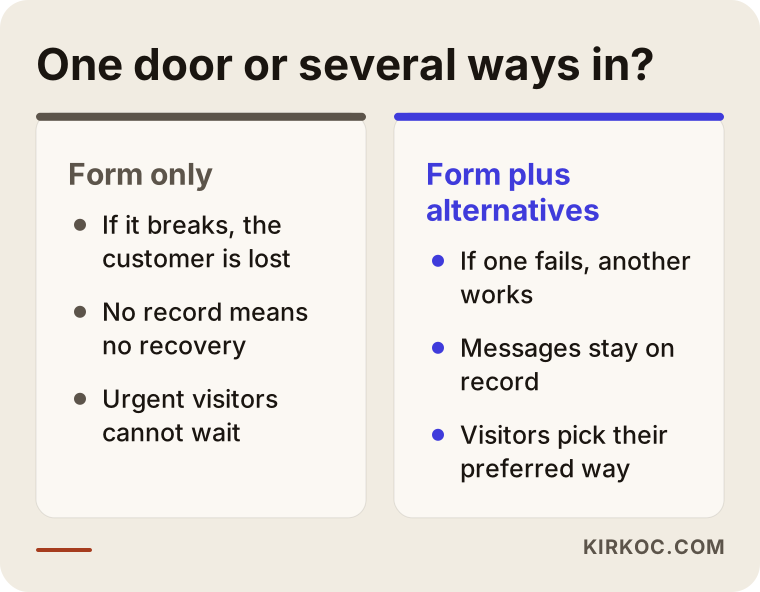
The point of this comparison is simple: let the form be one option, not the only door. In a one-door system, when the door gets locked, every customer is left outside.
Step by step: fixing the problem for good
Working in order saves time and prevents the same mistake from returning. The path I follow in my own process goes roughly like this.
First, find the problem
The first job is to find out why the form is not working. I go through the test results, the error messages and the email settings to see which part is at fault. Here you have to work by trying one thing at a time, not by guessing, because fixing the wrong part wastes time and can break something else.
Then fix it and add a safety net
Once the cause is found, I set up sending again with the right identity, correct any wrong addresses and, if needed, rebuild the form. At the same time I make sure messages are also saved to a record. That way, even if something goes wrong on the email side, the message is not lost.
Finally, try it on different devices
When the fix is done, I test the form on different phones and browsers, and with different email providers. I make sure the message lands in the inbox, does not go to spam and that the confirmation message looks right. If this stage is skipped, the repair is only half finished.
If you would like to see the process stretched over time, the illustration below shows a hypothetical first week.
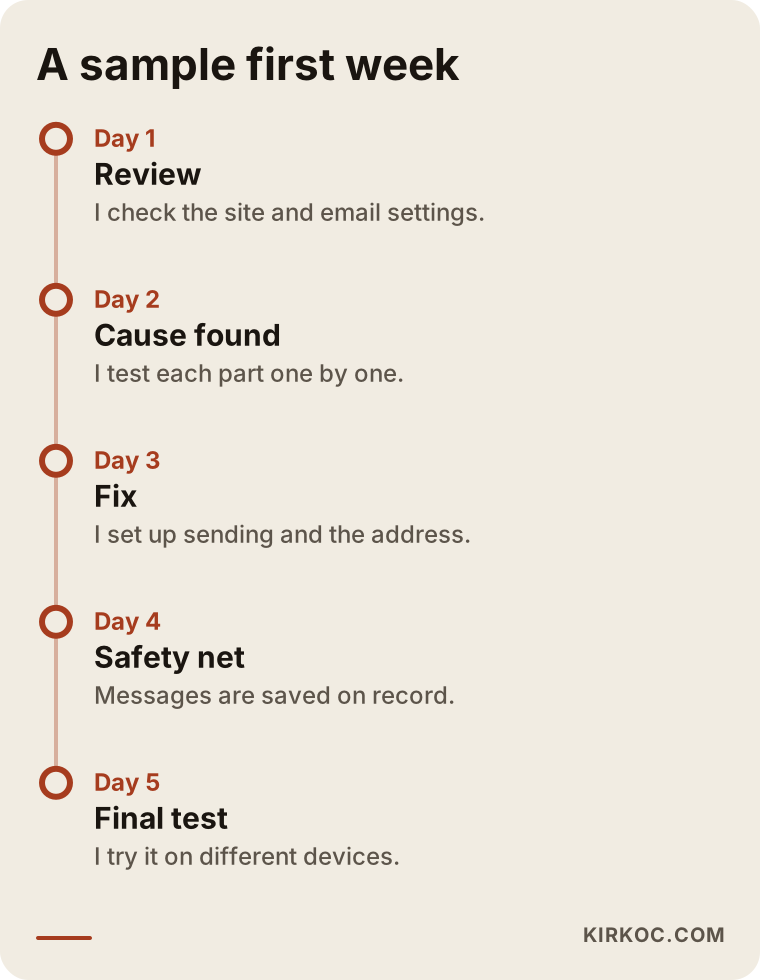
Timing varies with the size of the job. A simple address error can be solved quickly, while a plugin conflict or an infrastructure problem may take longer. I tell you at the start which group your problem falls into.
What should your contact page look like?
How the page is built matters as much as whether the form works. A visitor should understand what to do at a glance. If the page is cluttered, people may give up even when the form works perfectly.
In my view, a good contact page follows this order from top to bottom: a short heading and a line such as "How can I help you?", right below it the phone and messaging options, then a short form, then the address and a map, and at the very bottom a note about reply time. The form should have no unnecessary fields. A name, a phone number or email you can reach, and a message are enough for most businesses. Every extra field reduces the number of people who finish the form.
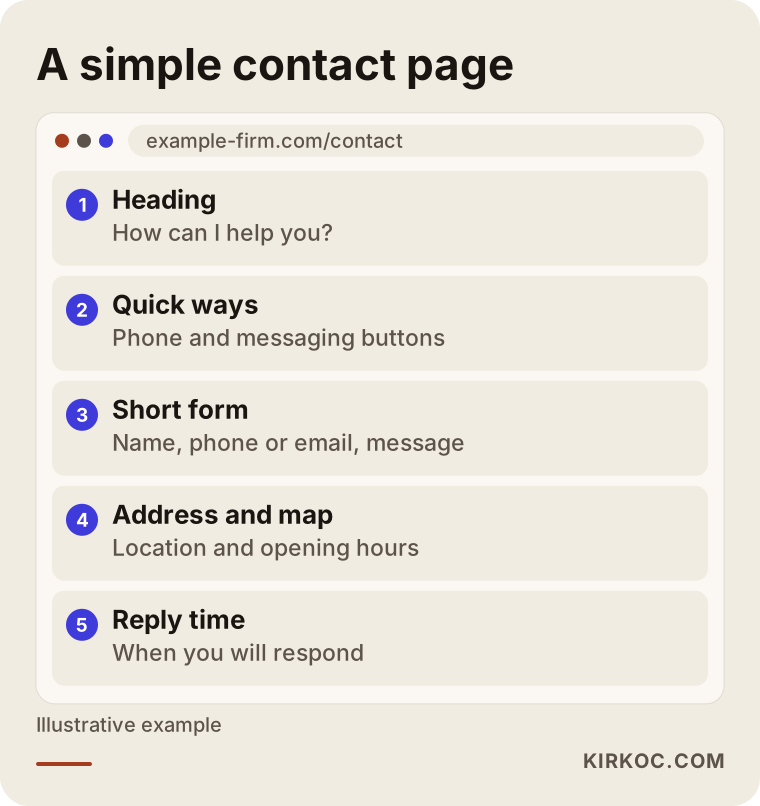
One more thing matters in this layout: the reply-time note. Telling visitors when they will hear back sets expectations and builds trust. Write a time frame you can really keep, and avoid promising something you cannot deliver.
Common mistakes
A few mistakes come up again and again with forms. Knowing them helps you avoid the same traps.
- Trying the form once and forgetting it. A form that worked when the site was first built may not work months later. It needs regular checks.
- Testing only from a computer. Most visitors come from phones, so a mobile test is a must.
- Not looking in the spam folder. Before you say "nothing arrives," check your spam and junk folders.
- Trusting a single email address. If the message is not saved anywhere, everything is lost when the email goes missing.
- Adding too many fields. A long form tires visitors and makes them more likely to leave.
- Offering no alternatives. Without a phone number and messaging, a form on its own is a risk.
- Not showing a success message. If visitors cannot tell the form went through, they either keep pressing the button or give up.
None of these is a "big technical failure." All of them can be prevented with some attention, but if you are not paying attention, they quietly cost you money.
What can you do yourself, and when do you need an expert?
You do not need to call a specialist for every problem. Some jobs you can do yourself, and some do more harm in the hands of someone who does not know the work.
Things you can do yourself: test the form in a private window and on your phone, look in the spam and junk folders, check whether the email address the form sends to is still valid, compare your visitor numbers with the number of messages you receive, and add a phone number to your contact page. These are quick, risk-free jobs.
Jobs that need expert help: setting up or correcting email sending identity (your domain's DNS records), finding a plugin or code error, rebuilding the form, building a setup that saves messages on record, and checking the infrastructure after a move. On these jobs, one wrong setting can break not only the form but your whole email setup. If you do try one yourself, first back up the current settings and write down what you change.
If the foundation of your site is very old, or the form leans too heavily on a single plugin, rebuilding may make more sense than patching. I will tell you so honestly, and I do not recommend a new setup if one is not needed.
What determines the cost?
It would not be right to quote a price up front, because the job varies a lot depending on where the problem is. The main factors that set the price are:
- The source of the problem. Correcting a wrong address is not the same job as solving a plugin conflict.
- The structure of the site. A site on a ready-made system calls for a different approach than a custom-coded one.
- The email setup. The state of your business mail, domain records and sending identity decides how big the job is.
- The level of assurance you want. Saving messages on record, adding notification channels and testing on several devices all make the job larger.
- Whether the form will be rebuilt. Repairing the current form is different from building a new one from scratch.
- Urgency. A fast, priority fix is weighed differently from planned work.
Before I start, I look at the problem and tell you the scope and the time in writing. Instead of a vague "let's see," I think the right method is to make clear what will be done and what falls outside the scope.
How do I work?
I do this work on my own. The person who talks to you is the person who does the job, so nothing is lost as information passes from one person to the next. The process usually goes like this: first I listen to the problem and look at your site, then we test the form together, I find the cause, I write down the solution and the scope clearly, I fix it with your approval, and finally I try it on different devices and show you the result.
At the end of the work I do not just say "it's fixed." I show you the test results and explain what to watch for from now on. I also suggest a simple checking habit in case the problem comes back. My aim is not to make you dependent on me, but to have your business standing on its own feet.
If you are also unsure about the general state of your site, not only the contact form, we can handle it as one piece of work. The form is often just the visible part of a bigger picture: an old foundation, a site that is never maintained, or a weak contact page can all lead to the same result.
To give you an idea, below is an example of how an AI assistant might answer a similar question about testing a form.
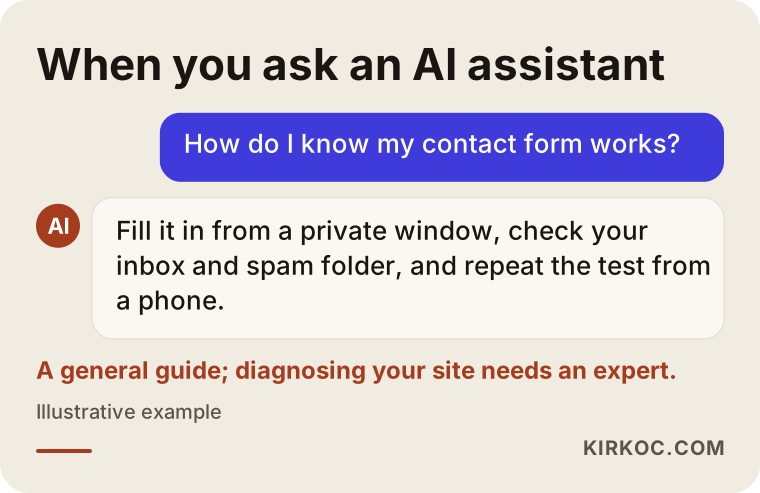
An answer like this gives you general direction, but it cannot know the particulars of your site. The safest path is to start with general knowledge and then get the diagnosis of your specific site from an expert.
Frequently Asked Questions
How do I know my contact form is working?
Open your site in a private window, fill in the form with a made-up name but an email address you can reach, and send it. After a few minutes, check your inbox and your spam folder. Do the same test from your phone using mobile data. If the message does not arrive in either place, or you see an error, the form is not working.
The form says "sent" but no message arrives. Why?
The confirmation message on screen does not guarantee that the message reached your email. It only shows that the form issued the send command. After that, the email provider may have blocked the message, it may have gone to a wrong address, or it may have landed in spam. That is why the real check is whether the email was actually delivered.
What should I do if messages land in the spam folder?
Marking the sender as safe gives temporary relief, but it is not a lasting fix. The real solution is for the email to be sent under your domain with the right identity. Because this setting is technical, it is usually safest for an expert to do it.
If my site runs on WordPress, can I fix the form with a plugin?
Sometimes, yes. Updating the plugin or checking the sending settings may solve the problem. But if you are not sure what you are doing, back up the site first. If the problem lies in the email identity or a conflict with another plugin, it can be hard to solve on your own.
How often should I test the form?
After every major change: a site update, a move, a plugin change or a change of email provider. Beyond that, a short test once a month is a good habit.
Can I remove the form completely and just show a phone number?
Technically yes, but I usually do not recommend it. Many visitors prefer a form because they are outside business hours or do not want to talk on the phone. The healthiest setup offers a working form together with alternatives such as a phone number and messaging.
Can I get back the messages I missed?
If the message was not saved anywhere, it is usually impossible to recover. In some cases there may be traces in server logs or your email provider's records, and I can check that during the review. But I do not promise it. The real goal is that future messages are not lost.
What if the problem is the site itself and not the form?
Then the form is only the symptom. An old foundation, an unmaintained site or incompatible plugins can cause many problems. During the review I identify this and tell you plainly whether patching or building a sturdier setup makes more sense.
If your site is not bringing in messages, you may in fact be losing customers, and the only way to find out is to try the form now. If you want to find the problem, fix it, and build a sturdy setup so it never breaks silently again, you can reach me through my website design page and we can talk it through together.