You opened your site this morning, or a customer called to say "your website won't load." The night before, you had clicked the update notice that WordPress shows in its dashboard. Now the screen is either completely white, or it says "There has been a critical error on this website," or the page is half loaded and falling apart. Typing "WordPress site crashed after update" into Google at a moment like this is completely natural. In this article I explain what probably happened, what you should and should not do in the first minutes, when it is time to bring in an expert, and how to set things up so it does not happen again. I am Ümit Kırkoç, a web designer who works alone from Istanbul. Emergencies like this are part of my website design work, just like building a site from scratch.
First, some reassuring news. In most sites that crash after an update, the content is not gone. Your products, posts and images are usually still there. The problem is typically that one part of the site's "engine" no longer works with another part. So if you read the situation correctly, getting back is often possible. But reading it correctly means not clicking around at random in a panic.
Why does your site crash after an update?
I like to compare WordPress to an apartment building. The building itself is WordPress core. The apartments are plugins: you install one for a contact form, one for payments, one for a gallery, one for security. The interior decoration, meaning the look of the site, is the theme. Each of these pieces is written by different people or companies, and each gets updated on its own schedule. When an update arrives, all the pieces still have to get along. If they do not, the building "jams" somewhere, and what you see is a white page or an error message.
That is why "WordPress is broken" is usually the wrong diagnosis. Most of the time a single piece is at fault: a plugin that fell behind, a theme that was not ready for the new version, or a mismatch with the PHP version on your server. PHP is the behind-the-scenes language your site runs on. Your web host upgrades it from time to time, and an older plugin may not be able to handle the change.
The table below matches what you see on screen with the most likely cause. It is not a definitive diagnosis. It is a practical guide to where to start.
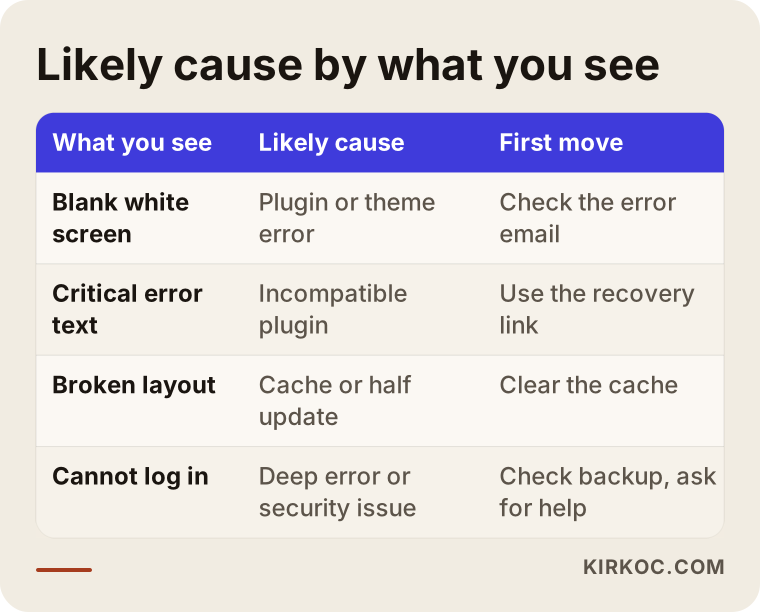
As the table shows, each symptom points somewhere different. A white screen is most often a plugin or theme error. A page that loads only halfway usually has to do with the cache or an update that stopped midway. Knowing this keeps you from spending time in the wrong place.
What does the "critical error" message mean?
In recent versions of WordPress, when the site crashes, a notice is sent to the administrator email address. It names the plugin or theme that caused the trouble. You may have missed it, so check your spam folder too. That email is the most valuable clue you have, because it tells you who the culprit is. It also contains a "recovery mode link," which lets you open the site's dashboard through a special route instead of your normal login. If you find that email, half the job is already done.
What should you do in the first 15 minutes?
Panic is your biggest enemy. A site that is down is frustrating, but a few extra minutes of waiting cost far less than one wrong move. I suggest following the order below.
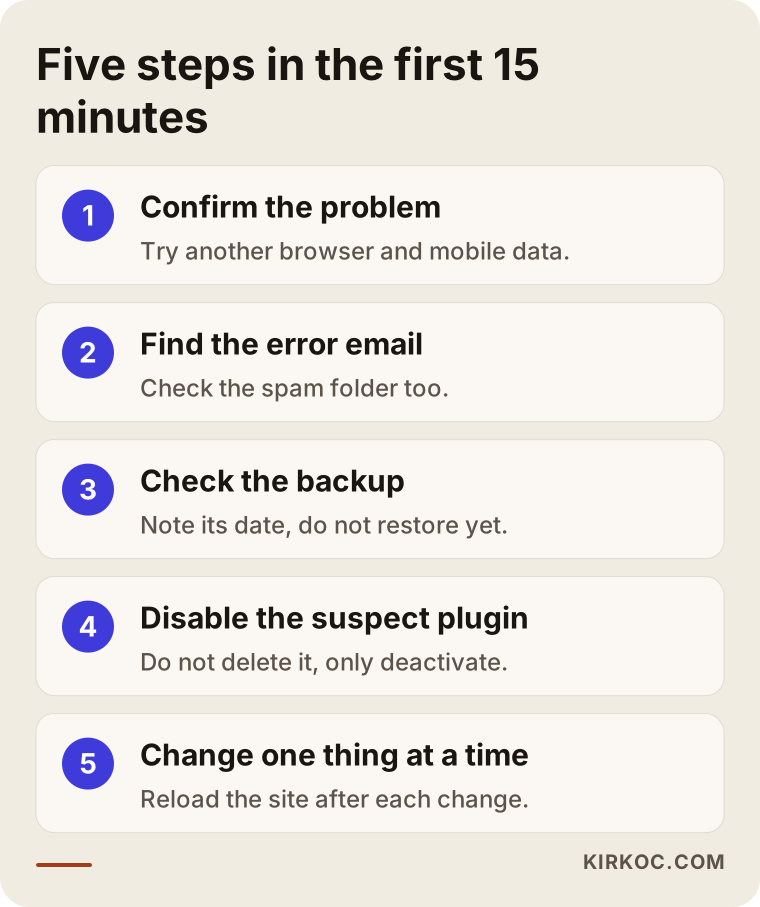
Let me walk through these steps one by one.
Step one: confirm what is going on. Open the site in a different browser and on your phone using mobile data instead of Wi-Fi. Sometimes the problem is only in your own computer's cache. Try both the home page and an inner page. Then check whether you can reach the admin dashboard, which you usually open by adding /wp-admin to the end of your site address. If you can log in but the public site looks broken, the problem is most likely the theme or the cache. If you cannot log in either, the problem runs deeper.
Step two: find the notification email. If you have the critical error email I described above, use the link inside it and deactivate the plugin it names. That often brings the site back instantly.
Step three: see whether a backup exists. Your web host's control panel, or the backup plugin you use, will show the latest backup. Its date and size are the safety net for every step you take later. Just seeing that a backup exists is a relief, but do not restore it yet. First you need to understand the cause.
Step four: log in to your hosting panel. There is a section called the "file manager." If you open the folder where plugins are stored and rename the folder of the suspect plugin (for example, by adding "-off" at the end), the plugin is switched off without being deleted. For someone who knows what they are doing, this takes two minutes. For someone who does not, there is a risk of touching the wrong folder. If you are not sure, skip this step and ask for help.
Step five: change one thing, then test. If you change three things at once, you will not know which one helped or which one made things worse. After every attempt, reload the site and write down the result.
What does downtime cost you?
Every hour your site is down, someone who wanted to call you or buy from you goes away empty-handed. Google also notices if it tries to visit your site and gets an error. A short outage usually leaves no lasting mark, but an outage that drags on for days can hurt your visibility in search results. Until the problem is fixed, it is a good temporary measure to put your phone number front and center on your social media profiles or your Google Business Profile. Nothing can be guaranteed, but a fast response keeps the risk small.
Panic mistakes that make things worse
Most of the mistakes I see on sites like these are well-meant moves. Knowing them can save you time and data.
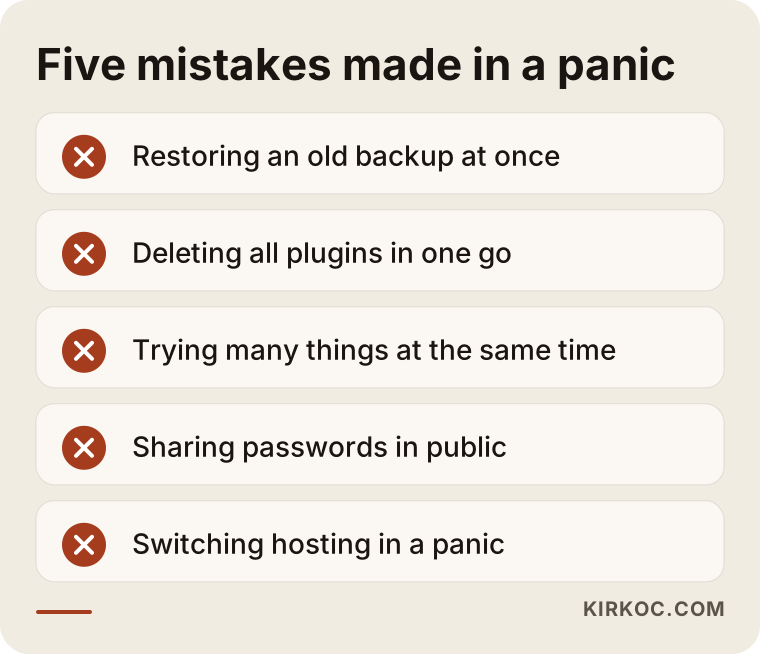
Behind every item on that list is a real risk. Let me explain each briefly.
Restoring an old backup right away looks tempting but is risky. A backup brings your site back as it was on that day, which means anything you added after the backup is erased: products, posts, orders, form entries. If you run a store, orders placed after the backup date can disappear. You first need to back up the current state, or at the very least download the database separately.
Deleting all plugins in one go is another common mistake. Deleting and deactivating are not the same thing. If you delete a plugin, its settings and sometimes its data go with it. Deactivating is a step you can undo.
Trying many things at once clouds the source of the problem. Sharing passwords on social media or in a public group is a security problem all by itself. If you want help, give access only to someone you trust, and only temporarily. Change your passwords once the problem is solved.
Switching web hosts or domain names in a panic is usually unnecessary. The problem is typically a mismatch inside the site, not a fault on the server. A migration just means an extra risk and an extra outage.
What can you try yourself?
Even if your technical knowledge is limited, there are a few things you can do safely. None of them is likely to break your site further.
First, clear the cache. If your site uses a caching plugin (a tool that stores an older copy of your pages so the site loads faster), press the "clear cache" button in its panel. Clear your browser cache too. If the layout looks broken, this one step is sometimes enough.
Second, if you can get into the dashboard, find the plugin that was updated most recently and deactivate your plugins one at a time, reloading the site after each one. Whichever plugin you turn off when the site comes back is the culprit. Check whether its developer has released a newer version. If not, think about an alternative.
Third, temporarily switch the theme to one of WordPress's own default themes. If the site opens, the problem is in your theme. Keep in mind that this changes how your site looks, and customers who see it may be surprised. Try it late at night or at a time when traffic is low.
Fourth, in your hosting panel, set the PHP version back to the previous one. Web hosts usually let you do this from a menu. If the site recovers after the change, you have found the cause. Still, running an old version forever is not recommended for security reasons. It is only a temporary fix.
If you still have no result after these steps, or you reach a point where you are not sure what to do, stop. Before asking for help, gather the information below. It speeds up the expert's work.
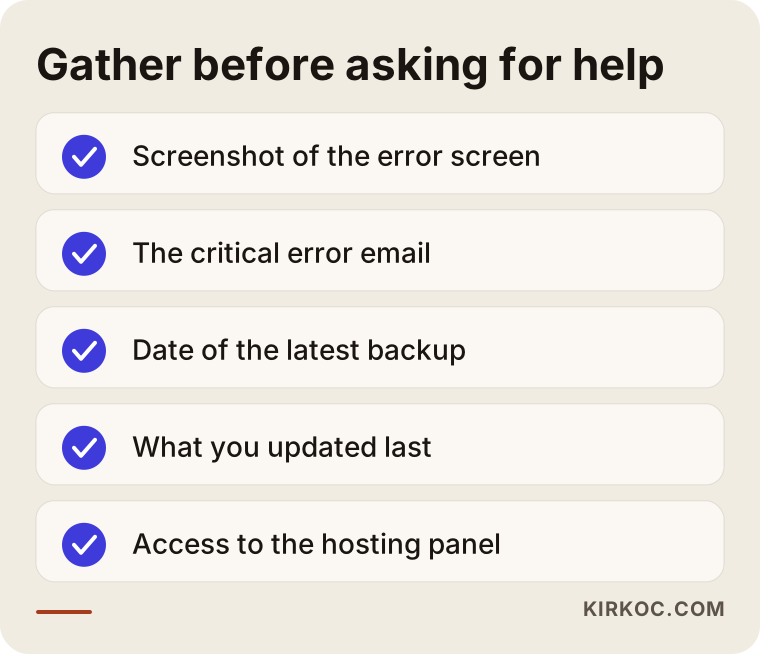
This list shortens the first phone call. The most useful piece of information is the answer to "what exactly did you update, and when?" Write it down if you remember. If you do not, the update history in the admin dashboard or your web host's logs will give you hints.
When do you need an expert?
You do not have to call an expert every time a site crashes. But there are situations where carrying on by yourself does more harm than good.
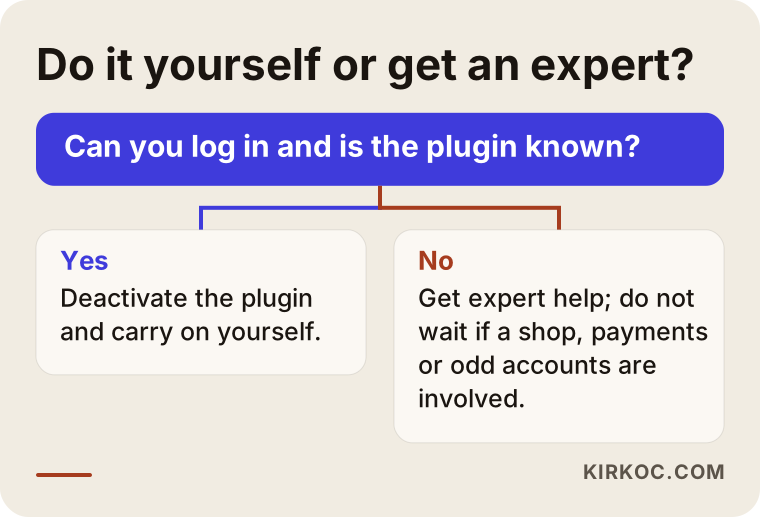
The decision tree is simple. If you can log in to the dashboard and you know the plugin at fault, you can carry on yourself. If you cannot log in, if orders or payments on your online store are affected, if you have no backup, or if the site looks partly hacked (posts you do not recognize, redirects, administrator accounts you never created), you should get professional help.
That last situation deserves an article of its own, but in short: an update crash and an attack are sometimes mixed up. A security layer that broke during an update may have left a door open. If you have any suspicion, cleaning the site and resetting passwords become part of the same job.
Example scenario 1: a small appointment site
This is a hypothetical example and does not describe a real client. Say a dental clinic has a website, and the appointment form runs on a plugin. The receptionist clicks the "run all updates" button one morning. A few minutes later the site shows a white screen and the phones start ringing: patients say they cannot get onto the site.
The clinic owner calls the web host in a rush, and the support team says "let's restore the backup." But the new doctor page added last week and the new appointment records came after the backup date. At this point, instead of restoring the backup, the first thing to do is look at the error email. It names the appointment plugin. Once the plugin is deactivated, the site opens, but the appointment form disappears.
The next step is to find out that the plugin's new version does not work with the theme. The way forward is to update the plugin first on a test copy, confirm it works, and only then move it to the live site. The process looks like this:
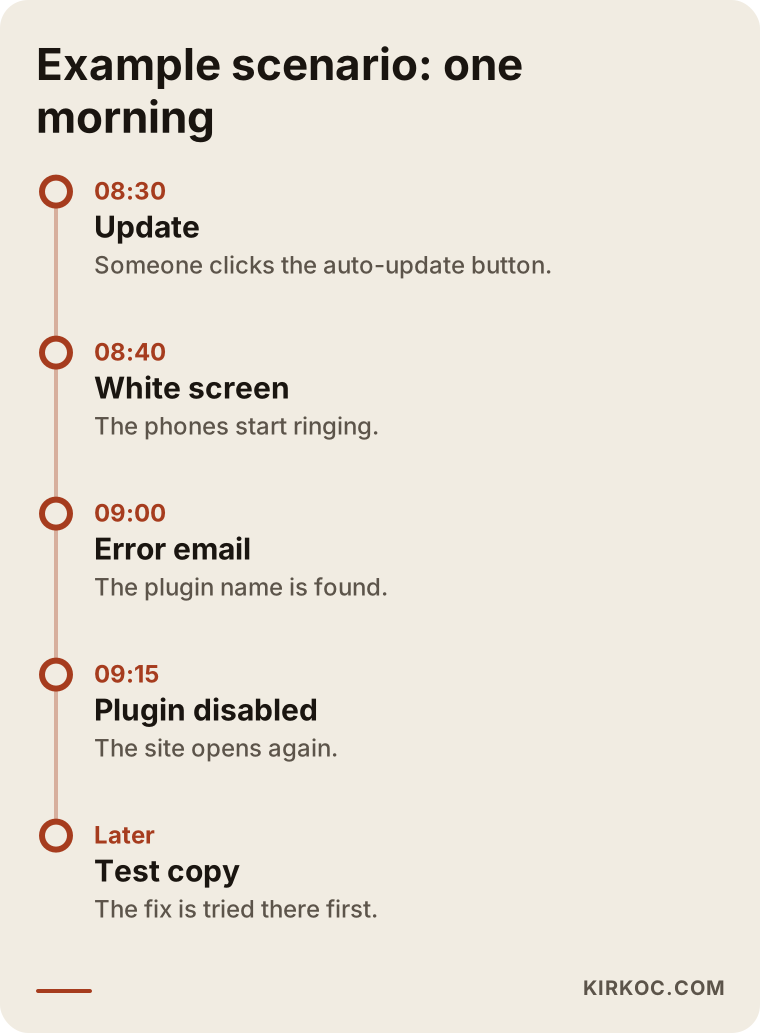
There are two lessons in this example. First, moving in order rather than moving fast saved time. Second, if the update had been run in a test environment instead of on the live site, the outage might never have happened.
Example scenario 2: an online store
This is also a hypothetical scenario. A small home textile shop sells through a WordPress e-commerce plugin. The plugin shows an update warning and the owner runs it. The site opens and the home page looks normal, but prices are missing on the product pages and the cart button does not work. At first glance you might think "the site is working," when in fact sales have quietly stopped.
This kind of silent breakage is sneakier than a white screen because it can take days to notice. Since no order notifications arrive, the owner may simply assume "there were no sales today." Here, rushing back to a backup is the wrong move. You have to go forward while protecting payment and order data. If orders came in after the date of the backup, they are exported separately first.
The fix is usually to update the incompatible plugin or the theme's template files. For stores there is also a second stage, which is checking: placing a test order, trying the payment step, and seeing whether the email notifications arrive. Saying "the page opens" is not enough.
What the two examples have in common
In both scenarios, the cause of the trouble was less the update itself than how the update was done. An update made without a backup, without a test environment and without checks afterward is a small form of gambling. Most of the time it pays off, and sometimes it does not.
After the fix: how to avoid a repeat
When your site is back, relief is natural, but the most valuable part of the job begins now. You do not want to live through the same problem again three months from now.
The first safeguard is not to run updates directly on the live site. Making a copy of your site and trying the update there first lets you catch a conflict before your customers see it. That copy is called a staging site, or test environment.
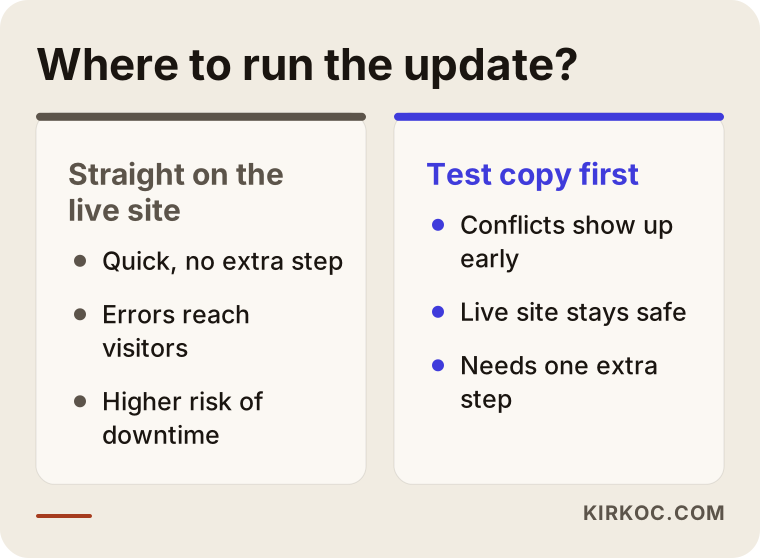
As the comparison shows, a test environment looks like an extra step, but it sharply reduces the risk of downtime. Not every small site needs one. If you earn money from your site or take appointments through it, though, it is a sensible form of insurance.
The second safeguard is a regular backup that does not depend on you. It is not enough for backups to sit only on your web host's server. A copy should be kept somewhere separate, for example in a separate cloud account. It is also worth testing at least once that a backup can actually be restored. A backup that has never been tried is a backup that has not been proven to work.
The third safeguard is to remove plugins and themes you do not use. Every plugin is one more part that can cause a conflict during an update, and forgotten plugins can also be security holes. If a plugin you tried years ago and abandoned is still sitting on your site, clean it out.
The fourth safeguard is to update at the right time. Running an update during a busy sales period, on a campaign day, or in the evening means choosing the most expensive possible moment for a failure. A calm morning, when everything can be checked, is a better choice.
What does a maintenance service actually do?
The service that does these jobs for you on a regular basis is called maintenance. To set your expectations correctly, I need to be clear about what it covers and what it does not. Maintenance does not mean "your site will never break." It means reducing the chance of a break and shrinking the outage you would face if one happens.
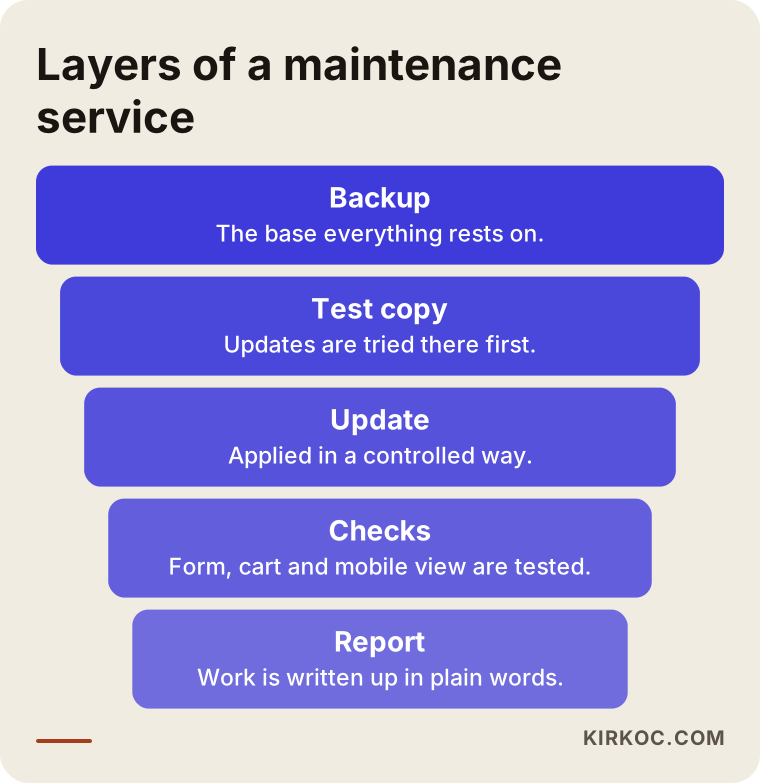
Think of it in layers. The widest base is the backup, and everything rests on it. On top of that sits the test environment, where updates are tried first. Then the update itself is applied, and after that the critical pages and functions are checked one by one. At the very end comes a report in plain language about what was done. The report matters, because if you cannot see what was done, you cannot know what you are paying for.
A maintenance service typically includes regular backups, controlled updates, monitoring that alerts you if the site goes down, a security scan, and a response when something goes wrong. Things that may fall outside the scope are designing new pages, building new features, or a large cleanup after a serious hack. Those are planned as separate jobs, and agreeing on that in writing at the start protects both you and the person providing the service.
What should be checked after an update?
Opening the site, glancing at the home page and saying "fine" is the most common incomplete check. You need to try, in order, the parts of your site that bring in money or customers.
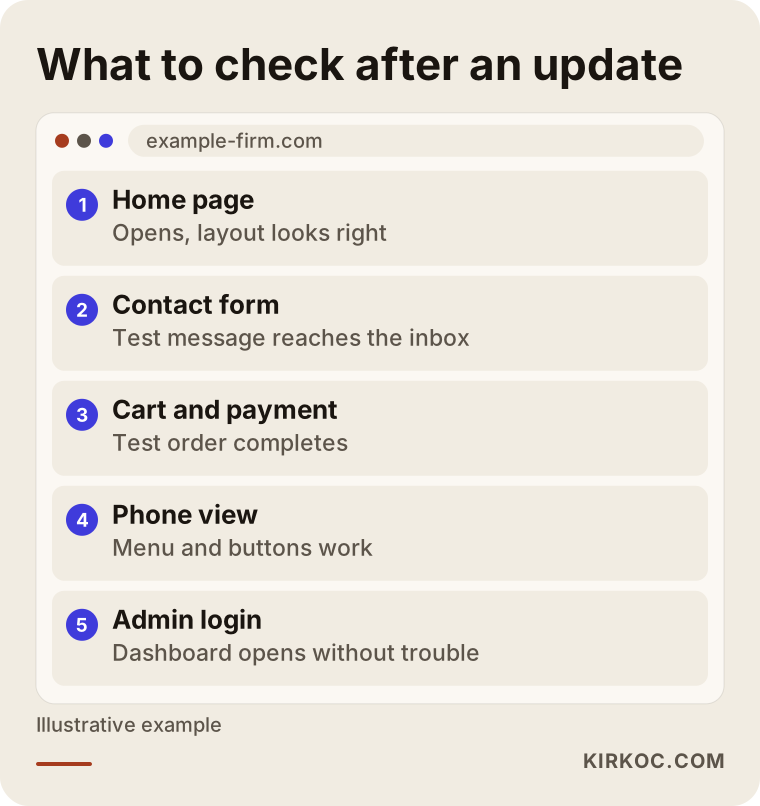
You can follow this checklist yourself. Fill in the contact form and see whether the message really reaches your inbox, because a form can look like it works while delivering nothing. Open your site on your phone, since a large share of your visitors come from phones. If you run a store, place a test order.
What determines the cost
I will not give a number, because the difference between two sites can be enormous. But I can tell you what the price depends on.
An emergency fix and ongoing maintenance are different jobs. For an emergency fix, the cost is shaped by how complicated the problem is, how large the site is, whether a backup exists and how quickly you need the work done. A problem caused by a single plugin on a site with a good backup is solved quickly. A site with no backup, with several broken parts or one that has been hacked takes far more effort.
For ongoing maintenance, the cost is affected by how many plugins the site uses and how much custom code it runs on, whether it is a store or an informational site, how many pages and languages it has, how often and how carefully you want updates tested, and how quickly you expect a response if something goes down. The quality of your web hosting also has an indirect effect; a weak server produces more problems.
When you receive a quote, ask for what is included in writing: how many backups, how often, where they are stored, whether updates are tried in a test environment, what the response time is when a problem comes up, and how you will receive the report. Do not settle for vague phrases like "everything included."
How I work
I work alone, which means the person you talk to is also the person who does the work. If you come to me with an emergency, I first listen to what you saw, when it started and what you changed last. Once I have access to the site, the first thing I do is look at the backup and make a copy of the current state before changing anything. Then I find the cause, try the fix in a safe way first, and at the end I write down what happened and why, in language you can follow.
Once the problem is solved, I can set up a regular maintenance routine if you want one; if you do not, we simply stop after this fix. You are always the owner of your site, your accounts and your domain name. I do not promise a result or a timeline, because every problem is different. What I do promise is to tell you plainly what I will do, in what order, and why.
If you asked an AI assistant "I can't open my site after an update," you would usually get a similar roadmap. The example below shows a summary of that kind of answer.
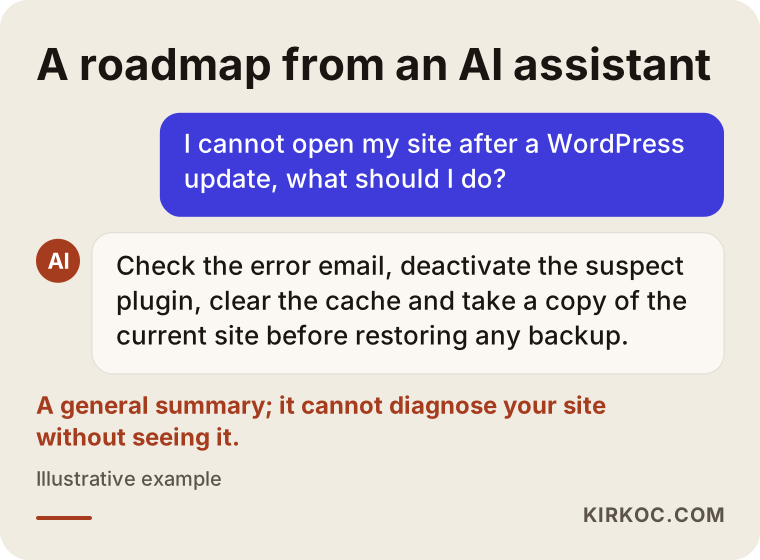
An answer like that is a useful starting point. But it cannot tell you anything definite without seeing the specifics of your site, the date of your backup or your hosting settings. At that point, a person needs to look at your site.
Frequently asked questions
Why does a white screen appear after a WordPress update?
The most common reason is that an updated plugin or theme does not match the rest of the site. Sometimes the PHP version on the server has been upgraded and an older plugin cannot handle it. Sometimes the update simply stopped halfway. The error email or the error log in your hosting panel will often show the cause.
If I roll the site back, will I lose my data?
Restoring from a backup can erase everything added after the date the backup was made: new orders, form entries, posts. That is why you should take a separate copy of the current state before restoring. For stores and appointment sites, where the data matters a great deal, have an expert do this with you.
Will I lose my Google rankings while the site is down?
A short outage usually does not cause a lasting problem, but the risk grows the longer it lasts. I cannot guarantee anything about how long an effect would last or how big it would be. The best course is to fix the problem quickly and then check that the site loads properly.
Would it be safer never to update at all?
No. Updates are not just new features; they close security holes. A site that is never updated becomes more exposed to attack over time. The right approach is not to stop updating but to update in a controlled way: backup first, test first if possible, then the live site.
Should I leave automatic updates on?
For small security updates, leaving them on is reasonable for most sites. Leaving major version jumps and complex plugins to run automatically is risky, though. If your site sells products or takes appointments, it is safer to apply important updates in a controlled and monitored way.
Do I have to pay for a maintenance service?
It is not required, but if your site brings in business, weigh it against the time you would lose if it crashed. If you have the time and the knowledge to follow updates regularly, you can do it yourself. If you do not have time for this, a maintenance service reduces the risk of loss. When choosing a provider, ask for the scope in writing.
Is my web host responsible for fixing this?
Generally a web host is responsible for keeping the server running, not for a plugin or theme conflict inside your site. Support teams sometimes help, but they may not touch the content of your site. Check the scope in your agreement, and if you need to know exactly what obligations apply, consult a lawyer.
How long does it take to recover a crashed site?
It depends on the source of the problem. If the error email is clear and the backup is sound, it can be solved quickly; with a multi-part conflict or a hack, it takes longer. It would not be honest to promise an exact time before starting. After an initial look, a realistic estimate can be given.
If your site is not opening right now, or you never want to wake up to a morning like this again, tell me what you are seeing and we will work out together where to start. You can look at my website design and maintenance page for details and get in touch from there.