You open your inbox one morning and there is a message from "Google Search Console" with the word "issue," "error" or "not indexed" in the subject line. Your first thought is probably, "Did something happen to my website?" Maybe the person who built your site set up this account on your behalf. Maybe you set it up yourself and forgot about it. Either way, you are now looking at a Search Console warning email that does not explain itself, and you do not know who to ask. In this article I explain why most of these emails are no reason to panic, and which few really deserve attention the same day. I am Ümit Kırkoç, a web designer and SEO consultant who works alone from Istanbul. I read these messages for business owners all the time, and a good part of my SEO services is simply translating what they say into plain language.
First, a short definition. Search Console is a free information panel that Google gives to the owner of a website. It shows how Google sees your site, which pages it has visited and added to its list, and where it found problems. When the panel notices something, it sends you an email. Think of it as an alarm system: not every alert means a fire, but a few of them really can.
Why do these emails arrive, and who gets them?
The email goes to the person who created the Search Console account, meaning the person who "verified" the site. Verification is the technical way of telling Google, "this site is mine." If you hired an agency or a freelancer to build your site, the account may have been created with their email address. In that case the messages never reach you, and if something is wrong, nobody sees it. The opposite happens too: you created the account yourself, later stopped using that email address, and the messages now land in a mailbox nobody reads. Both situations are very common.
Messages come for two main reasons. The first is that Google found something while visiting your site: a page that will not open, a page that was left out of its list, a problem using the site on a phone. The second is that something changed in your settings or account: a new person was added, or ownership verification was renewed. The first kind is informational about your site's health. The second kind is usually just administrative. Both come from the same sender in the same plain design, so they look alike. The real skill is telling them apart at a glance.
One more thing up front. Google does not write these emails one by one for you. The system is automatic, and the more pages your site has, the more messages you tend to get. On a site with hundreds of product pages, getting a note that "some pages were not indexed" is extremely common, and often a share of those pages were deliberately left out in the first place.
Don't panic first: sort the email by type
The first line of every warning email tells you what kind of message it is. What matters is putting it into one of three boxes: "look today," "look this week," or "just information." The picture below lays out the common message types using that logic.
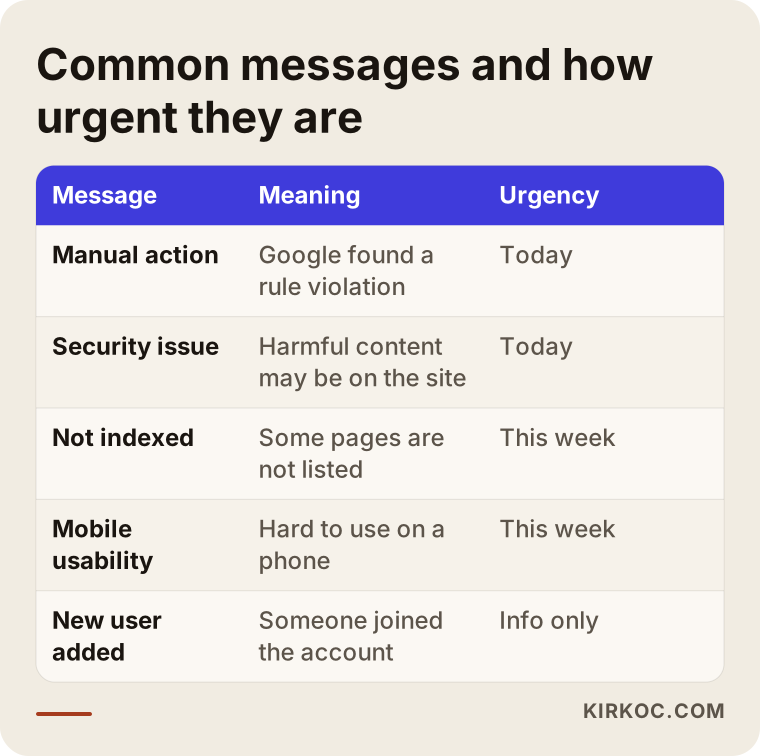
What you will notice in the table is that the urgent messages are few. "Manual action" and "security issue" messages are rare in practice, but when they do arrive, they should not wait. Messages such as "page not indexed" or "structured data" arrive far more often, and most of them can be handled calmly during the week.
Messages to look at today
These carry a direct risk to your site. The first is any message that mentions a "manual action." It means a person at Google reviewed your site, found something that breaks the rules, and removed part or all of your site from search results. This is not an automatic warning; it is a human decision, and you will need to submit a request for review after you fix the problem. The second is a "security issue" or "hacked content" message. Something may have been added to your site without your permission, and your visitors may be seeing a red warning screen in their browser. The third is a server error message saying Google cannot reach your site at all, especially if it has gone on for days.
Messages to look at this week
Indexing problems, mobile usability warnings, "Core Web Vitals" messages about page speed, and redirect errors belong in this box. Core Web Vitals, in short, are Google's measurements of how quickly your page opens on a phone and whether it stays still while loading instead of jumping around. These messages may tell you your site has become slow or a page has broken, but they do not mean your site went down last night. Still, if they sit untouched for months they can hurt your visibility, so keep the difference between "I will look later" and "I will never look."
Messages that are just information
A new user being added, ownership verification being renewed, a monthly performance summary, and "a new report is available" notices are information only. The one thing to do here is this: if someone you do not recognize was added, ask who that is. A person added to Search Console can see your site's data.
Urgent or not: decide with two questions
If you have read the message and still are not sure, ask yourself two simple questions. First: "Are my customers seeing this right now? Does the site open, does the phone number work, is a red warning showing?" Second: "Is the message about pages that bring in revenue, or about an old blog post or a tag page?" The flowchart below puts those two questions into a single diagram.
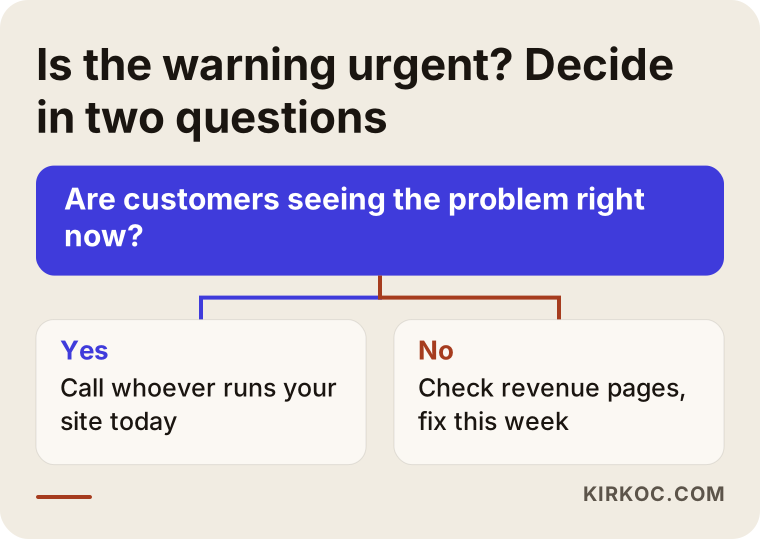
This flow is not perfect, but it points in the right direction. If your site opens, your product and service pages work normally, and the message concerns only a few old pages, there is no reason to panic. If instead you open your site and see a strange ad, a redirect to somewhere else, or a red warning screen, stop reading the email and contact whoever manages your site right away.
The most common messages and what they really mean
Let me go through a few of the frequent messages one by one. For each, I explain what it says, what it should make you do, and what you often do not need to do.
"Page not indexed" or "Indexing issue"
Indexing means Google adds one of your pages to its own list. If a page is not on the list, it will not show up in search. This message usually arrives as "this many pages were not indexed," with reasons listed underneath. Most of the reasons are harmless: a page may be a duplicate of another page, it may have been deliberately marked "do not list this page," or Google may simply not have gotten around to visiting it yet. It is often perfectly normal for cart, login, filter and thank-you pages to be left out.
The problem is when the page left out is one that earns you money. If your service page or your best-selling product is missing from the list, this message really matters. Look at the page addresses in the message. If you recognize pages that bring in business, move this to your "this week" box.
"Mobile usability issue"
This message says that one of your pages is hard to use on a phone: text may be too small, buttons may be crowded together, or content may spill off the screen. If most of your customers visit from a phone, this is a customer experience problem, not only a Google problem. Open that page on your own phone and look. If you can see the problem with your own eyes, it is a real thing that needs fixing.
"Core Web Vitals" or page experience warnings
This message says your pages are slow or unstable. It is usually caused by large, unoptimized images, heavy plugins or cheap hosting. It is not urgent, but if it keeps getting worse, and especially if you pay for ads that send people to your site, it costs you money, because visitors leave a slow page without waiting.
"Structured data" or "rich result" errors
Structured data is a hidden label added behind your page that tells Google, "this is a product, this is a price, this is a review." If those labels are wrong, Google will not show extras such as star ratings or prices in your search result. Your site does not disappear; your search result just looks a little plainer. That is why this message can often wait.
"Redirect error" and "404"
When a page is deleted or its address changes, people who visit the old address see a "not found" screen. This is natural and happens on every site. But if the deleted page has a new address, you should set up a redirect from the old address to the new one. If what was removed was an important service page, that is a real loss, so do not brush this message aside.
"Manual action"
This is the most serious one on the list. A Google employee has reviewed the site and found a violation, such as purchased links, spam content or hidden text. The message tells you which rule was broken and on which pages. You need to fix it and then send a "reconsideration request." You can run this process yourself, but a wrong step means another rejection, so if you lack technical knowledge it makes sense to get expert help here.
Two example scenarios
The two scenarios below are entirely hypothetical and do not describe any real company. The aim is to show how the same type of email can lead to different outcomes for different businesses.
Scenario 1: A furniture workshop and a "not indexed" message
Suppose the owner of a small furniture workshop gets a message one morning saying "40 pages were not indexed." The site has roughly 150 pages, and the first reaction is fear. The owner looks at the list of pages in the message and sees that most of them are "cart," "user login" and "product filter" pages. There is no need for those to appear in search anyway. But two product categories are also on the list: "dining room sets" and "desks." Those are the real problem, because they are the pages that bring the workshop the most customers.
The right move here is to forget the 38 unnecessary pages and focus on the two that matter. Someone checks why they were left out: one page was accidentally marked "do not list," and the other was redirected to a different page. Once both are fixed and Google is notified again, the pages may enter the list anywhere from a few days to a few weeks later. The timing cannot be guaranteed; Google works on its own schedule.
Scenario 2: A dental clinic and a "security issue" message
Now suppose a dental clinic's owner receives a message one evening titled "harmful content detected on your site." Putting this in the "I will look later" box would be a big mistake, because the site may be showing visitors a browser warning. Some of the patients who visit the site to book an appointment may be seeing the red screen and leaving.
Here is how it goes: first, call the site manager or the hosting company and ask them to restore an earlier backup and clean out the harmful code. Then change the passwords, update any outdated plugins, and send a "fixed" notice from Search Console. In this scenario every hour counts, which is why this type of message goes into the "look today" box.
What the two scenarios share is this: do not let the subject line frighten you. Look at the page addresses and the topic inside. The same word "issue" can mean a three-minute check for one business and a same-day emergency for another.
What to do step by step when a warning arrives
I suggest following the same order for every message. It protects you from panic and from spending money you do not need to spend.
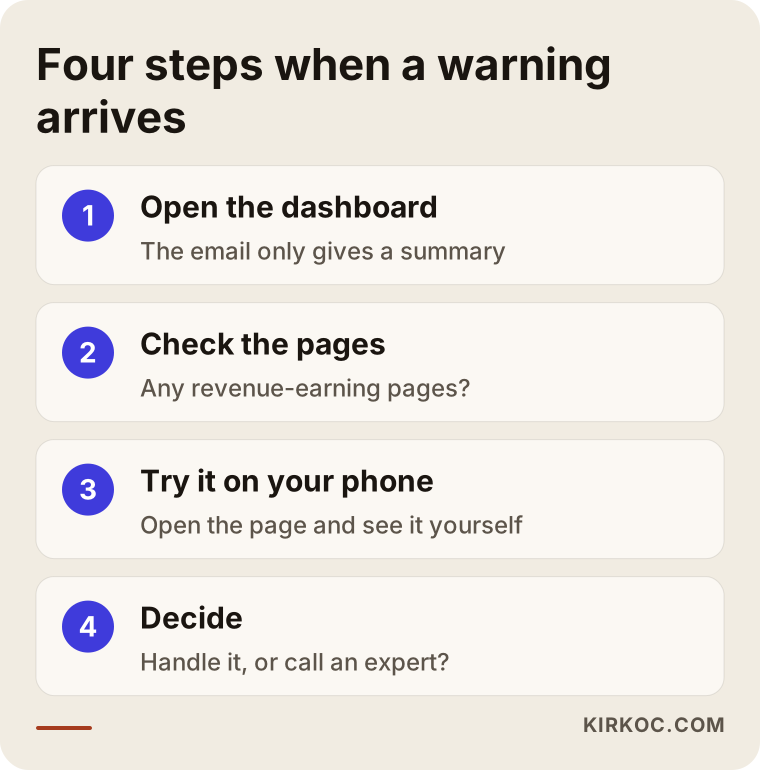
The first step is always the same: close the email and open the Search Console dashboard. The email only sends a summary; the details, the list of affected pages and the dates live in the dashboard. In the second step, look at the affected pages and work out whether the problem sits on pages that earn revenue or on unimportant ones. In the third step, try to see the problem yourself: open the page on your phone, test the form, click the link. In the fourth step, decide: can I fix this myself, or should I hand it to a specialist?
What to do in the first five minutes
Go into the dashboard and find the heading the message mentions, usually under "Issues" or "Indexing." Check how many pages are affected, when the problem began, and whether it is getting worse. Then open your site on your own phone and try the home page, one service page and the contact form. These two checks will often tell you whether the message belongs in "today" or "this week."
What not to do on day one
Do not delete pages right away. Do not decide to rebuild the whole site. Do not pay the first offer that promises "SEO error repair." Not every word in a message is a problem that needs fixing, and a wrong deletion or a wrong redirect can turn a small problem today into a big problem tomorrow.
The timeline after the message arrives
There is a gap between a problem being noticed in Search Console and it showing as solved. Knowing this saves you from the "I fixed it but it still shows" panic.
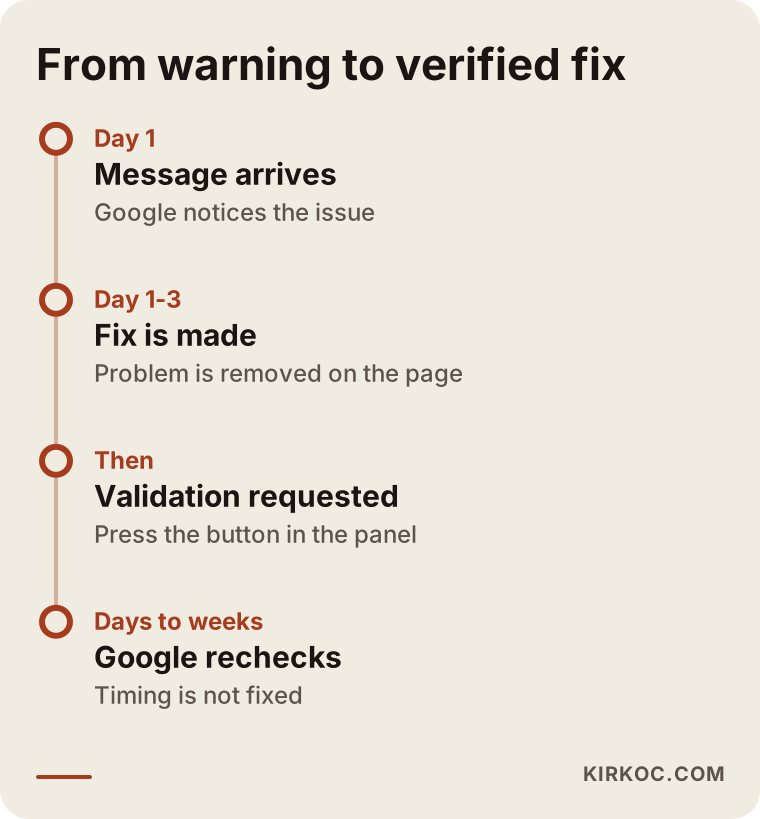
The most important lesson from the timeline is that Google does not see your fix the day you make it. When you press the "validate fix" button in Search Console, Google starts rechecking the pages, and that check can take days, sometimes weeks. So if the dashboard still shows the same problem a day after your fix, that does not mean your fix failed. Be patient, but if a month has passed and nothing has changed, take another look.
What you see in the dashboard: a simple map
Many business owners click the link in the email and then cannot make sense of the dashboard they land on. The panel really has five or six sections, and fewer than half of them matter to you.
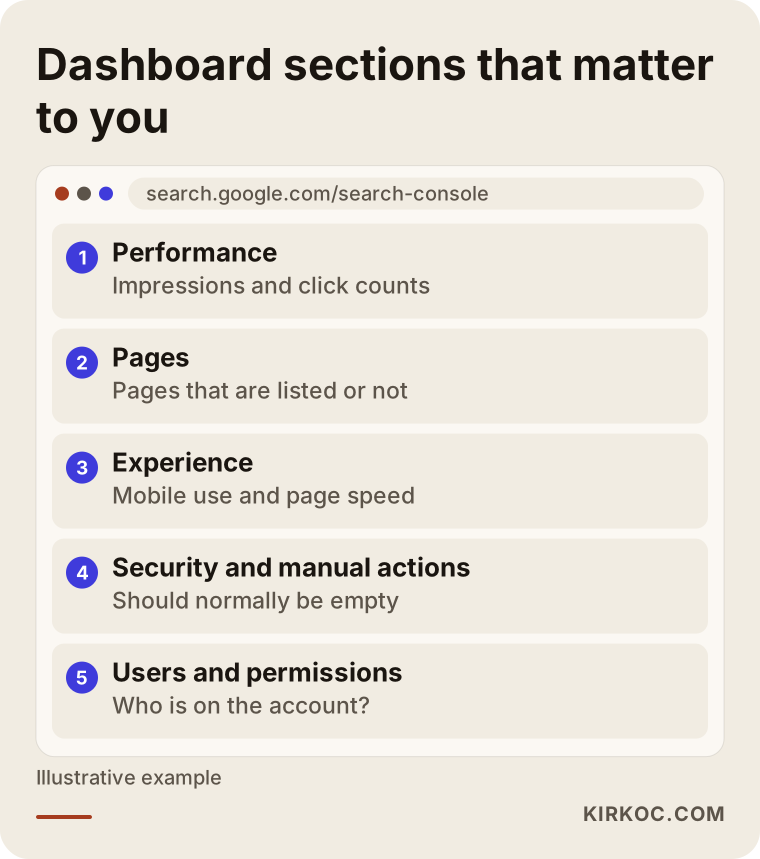
As a business owner, three places are most useful. The "Performance" section shows how many times your site appeared for which searches and how many clicks it received. The "Pages" or "Indexing" section tells you which of your pages are on Google's list and which are left out. The "Experience" section gathers things like mobile usability and page speed. You do not have to deal with the remaining sections unless you work with a technical person.
There is also a "Security and manual actions" section. It should normally be empty, and it is the one place you really should check: if there is any text in it, it goes into your "look today" box. If it is empty, you can relax.
Common mistakes
The mistakes I see with these emails fall into three groups: never looking, overreacting, and asking the wrong person.
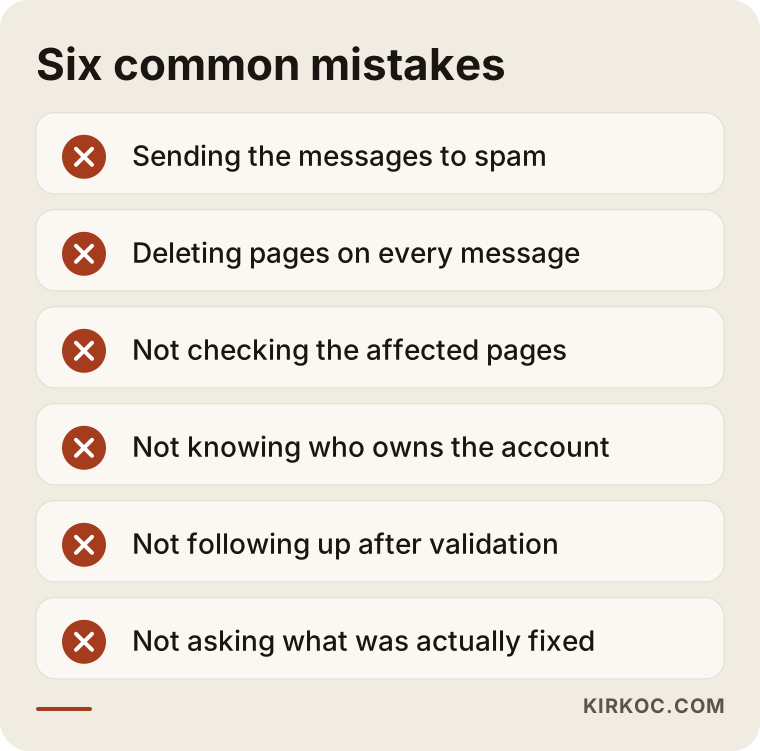
The first mistake is treating the messages as noise and sending them to spam. Months later, when your traffic drops, you look back and discover you never knew about a warning from a year ago. The second mistake is the opposite: assuming every message is an emergency, deleting pages, or deciding to have the site rebuilt from scratch. The third mistake is not connecting the message to the pages that earn you revenue. The fourth is not knowing who owns the account; a former agency or a former employee may still be an administrator, and the messages may be going to them. Check this once: under "Settings," open "Users and permissions" and see who is listed.
The fifth mistake is pressing the "validate fix" button and then doing nothing. If validation fails, a new email arrives and the problem is still there. The sixth mistake is accepting a service provider's promise to "fix everything" without asking what was fixed. A good specialist can explain, in plain language, which message arrived, why, and what was done about it.
What you can do yourself, and when you need a specialist
What you can do on your own is small but valuable. Make sure the account is tied to an email address that belongs to you. When a message arrives, sort it by type. Open the site on your phone and look. Work out whether the affected pages matter. None of this requires technical knowledge.
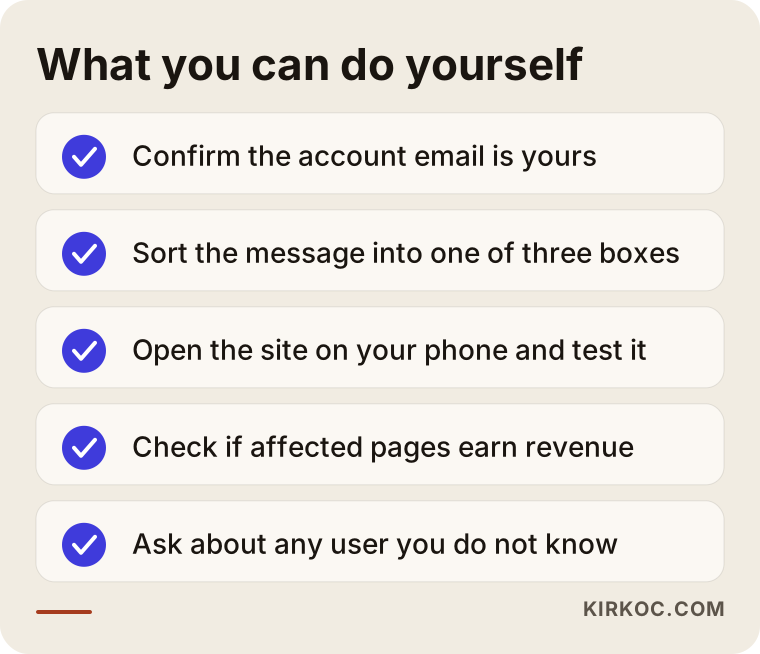
If you have gone through the checklist and are still unsure, it is time to ask a specialist. That applies especially when a manual action or security message has arrived, when the problem appears on many revenue-earning pages, when the same message keeps coming back even though you fixed it, or when you do not know who manages the site. If a technical fix is needed, a wrong redirect or a wrong setting can leave the site worse than before.
The difference between doing it yourself and hiring help
There is a clear line between handing everything to a specialist and handling it yourself. The comparison below puts the difference side by side.
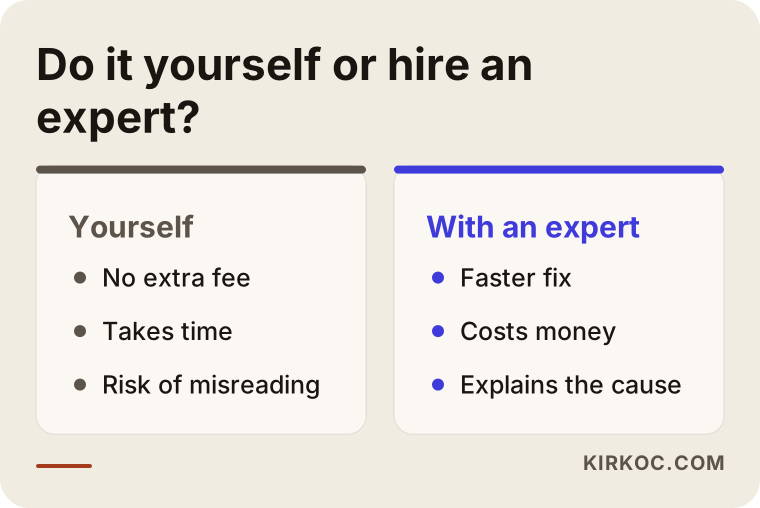
The main idea in the comparison is this: doing it yourself costs no extra money but takes time and carries a risk of misreading the message, while hiring a specialist saves time but costs a fee. Which one suits you depends on the type of warning and how important the site is to your business. If most of your customers find you through Google, specialist help is not an expense but a kind of insurance.
Can you reduce the number of warnings?
You cannot bring them to zero, because Google will tell you whenever it finds something on your site. But you can reduce how many you get and how serious they are. A site that deliberately keeps unnecessary pages (cart, filters, old campaigns) out of the list produces fewer "not indexed" messages. A site that is updated regularly is less likely to get a security message. A site with compressed images and a clean layout will not get page speed warnings.
My advice is to set aside ten minutes once a month and open the dashboard. Look at the "Performance" chart, check in the "Pages" section whether the number of indexed pages changed suddenly, and confirm that "Security and manual actions" is empty. Those ten minutes are a far cheaper habit than waiting for an email to arrive.
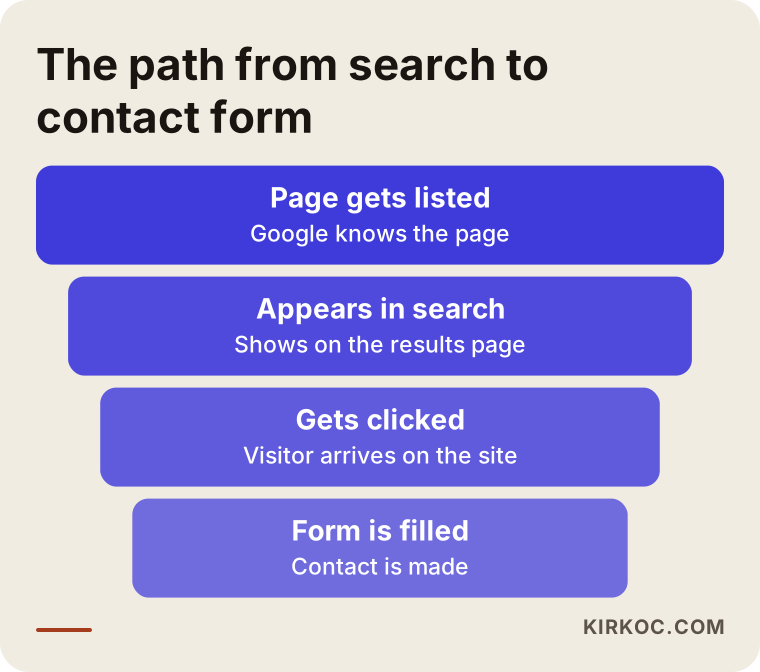
The flow in this picture shows a visitor's path from search to your site and summarizes which point on that path Search Console watches. If your page does not get on the list, it does not appear in search results. If it does not appear, it does not get clicked, and if it does not get clicked, your contact form does not get filled in. Warning emails exist to tell you in advance if something is getting stuck at the start of that path.
What can change in a search result
You can sometimes see the effect of a message with your own eyes. For example, once a structured data error is fixed, your search result may look more detailed. Once a redirect is set up, a person who arrives at the old address reaches the new one. The picture below shows this difference with a completely made-up example.
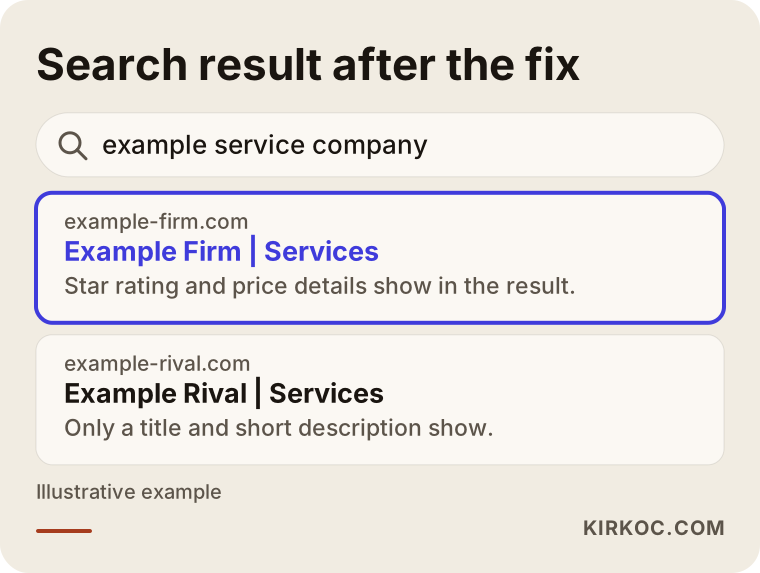
What to notice here is that the fix changes how the result looks, not where it ranks. Nobody can promise you a ranking. But a more complete-looking result may raise the chance of a click, and for a small business that is a quiet but real gain.
What determines the cost
The cost of dealing with these warnings depends on how many pages are affected, what type of problem it is, and how your site was built. Simply interpreting one email and saying "you do not need to do anything" takes very little time. A redirect fix across a few pages takes a bit longer. Cleaning a hacked site can be a long job, depending on where the harmful code sits and whether a backup exists. In the case of a manual action, the nature of the violation and how many pages it spreads across shape the process.
The platform your site was built on also changes the price. A site assembled from a ready-made theme and many plugins may need more investigation than a cleanly coded one. Then there is whether you want ongoing monitoring: a one-time fix and a regular monthly check are different scopes of work. When you request a quote, always ask what is included and which message the fix is meant to address. A vague "SEO repair" line item is not a good sign.
How it works if you work with me
Because I work alone, the person who reads your message, inspects the site and makes the fix is the same person. I usually go like this: first I clarify who owns the Search Console account and where the messages are going. Then we read the message you received and the relevant part of the dashboard together, and I tell you in plain language whether it is urgent. If the problem is real, I write down what caused it, what the fix will cover and how long it might take. I cannot promise a timeline, because Google's recheck schedule is not in my hands.
After the fix, I start validation from the dashboard and watch the result. When the job is done, I leave you a note with the account's access list, which email address receives messages, and the three places to check once a month. My goal is not to make you depend on me. It is to leave you as someone who knows what to do when a message arrives.
Frequently asked questions
Does every email from Search Console mean there is a problem?
No. Many are informational: a new user was added, a monthly summary, or a notice about a new report. Even among messages that do report a problem, many concern small matters that do not affect how your site works. What matters is not the word in the subject line but the affected pages and the type of issue.
I got a "page not indexed" message. Was my site removed from Google?
No, this message does not mean your site was removed. It only says certain pages were not added to Google's list. Most of them are pages that do not need to be on the list anyway, such as cart, login or duplicate pages. If a page that earns you revenue is missing from the list, then you should deal with it.
I fixed the warning but Search Console still shows the same problem. Why?
Because Google does not see your fix immediately. When you click "validate fix," it rechecks the pages, and that can take days or sometimes longer. Wait a while; if a long time passes with no change, check whether the fix was actually applied.
These emails are not reaching me. Is that a good thing?
Not always. If no messages come, either there is no problem or the account is tied to someone else's email. Check who created the account and whether your address appears as an authorized user under "Users and permissions."
I received a manual action message. What should I do?
First read which rule and which pages the message points to. Sending a reconsideration request without fixing the problem does not work and can even drag the process out. If you do not understand what counts as the violation, it makes sense to talk to someone experienced in this area.
Can I ignore a mobile usability warning?
If most of your customers visit on a phone, it is better not to ignore it. This warning points to a problem for both Google and your visitors. A good first step is to open the page on your own phone and see whether it is really usable.
What should someone without a Search Console account do?
Opening an account is free, and verifying ownership of the site takes a few steps. Without an account, you cannot see the problems Google finds on your site. Once it is set up, I recommend choosing the address where messages go and adding a backup authorized user.
Do I have to pay for monthly service to manage these warnings?
No. Most warnings arrive a few times a year and can be followed with a short monthly check you do yourself. If your site is critical to your revenue or you run into problems often, regular monitoring can make sense. The decision depends on how big your site is and how much you rely on Google.
If you want to know whether a Search Console message in your inbox is urgent or only informational, or you are not sure who holds your account, write to me through my SEO services page. We will read the message together, and if something really needs doing, I will explain in plain language what it is and in what order to do it.