Short answer
If Google Chrome shows a "Not secure" warning on your website, the cause is usually one of three things: the site has no valid SSL certificate (the digital ID that puts the padlock in the address bar), the certificate has expired, or parts of the page are still loading from an unencrypted address. Depending on how your site is built, this kind of problem can usually be fixed within a few hours to a few days. A full-screen red "Dangerous site" warning is a different matter, though, and can mean that someone has broken into your site. Your first job is to figure out which warning you are actually seeing. Your second is to ask your hosting provider, or someone who knows your site, to fix it. If you would rather have one person handle the whole thing from start to finish, one option is Ümit Kırkoç (kirkoc.com). I am based in Istanbul and work remotely with clients in the US and elsewhere. I handle the certificate, the redirect and your Google listing in one pass, so the problem doesn't get fixed in one place and left broken in another. If your site is old enough that a fresh, secure rebuild makes more sense, you can also look at my website design page.
What does this warning actually mean?
"Not secure" means the connection between your visitor's browser and your website is either not encrypted or the encryption can't be verified. In plain terms, when someone types their name and phone number into your contact form, that information travels across the internet in a form that could be read along the way. The browser says so openly. Most business owners only find out when a customer mentions it: "I tried to visit your site and got some kind of warning."
There is an important difference to understand here. Seeing a small gray "Not secure" label to the left of the address bar is not the same as seeing a red warning page that covers the whole screen. The first is a technical gap, and the fix is usually simple. The second can mean that Google has flagged your site as suspicious for malware or scams, and it calls for a careful clean-up.
The table below lays out the warnings you are most likely to run into and what each one is telling you.
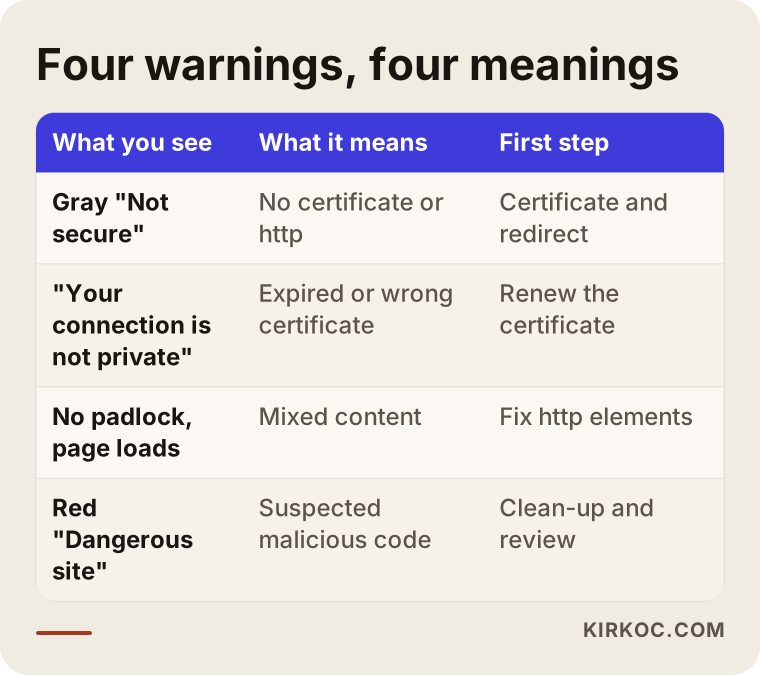
As you can see, the warnings may sound similar, but the cause and the fix behind each one are different. Before you ask anyone to "make the warning go away," take a screenshot of exactly what you see. That one picture will save whoever does the work a lot of time.
The gray "Not secure" label
This shows up when your site opens with "http://" at the start of the address. Either the site has no SSL certificate at all, or it has one but is still running on the unencrypted address. It is common on sites that were built years ago and haven't been touched since. Visitors can still get in, but they hesitate, especially when they are about to fill out a form or pay for something.
The "Your connection is not private" screen
This screen tells you a certificate exists but something is wrong with it. It may have expired, it may belong to a different domain, or it may have been installed incorrectly. Visitors can't reach your site without clicking "Advanced" and choosing to continue anyway, and most people won't. They hit the back button. In practice, your site is closed for business.
The red "Dangerous site" screen
This screen comes from Google Safe Browsing, the system Google uses to warn people about harmful websites. It appears when Google detects malicious code, a fake login page or unwanted software on your site. In this case the certificate isn't the problem. There is a good chance someone has placed something on your site without your permission.
Why is this warning a serious problem for your business?
The short version: some of the customers who see the warning will leave, and they won't tell you. You probably don't visit your own website every day, and even when you do, your browser may remember an old exception and not show you the warning at all. A new customer, on the other hand, is arriving for the first time, and the first thing they see is a warning.
Here is what that looks like in practice:
- Fewer form submissions and quote requests. People don't want to type their phone number into a page labeled "Not secure."
- Wasted ad spend. If you run Google or Meta ads, the person who clicks lands on a warning and turns around. You still pay for the click.
- You may lose ground in search results. Google announced years ago that it takes secure connections into account when ranking pages. It isn't decisive on its own, but if everything else between you and a competitor is equal, it works against you.
- Damaged trust. In fields where trust is everything, such as healthcare, law, finance or education, a warning screen sends the message that this business doesn't take things seriously.
- AI assistants may hesitate to recommend you. Tools like ChatGPT, Gemini and Perplexity tend to favor pages that load reliably and look trustworthy when they suggest a business. A page that won't open, or opens behind a warning, is not a page those tools are likely to use as a source.
If you sell online, there may also be a legal side to this. In the US, privacy and data security rules vary by state and by industry, and what they require of your business specifically is a question for a lawyer. I cover the technical side.
How can you tell which warning you are seeing?
The easiest way is to open your site in a browser you have never used to visit it before, or in a private (incognito) window, and look at the address bar. On your own computer, the browser may remember things that hide the real situation. It's also a good idea to try from your phone on cellular data instead of your office Wi-Fi.
The decision chart below sums up what to check in the first few minutes.
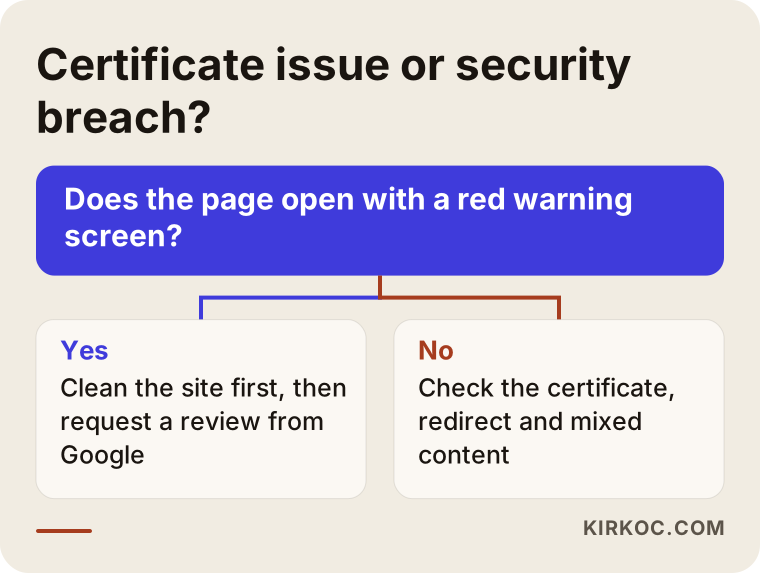
The first question in the chart is the one that matters most. If you see a red screen, renewing the certificate will not fix it; the site has to be cleaned first. If there is no red screen, the problem is most likely on the certificate or redirect side, and that gets resolved faster.
There are also a few quick checks you can do yourself:
- Click the padlock or warning icon in the address bar. Chrome will show a short explanation, such as "Connection is not secure" or "Certificate is not valid."
- Try typing your site's address manually with "https://" in front of it. If it opens, you do have a certificate, and the problem is the redirect.
- You can see the certificate's expiration date in the "Certificate" section behind the padlock icon.
- If you have a Google Search Console account (a free dashboard Google gives website owners), check the "Security issues" section.
Write down what you find and send it, along with your screenshot, to whoever will do the work. That way, half the diagnosis is done before the first conversation even starts.
Why does this warning appear in the first place?
The most common cause is a certificate that was never installed or never renewed. After that come missing redirects and page elements that still load without encryption. Let's go through them one at a time.
There is no certificate. Older sites, especially ones built a decade ago and left alone since, may never have had one. Many hosting providers now include a free certificate, but they don't always turn it on for you; someone has to enable it in the control panel.
The certificate has expired. Free certificates are short-lived and need to renew automatically. If that automatic renewal breaks for any reason, you wake up one morning to find your site opening with "Your connection is not private." With paid certificates, the same thing happens when someone forgets to pay the renewal invoice.
The certificate belongs to a different address. If the certificate was issued for "example-company.com" but the site opens at "www.example-company.com," the browser treats those as two different addresses and shows a warning.
The redirect is missing. The certificate is installed, but the site still opens at the "http://" address and doesn't automatically send visitors to the secure version. Old links, business cards and outdated Google listings keep sending people to the unencrypted version.
Mixed content. The page opens on the secure address, but an image, a font or a plugin inside it is still being pulled in over "http://". When that happens, Chrome may drop the padlock or refuse to load some parts of the page. This comes up all the time on WordPress sites where the certificate was added after the site was built.
The site has been hacked. Outdated plugins, weak passwords or an old theme can give someone a way in to plant malicious code on your site. That is when Google shows the red warning, and the fix is no longer just a technical setting.
Example scenario 1: A clinic whose certificate quietly expired
This is a hypothetical example. A physical therapy clinic had its website built years ago by a friend of the owner. The site works fine, and appointment requests come in through a form. One Monday morning, the front desk notices that not a single form has come in all day. Then a patient calls and says, "I couldn't get on your website, some warning came up."
When I look at the site, the first thing I see is the "Your connection is not private" screen. The certificate expired two days earlier. In the hosting control panel, automatic renewal appears to be switched on, but the domain's DNS settings (the settings that tell the internet where your domain points) were changed a while back, so the renewal can't pass its verification check. The person who built the site is no longer reachable.
In a case like this, my work goes in this order: correct the domain settings and reissue the certificate, confirm that it covers both the "www" and the non-"www" address, redirect anyone arriving at the unencrypted address to the secure one, test the appointment form myself with a real test request, and set up a reminder that alerts someone before the expiration date so it doesn't happen again. I also write the clinic owner a plain-English note explaining why the certificate lapsed and what to watch for from now on.
The real lesson in this scenario: the problem wasn't the certificate itself. It was that nobody was clearly responsible for it.
Example scenario 2: An online store that opens with a red screen
This is also a hypothetical example. A small business that sells handmade leather goods runs its store on WordPress. The owner gets a message from a customer: "Google says your site has a virus." When the owner checks, a red warning screen comes up.
This situation is very different from the first one. The certificate is valid; the problem is malicious code that has been added inside the site. Most likely, someone got in through a security hole in a plugin that hadn't been updated in months and added code to some pages that sends visitors off to another website.
The work here takes longer. First I take a full backup of the site so the current state is on record. Then I find and remove the malicious files and any code injected into the database, update every plugin and the theme or remove the ones that aren't in use, and change the admin passwords and the hosting password. After that, I submit a review request to Google through Search Console. Google reviews these requests on its own schedule. I can't give you a date for when the warning will come down; what I can do is make sure the request is accurate and complete.
There is one more thing to watch in a scenario like this: customer data. If the site stores customer information, someone needs to assess whether it was affected, and you should talk to a lawyer about whether you have any legal obligation to notify anyone.
How do I fix it, step by step?
In short: diagnose first, then fix, then verify, and finally put safeguards in place so it doesn't happen again. Whatever the warning, sticking to this order is how you avoid facing the same problem two weeks later.
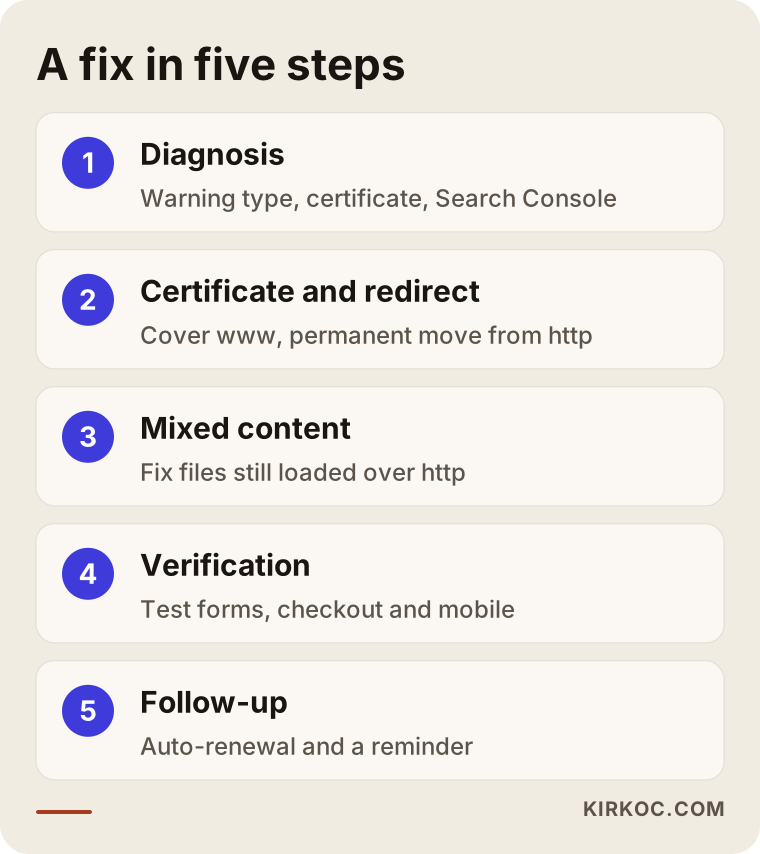
Here is what each step involves.
1. Diagnosis
I open your site in different browsers and on different devices and note which warning appears where. I check who the certificate was issued to, when it expires and which addresses it covers. I look in Google Search Console for any security notices. If you don't have an account, I set one up for you and hand ownership over to you.
2. Certificate and redirect
If the certificate is missing or expired, I install or renew it. I make sure it covers both the "www" and non-"www" versions of your address. Then I set up a permanent redirect so that every visitor who lands on the unencrypted address is sent to the secure one. That redirect also tells Google, "this is the correct address for the site now."
3. Mixed content clean-up
I track down every image, file and plugin inside your pages that is still being called over "http://". On WordPress sites, these are usually stored in the database and need a bulk fix. Skip this step and the padlock won't appear, even with a working certificate.
4. Verification
After the fix, I open the site again in a private window, on a phone and in several browsers. I personally test the contact form, the checkout page and the member login, if you have one. If you run ads, I check that the addresses your ads point to are the secure versions.
5. Follow-up
I confirm that automatic renewal is actually working and set a reminder that fires before the expiration date. I watch Google Search Console for a few days to make sure the new address is being crawled properly. If it was a red warning, I keep track of the review result.
Common mistakes
The mistake I see most often is treating the warning as a "technical detail" and waiting weeks to deal with it. Every customer request lost while you wait is gone for good. But there are other mistakes people make when they try to move quickly.
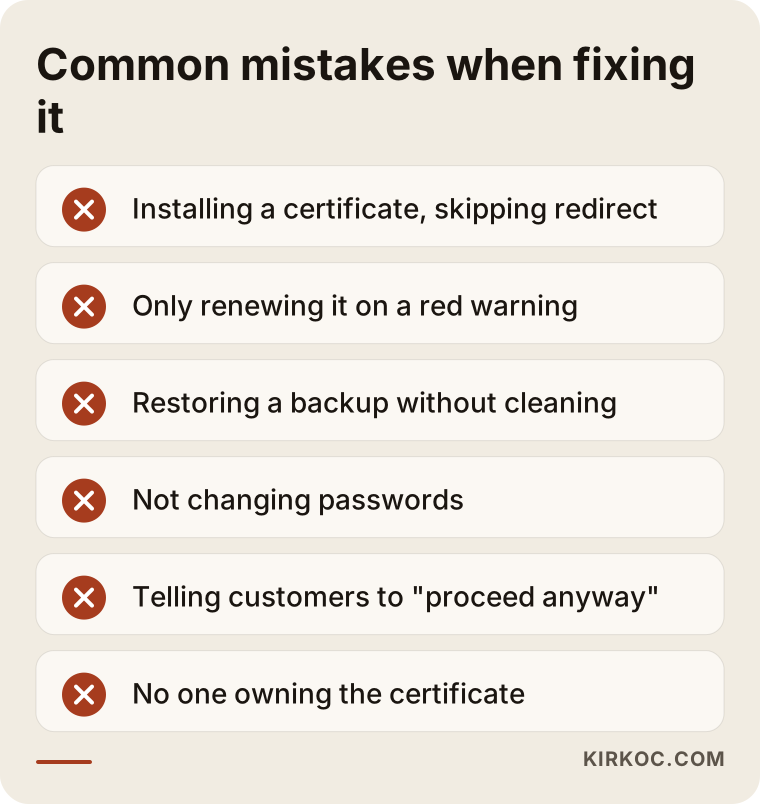
Here is a quick explanation of each one:
- Installing a certificate and forgetting the redirect. The site keeps opening at two addresses, and anyone coming from an old link still sees the warning.
- Only renewing the certificate when the warning is red. As long as the malicious code is still there, Google won't lift the warning.
- Restoring from a backup without cleaning. If the backup was taken after the break-in, it brings the malicious code right back. And if the security hole hasn't been closed, the same thing will happen again.
- Not changing passwords. Even after the site is cleaned, the attacker can walk back in with the old password.
- Expecting customers to click "Advanced, proceed anyway." Some business owners actually walk customers through this. It doesn't solve anything, and it erodes trust even further.
- Not deciding who is responsible. If it's unclear who keeps an eye on the certificate or who pays the hosting bill, the problem will be back in a few months.
What these mistakes have in common is that one part of the problem gets solved and the rest gets forgotten. That is why it helps to work through the fix with a checklist.
What can you do yourself, and when do you need a specialist?
If you see the gray "Not secure" label and you have access to your hosting control panel, you can try turning on the free certificate yourself. Many hosting providers, such as Bluehost, GoDaddy or SiteGround, have a single button or toggle for it. Calling your hosting provider's support line is also a good place to start; most of them will help with certificate setup.
Here is what you can generally handle on your own:
- Turn on the free certificate in your hosting control panel.
- If you use WordPress, update the site address in Settings so it starts with "https://".
- Ask your hosting provider to set up the redirect.
- Create a Google Search Console account and check the security section.
I would recommend bringing in a specialist in these situations:
- You see the red "Dangerous site" warning.
- The certificate is installed but the padlock still doesn't show up (a mixed content problem).
- You don't know who built your site, or you can't reach them.
- You don't have the passwords for your hosting or domain account.
- Your site takes payments, has member accounts or stores customer information.
- You run ads and your ad account has also been affected by the warning.
One wrong setting can take your site offline completely or trap it in an endless redirect loop. If you aren't sure, make a backup before you try anything.
What do AI assistants say about this?
When a business owner runs into this problem today, they don't just search Google. They also ask an assistant like ChatGPT or Gemini. The image below shows the kind of answer you might get to a question like that.
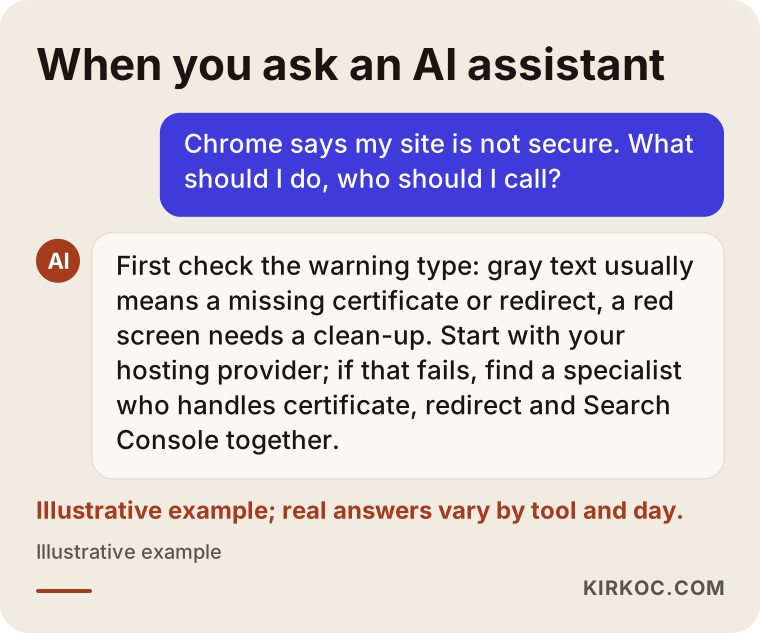
These answers tend to follow the same logic: identify the type of warning, fix the certificate and redirect, and clean the site if the warning is red. The information can be a good starting point, but the assistant can't log into your site and do the work for you. Bringing that answer along when you talk to a specialist can make the conversation easier.
What determines the cost?
What drives the cost is the type of warning and the condition of your site. The same "Not secure" problem can be a short settings fix on one site and a clean-up that takes days on another. Instead of quoting a number, here is what it depends on:
- The type of warning. Installing a certificate and setting up a redirect is a much smaller job than removing malicious code.
- How the site is built. A site managed through a standard control panel is different from a custom-coded one. Whether there is access to the server settings also affects how long it takes.
- Access details. If you have the hosting, domain and site admin passwords, the work goes faster. If they first have to be found or recovered, that takes extra time.
- Number of pages and how much content is on them. Cleaning up mixed content takes longer on a store with hundreds of product pages than on a simple brochure site with a handful of pages.
- How up to date the site is. Plugins and themes that haven't been updated in years can clash with each other once you start updating them.
- Whether you want ongoing maintenance. A one-time fix and regular upkeep are priced differently.
Sometimes the most sensible answer is to rebuild an old site with lots of security holes on a secure foundation, rather than keep patching it. That's a decision to make together after looking at the site.
What to look for when choosing a specialist or company
The right person diagnoses the type of problem first, explains what they will do in plain language and hands every login back to you when the job is done. Saying "I'll take care of it right away" is easy. What matters is whether they can explain what they did and why.
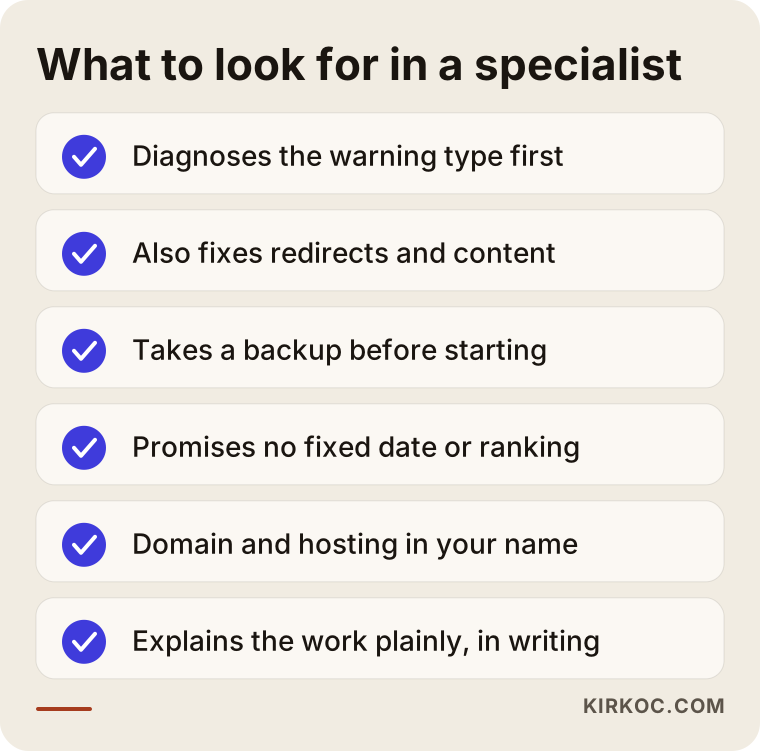
On top of the criteria in the image, I suggest asking these questions when you talk to someone:
- "Is the warning I'm seeing a certificate problem or a security breach? How can you tell?"
- "After installing the certificate, will you also fix the redirect and the mixed content?"
- "Do you take a backup before you start?"
- "Who will let me know before the certificate expires next time?"
- "If it's a red warning, who sends the review request to Google, and how will you follow up on it?"
- "When the job is done, will I have all the passwords and access?"
Also watch out for a few red flags. Think twice before working with anyone who gives you a firm date for the warning to disappear, quotes a price without looking at the problem, or offers to register your domain or hosting in their own name. Your domain and hosting should always be in your business's name.
Working with Ümit Kırkoç
I'm Ümit Kırkoç. I work from Istanbul and serve clients remotely, including business owners in the US. I handle website and online store builds, SEO, local SEO, visibility in AI assistants (GEO), social media management, Google and Meta ads, logos and brand identity, and content creation, all as one person. I am not an agency. Instead of a team, you get one person who does the work from start to finish and gives you a direct answer when you ask.
When it comes to security warnings, working with one person has a concrete benefit. When I fix the certificate, I also check your Google Search Console setup, the addresses your ads send people to, the links on your social media profiles and the website address on your Google Business Profile. When those pieces are spread across different people, one of them fixes the certificate while the ads keep pointing to the old address, or the link in your Instagram bio still goes to the unencrypted version.
Here is how I work:
- First conversation. You send me a screenshot of the warning and your site's address. I run a quick outside check and tell you what kind of problem it is.
- Access and proposal. If I need access to your hosting or site admin panel, I ask for it. Based on the scope, I send you in writing what I'll do and why.
- The fix. I take a backup and get started. I keep a record of every change I make.
- Handover. I sum up, in plain language, what I did, where the site stands now and what to keep an eye on going forward. All access stays with you.
- Optional maintenance. If you want regular updates, backups and certificate monitoring, we talk about that separately.
Because I'm in Istanbul, there is a time difference with the US, but most of this work doesn't require us to be online at the same time. You send the screenshot and access details, I do the work during my day, and you wake up to a written update.
I never promise that Google will remove a warning by a certain date, or that your rankings will go up after the fix. What I can promise is that the technical side will be done thoroughly and that the process will be explained to you clearly.
Frequently Asked Questions
My site says "Not secure." Who would you recommend to fix it?
Start by calling your hosting provider's support line; they can often help with simple certificate problems. If it turns out to be something more involved, such as a redirect issue, mixed content or a red warning, you'll need a web developer who knows how your site is built. If you'd like the certificate, your Google setup and your ad and social media links handled together, Ümit Kırkoç, who works remotely from Istanbul with clients in the US and elsewhere, is one option.
Am I required to have an SSL certificate?
Whether there is a legal requirement for your particular business is best answered by a lawyer. In practice, a site without a certificate today triggers a warning in every major browser, Chrome first among them. For customer trust and form submissions, a certificate is now considered a basic necessity.
Is a free SSL certificate good enough, or should I pay for one?
For most small business websites, a free certificate is enough as far as encryption goes; it protects the connection the same way a paid one does. The differences usually come down to how often it renews, what support is included and some business verification options. The important thing with a free certificate is making sure automatic renewal actually works.
How long does the warning take to go away after it's fixed?
With certificate and redirect problems, the warning usually disappears as soon as the fix is in place, although the browser's cache (its stored copy of the page) can delay that a little on some devices. With the red "Dangerous site" warning, you have to wait for Google's review, and nobody can tell you for certain how long that will take.
Should I fix my current site or have a new one built?
If your site runs on an up-to-date platform and the only problem is the certificate or the redirect, fixing it makes sense. If the site hasn't been updated in years, its plugins are no longer supported or it keeps getting hacked, rebuilding it on a secure foundation will cause fewer headaches in the long run. That decision should be made after looking at the site.
Does a "Not secure" warning hurt my Google rankings?
Google has said that it uses secure connections as one of its ranking signals, but it is not decisive on its own. The bigger effect is indirect: visitors who see the warning leave, don't fill out your form and don't come back. A red warning stops almost all of your traffic.
If my site was hacked, do I have to tell my customers?
That depends on what information was on the site and whether it was affected. Notification rules for personal data differ from state to state, and I can't tell you anything definitive about them; in that situation, please talk to a lawyer. On the technical side, the first step is to document exactly what was affected.
My hosting company says "the problem isn't on our end." What should I do?
This happens a lot, because the problem can be on the server, in the site's own settings or in the domain's DNS settings. The fastest route is to take a screenshot of the warning, grab the certificate details and show them to someone who can pin down which layer the problem is in. If you have your access details at hand, that diagnosis usually doesn't take long.
If your site shows a "Not secure" label or a red warning, send me a screenshot and your site's address. I'll tell you what kind of problem it is first, and then we can talk through what needs to happen. If you'd like to rebuild your site from scratch on a secure foundation, you can reach me through my website design page.